User Manual

CleverStack Console

Learn how to set up and use CleverStack: manage your team, configure calling, WhatsApp and SMS, run campaigns and AI agents, and handle customer conversations.

Getting started

Sign in, find your way around the console, and learn the controls that appear on every screen.

Sign in

console.cleverstack.in/loginEveryone

Open console.cleverstack.in in Chrome, Edge or Firefox. Agents and administrators use the same sign-in page; what you see afterwards depends on your role and your organisation's plan.
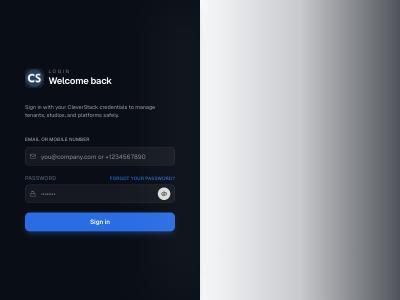
The sign-in screen
The sign-in screen
On this screen
Email or mobile number
The address or number your administrator registered for you.
Password
Use the eye icon to show what you typed.
Forgot your password?
Sends a reset link to your registered email.
How to
  1. Enter your email or mobile number.
  2. Enter your password.
  3. Click Sign in. You land on the Home screen.
Agents who take calls should allow microphone access when the browser asks. Without it the softphone cannot connect.
Home

HomeEveryone

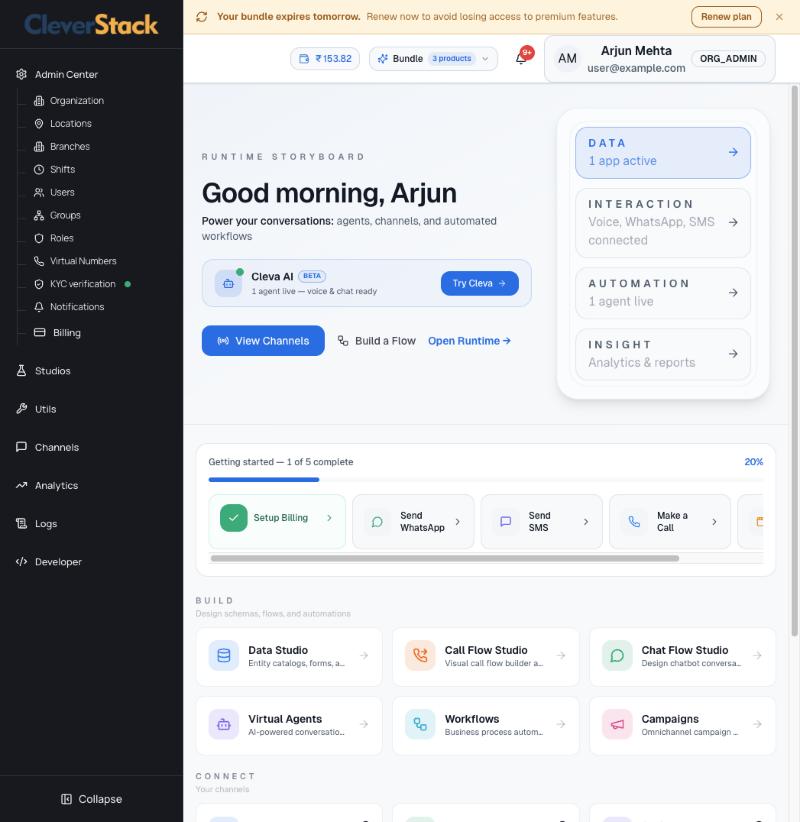
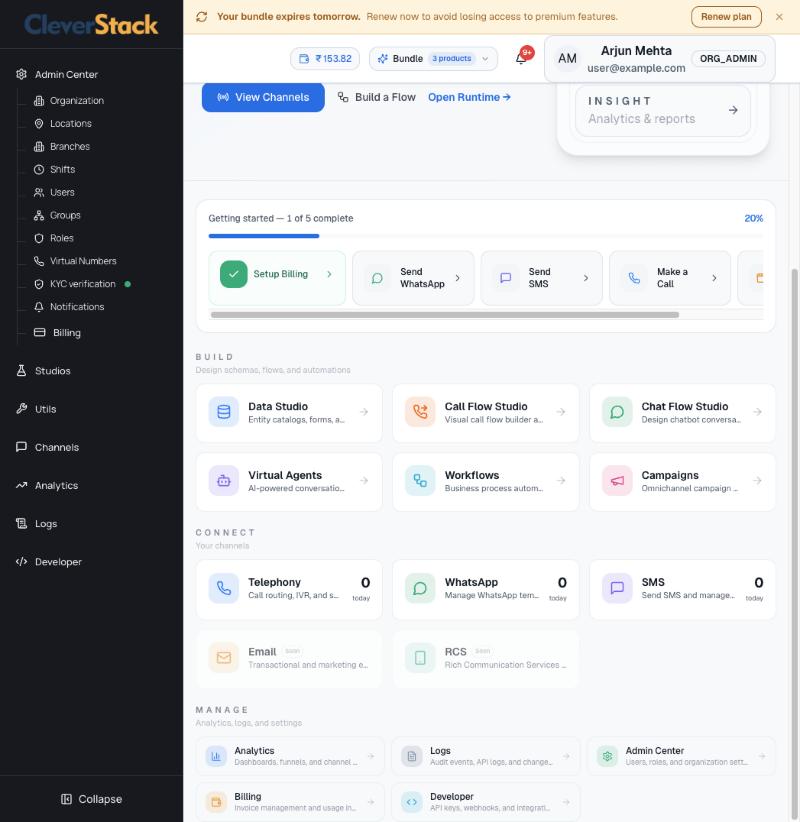
Home is your starting point. It shows how far your organisation has got with setup and gives one-click shortcuts to every part of the platform.

Home: greeting, Cleva AI card and the four-stage storyboard
Lower half: setup checklist and shortcuts to every area
On this screen
Runtime storyboard
Data, Interaction, Automation and Insight cards summarise what is live (for example “1 app active”, “1 agent live”). Click a card to jump to that area.
Cleva AI card
Shows how many AI agents are live. Try Cleva opens Virtual Agents.
View Channels / Build a Flow / Open Runtime
Shortcuts to Channels, Studios and the agent workspace (Flex).
Getting started
A five-step checklist: Setup Billing, Send WhatsApp, Send SMS, Make a Call, Create Application. The bar shows percent complete.
Build, Connect, Manage
Tiles for every module. Connect tiles show today's message or call count per channel. Tiles marked Soon are not available yet.

Top bar and sidebar

Every screenEveryone

The left sidebar and the top bar stay the same on every screen.

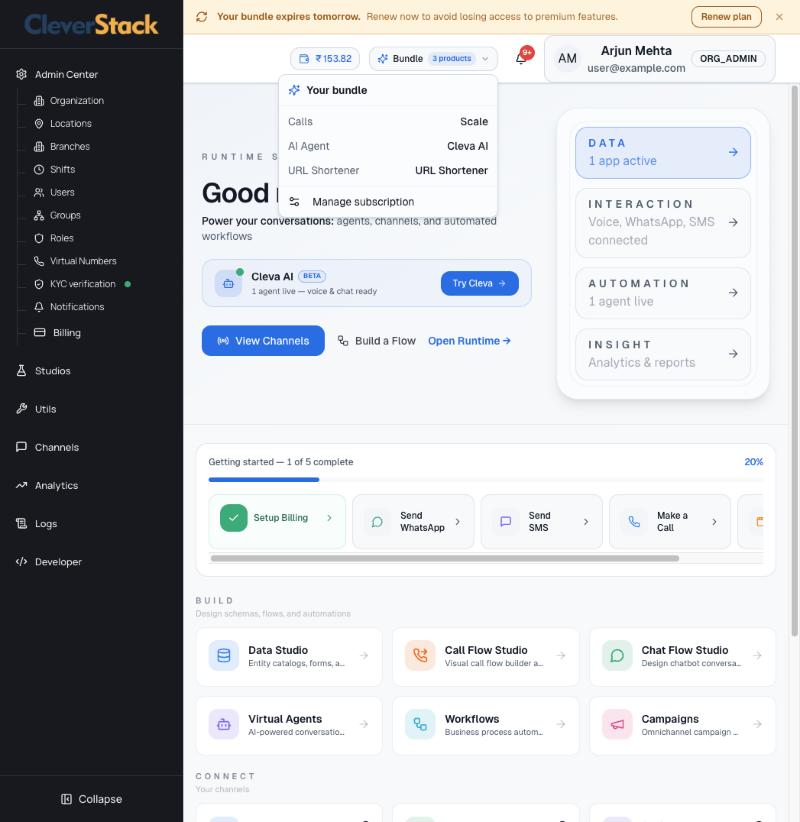
Bundle menu: the products on your subscription
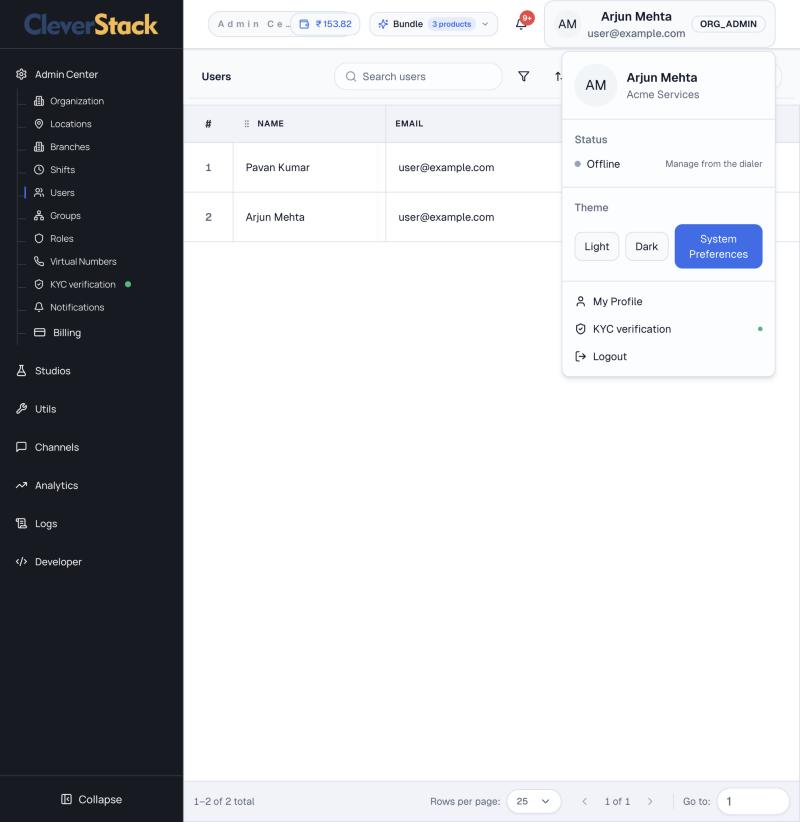
Profile menu
Profile menu
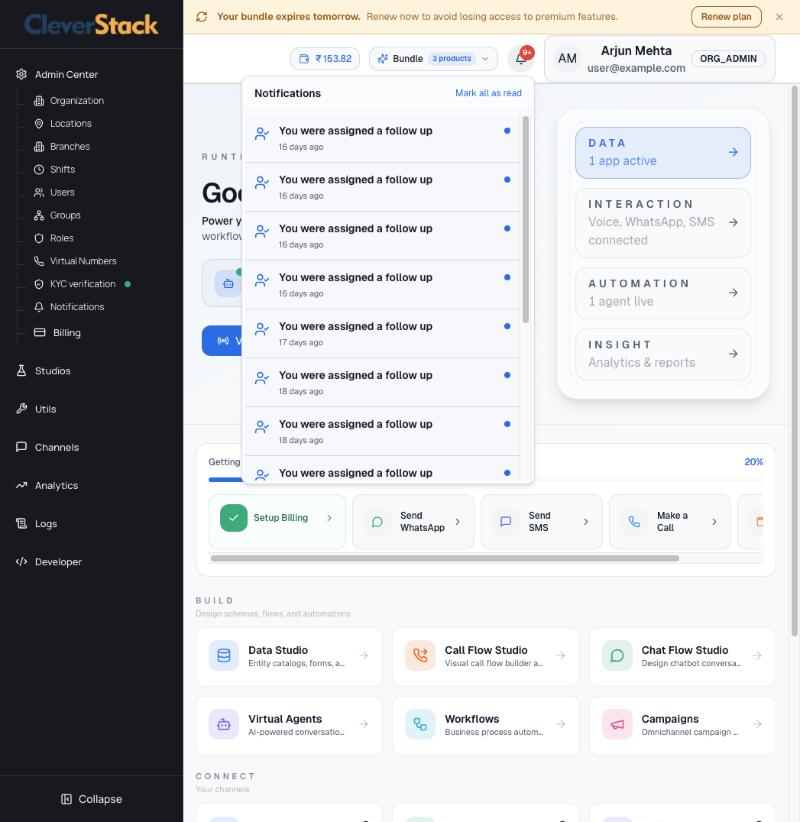
Notifications panel
Notifications panel
On this screen
Sidebar
Admin Center, Studios, Utils, Channels, Analytics, Logs and Developer. Click a heading to expand it. A lock icon means the feature is not included in your plan; opening it shows which plan unlocks it. Collapse at the bottom hides the labels.
Renewal banner
Appears when your subscription is about to expire. Renew plan takes you to Billing.
Wallet chip (₹)
Your prepaid wallet balance. Click it to recharge.
Bundle
Lists each product on your subscription with a link to Manage subscription.
Bell
Notifications such as “You were assigned a follow up” or “You were assigned a ticket”. Mark all as read clears the badge.
Profile
Your name, organisation and role badge. The menu shows your agent status, the theme switch (Light, Dark, System), My Profile, KYC verification and Logout.
Every list screen shares the same toolbar: search, filter, sort, export, refresh, and pagination at the bottom with a rows-per-page selector and a Go to box.

Admin Center

Set up your organisation: people, roles, branches, phone numbers, compliance documents and account security. Most of these screens need the Admin or Owner role.

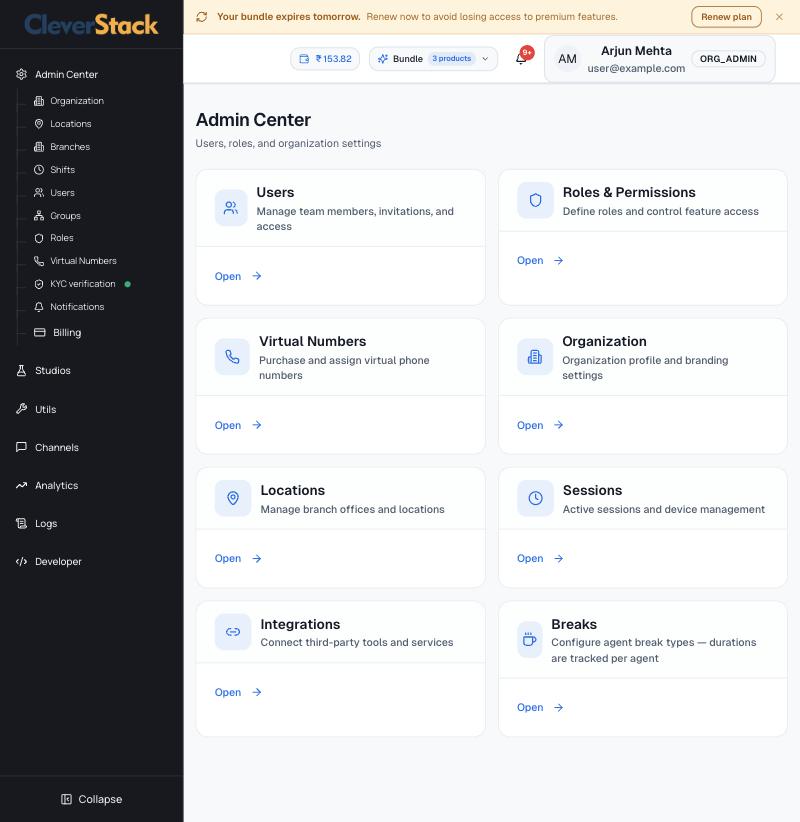
Admin Center overview

Admin CenterAdmin

A tile for each administration area: Users, Roles & Permissions, Virtual Numbers, Organization, Locations, Sessions, Integrations and Breaks. The same pages are listed under Admin Center in the sidebar.

Admin Center tiles
Admin Center tiles

Organization

Admin Center › OrganizationAdmin

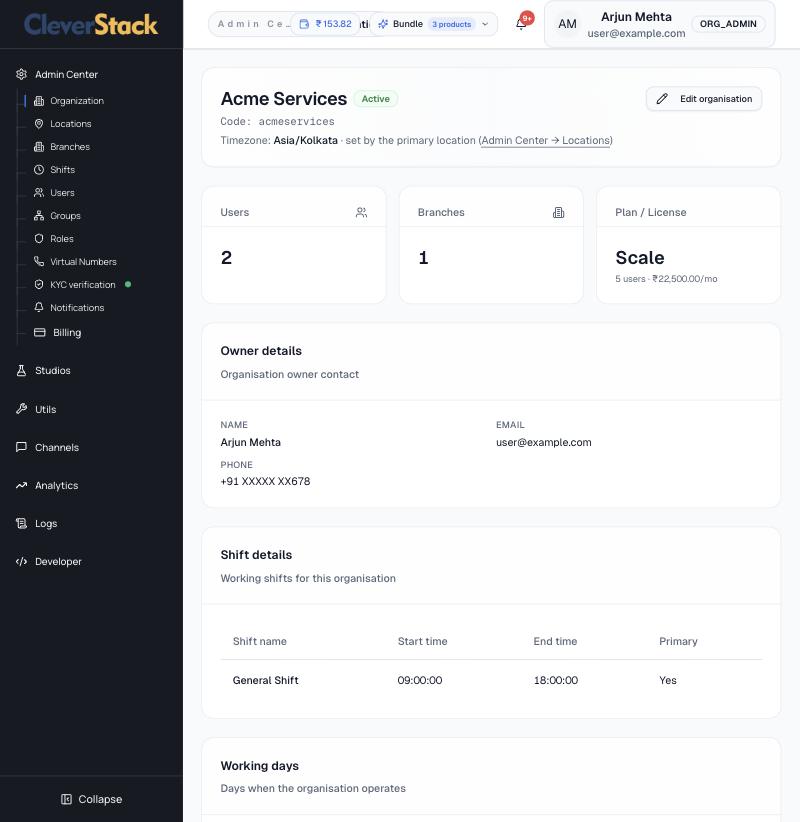
Your organisation's profile at a glance.

Organization profile
On this screen
Header
Organisation name, status (Active), organisation code and timezone. The timezone comes from your primary location.
Users / Branches / Plan
Head-count, number of branches, and your plan with seat count and monthly price.
Owner details
Name, email and phone of the account owner.
Shift details, Working days, Address
Your default shift hours, the days you operate and your registered address.
How to
  1. Click Edit organisation to change the name, address or working days.

Locations

Admin Center › LocationsAdmin

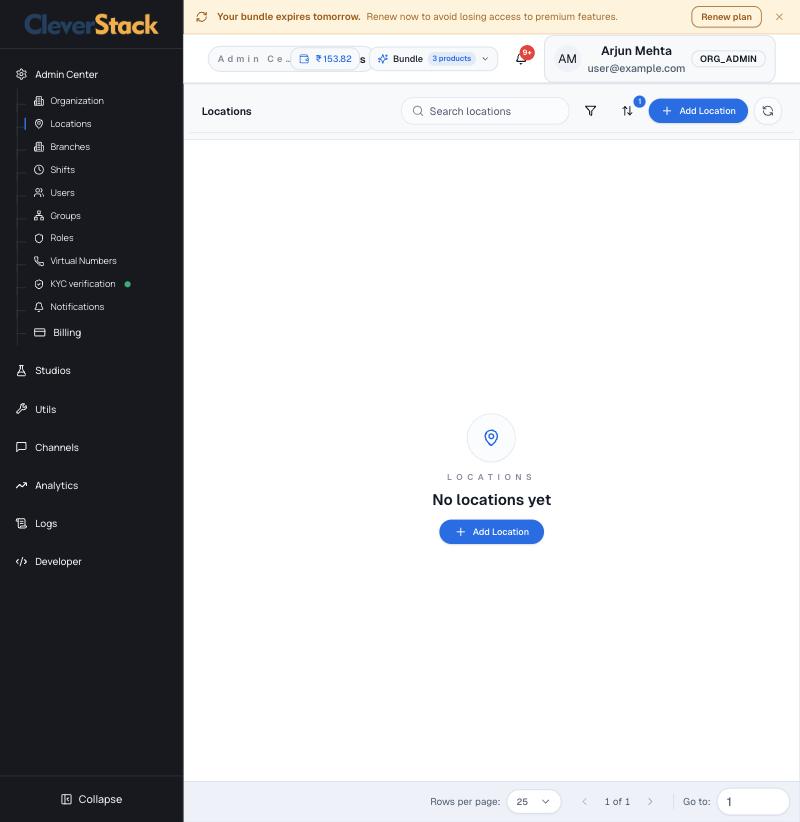
Physical offices. A location sets the timezone for the users and branches attached to it, which controls how times appear in reports.

Locations list
Locations list
How to
  1. Click Add Location.
  2. Enter the name, address and timezone.
  3. Save. Then attach the location to branches or users.

Branches

Admin Center › BranchesAdmin

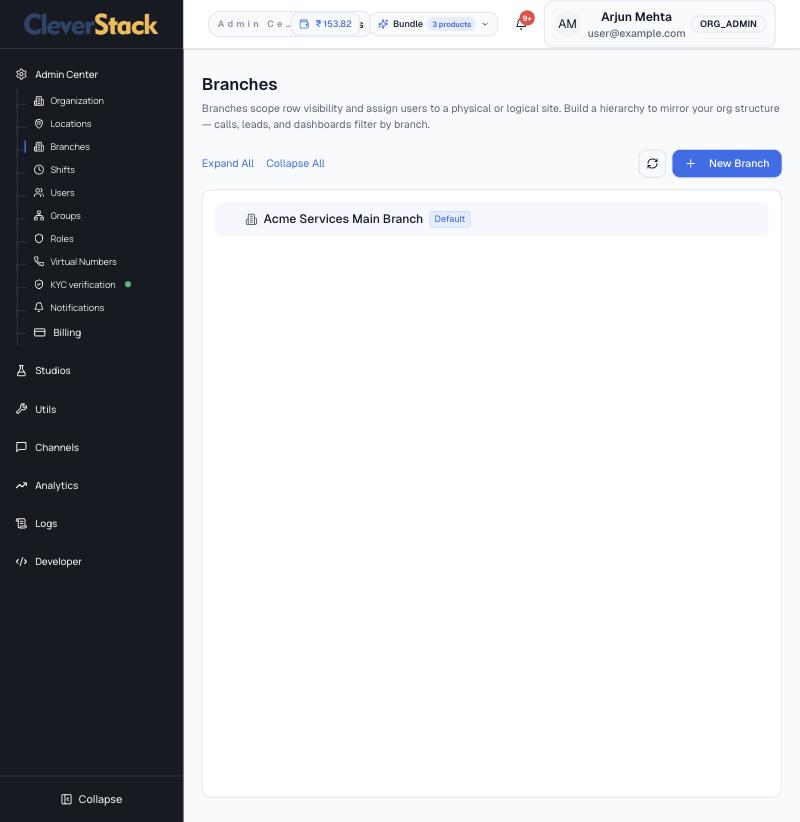
Branches decide who sees which records. Build a hierarchy that mirrors your organisation; calls, leads and dashboards can then be filtered by branch, and users only see data in their own branch scope.

Branch hierarchy
Branch hierarchy
On this screen
Default branch
Every organisation starts with one branch marked Default.
Expand All / Collapse All
Open or close the whole tree.
How to
  1. Click New Branch.
  2. Enter a name and choose the parent branch.
  3. Save, then assign users to it from the Users screen.

Shifts

Admin Center › ShiftsAdmin

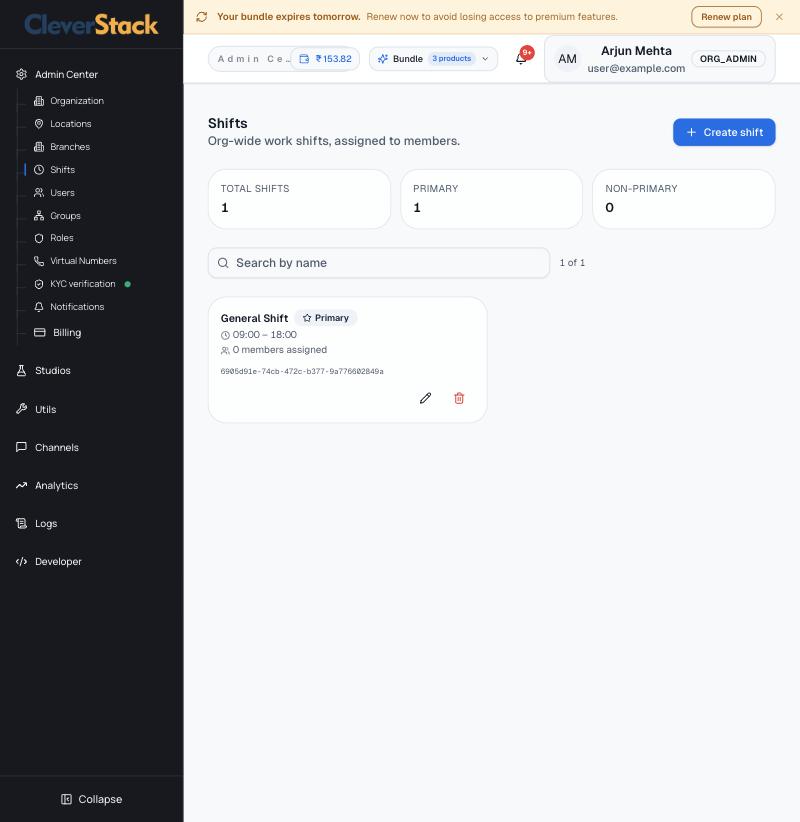
Working shifts that you assign to team members. The summary cards count total, primary and non-primary shifts.

Shifts
Shifts
On this screen
Shift card
Name, Primary badge, working hours and the number of members assigned. Use the pencil to edit or the bin to delete.
How to
  1. Click Create shift.
  2. Enter a name, start and end time, and mark it primary if it is your main shift.
  3. Save, then assign members.

Users

Admin Center › UsersAdmin

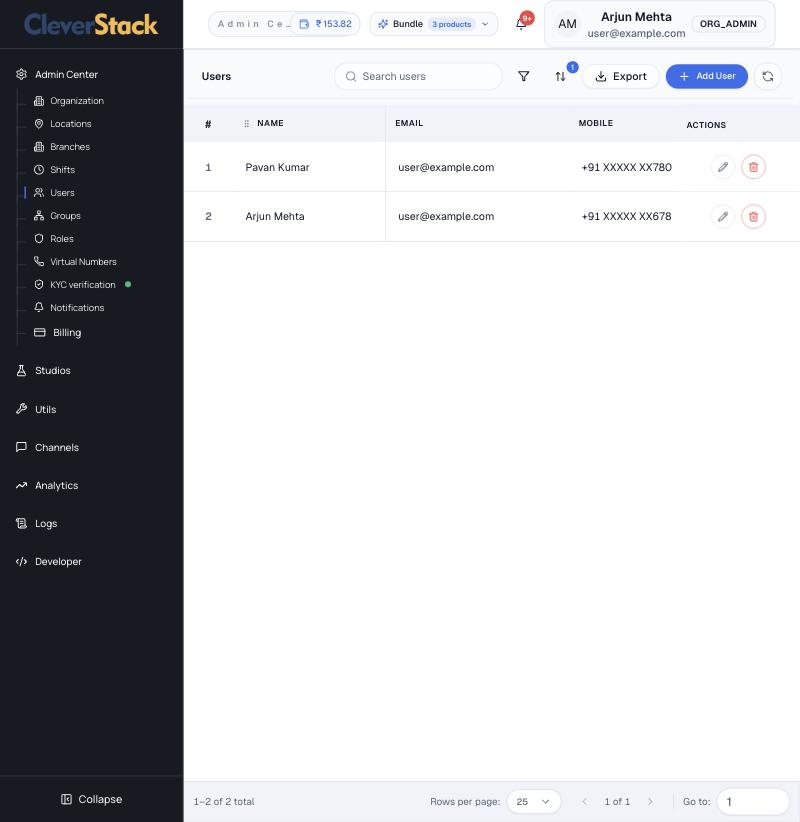
Add team members, give them a role and branch, and turn them into call-centre agents.

User list
User list
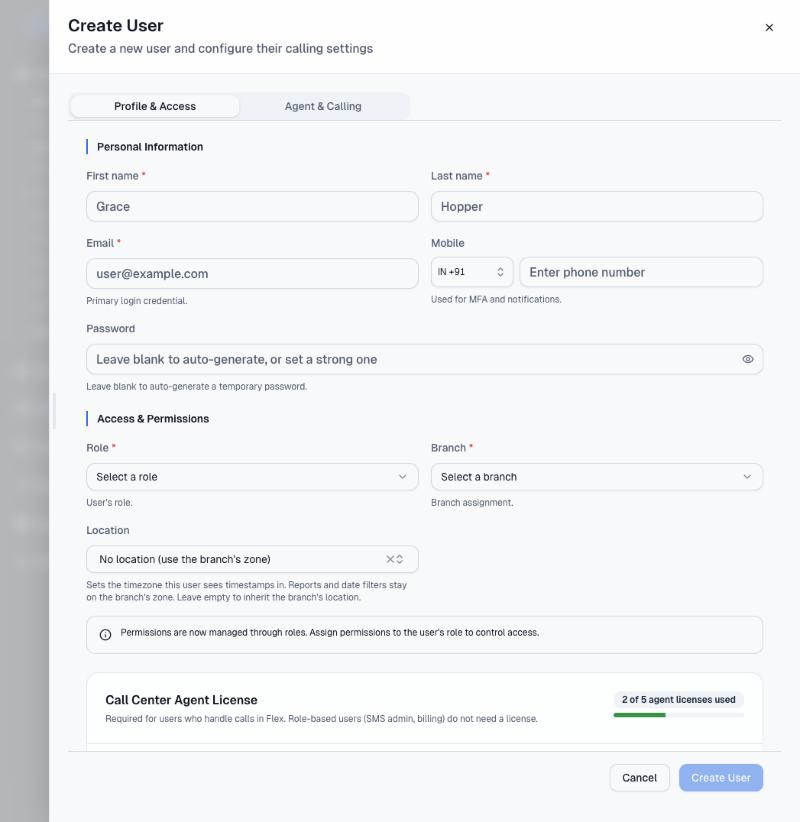
Create User: Profile & Access
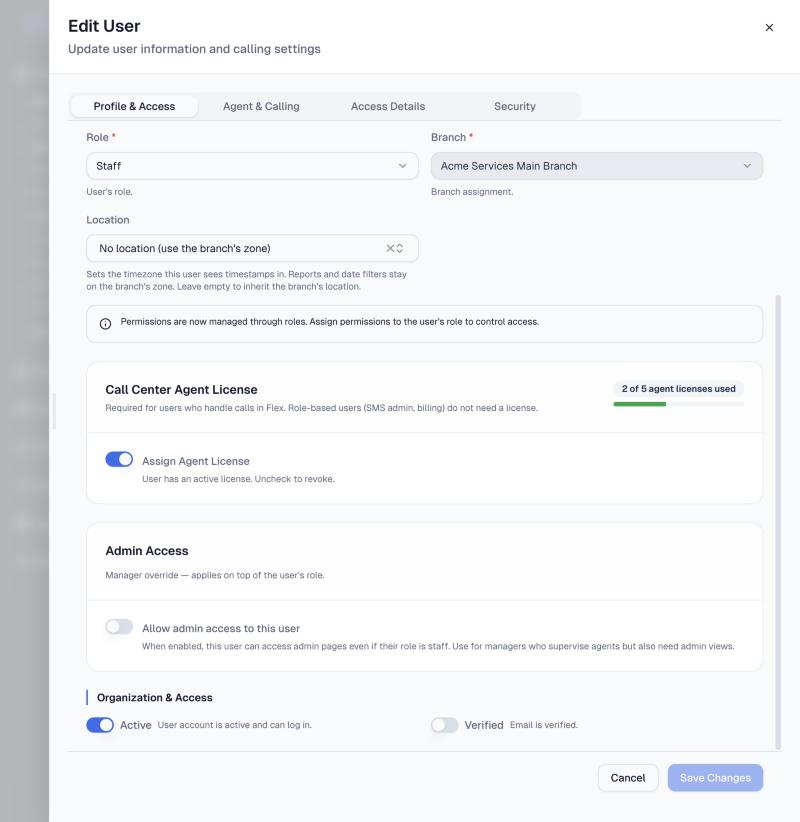
Agent licence, admin access and account status
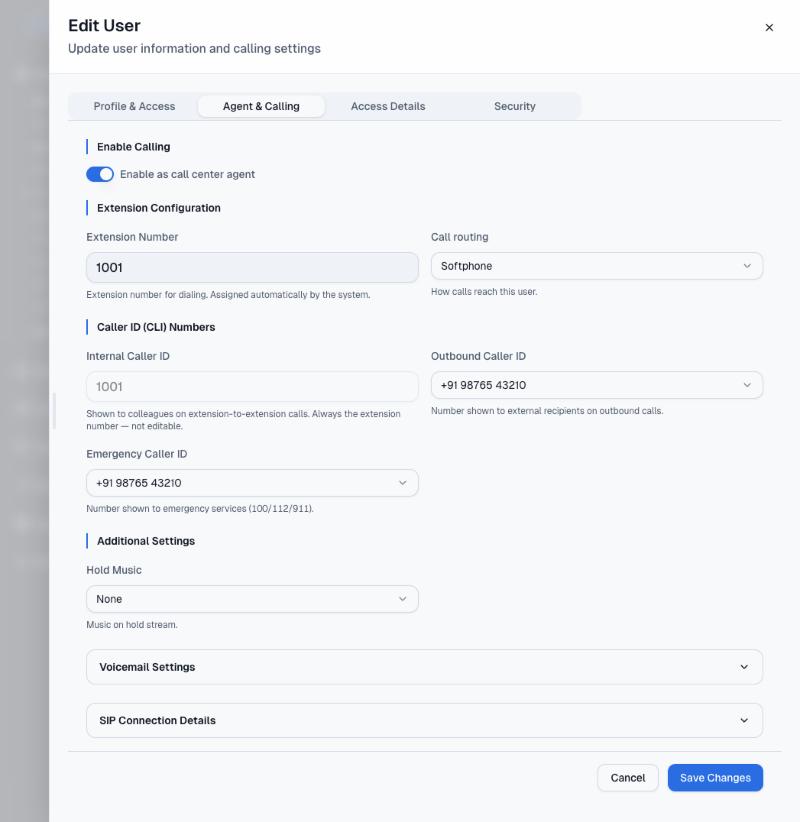
Agent & Calling: extension and caller IDs
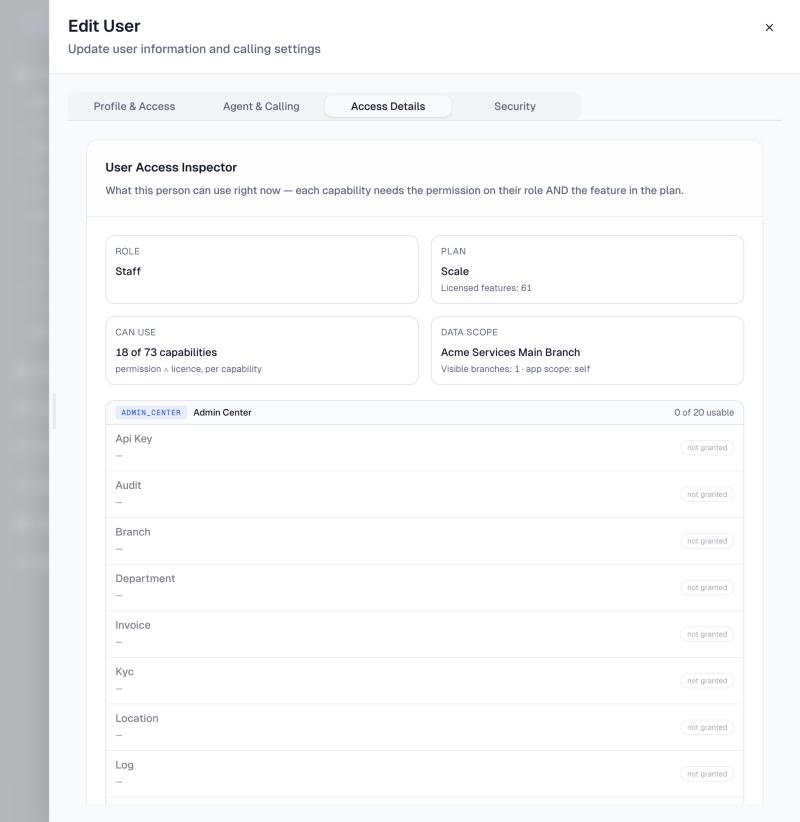
Access Details: what this person can use
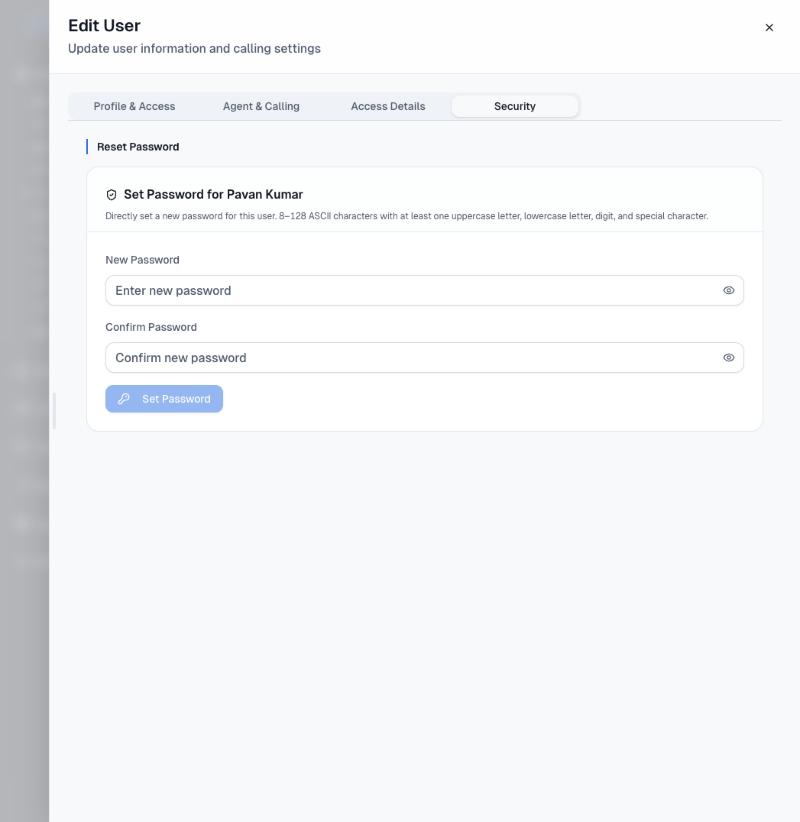
Security: set a password
On this screen
List columns
Name, Email, Mobile, Role, Branch, Verified, License, Status and Actions (edit, delete). Use Export to download the list.
Profile & Access
First and last name, email (the login), mobile (for MFA and notifications), password (leave blank to auto-generate), role, branch and location.
Call Center Agent License
Needed for anyone who handles calls in the agent workspace. The bar shows licences used out of your plan's total. People who only use admin, SMS or billing screens do not need one.
Admin Access
A manager override: lets a Staff user open admin pages without changing their role.
Organization & Access
Active lets the user sign in. Verified shows whether their email is confirmed.
Agent & Calling
Enable as call-centre agent, the auto-assigned extension number, call routing (for example Softphone), outbound and emergency caller IDs, hold music, plus Voicemail, SIP connection and Call forwarding sections.
Access Details
A read-only inspector: role, plan, how many capabilities the person can use, and their data scope. A capability works only when the role grants the permission and the plan includes the feature.
Security
Set a new password for the user (8 to 128 characters with upper case, lower case, a digit and a symbol).
How to
  1. Click Add User.
  2. Fill in name, email and mobile. Pick a role and a branch.
  3. If the person will take calls, switch on Assign Agent License.
  4. Open Agent & Calling, switch on Enable as call center agent and choose the outbound caller ID.
  5. Click Create User and share the sign-in details with the user.
You cannot enable calling until the agent licence is assigned on the Profile & Access tab.

Groups

Admin Center › GroupsAdmin

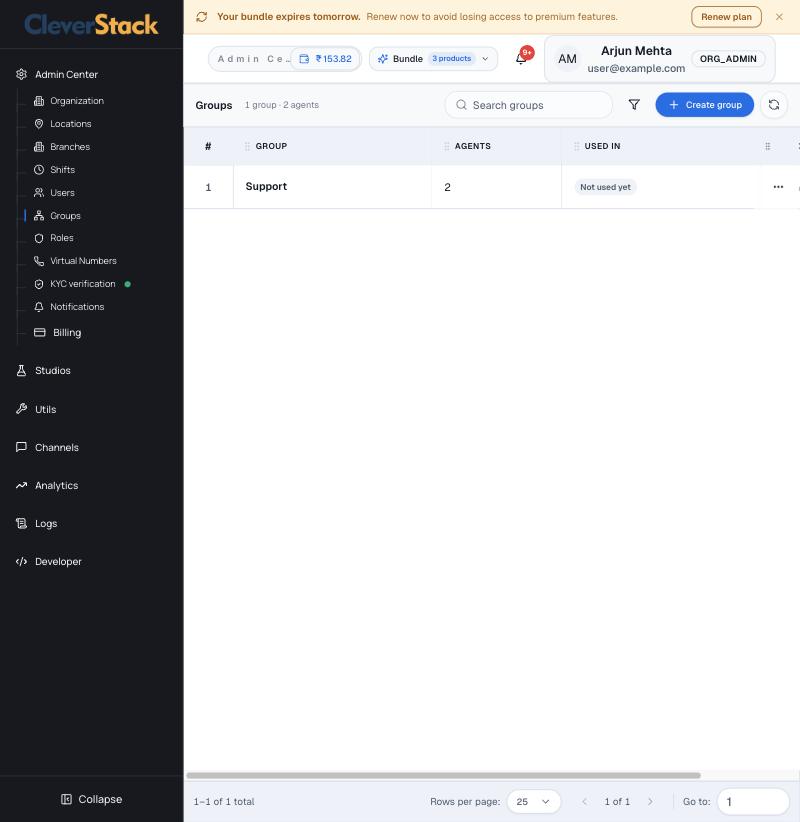
Named sets of agents (for example Support). Add a group to a queue and every member of the group takes calls from that queue.

Agent groups
Agent groups
On this screen
Columns
Group, Agents (count), Used in (queues that reference it) and Updated.
How to
  1. Click Create group, name it and pick the agents.
  2. Add the group to a queue from Channels › Telephony › Queues.

Roles and permissions

Admin Center › RolesAdmin

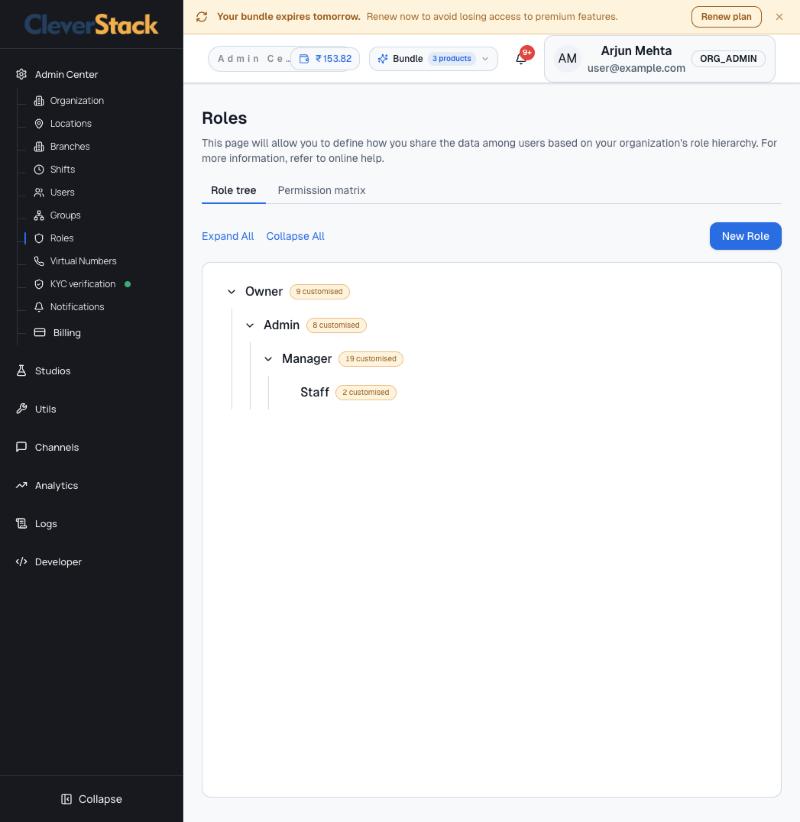
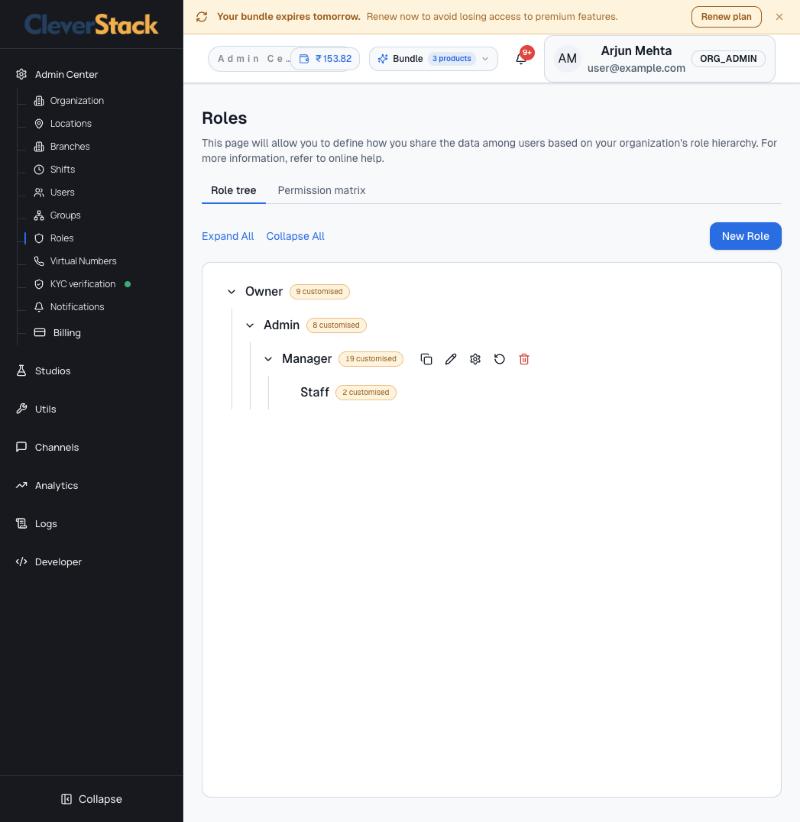
Roles control what each person may do. They form a hierarchy: Owner, Admin, Manager, Staff. A badge shows how many permissions you have customised away from the defaults.

Role tree
Role tree
Actions that appear when you hover a role
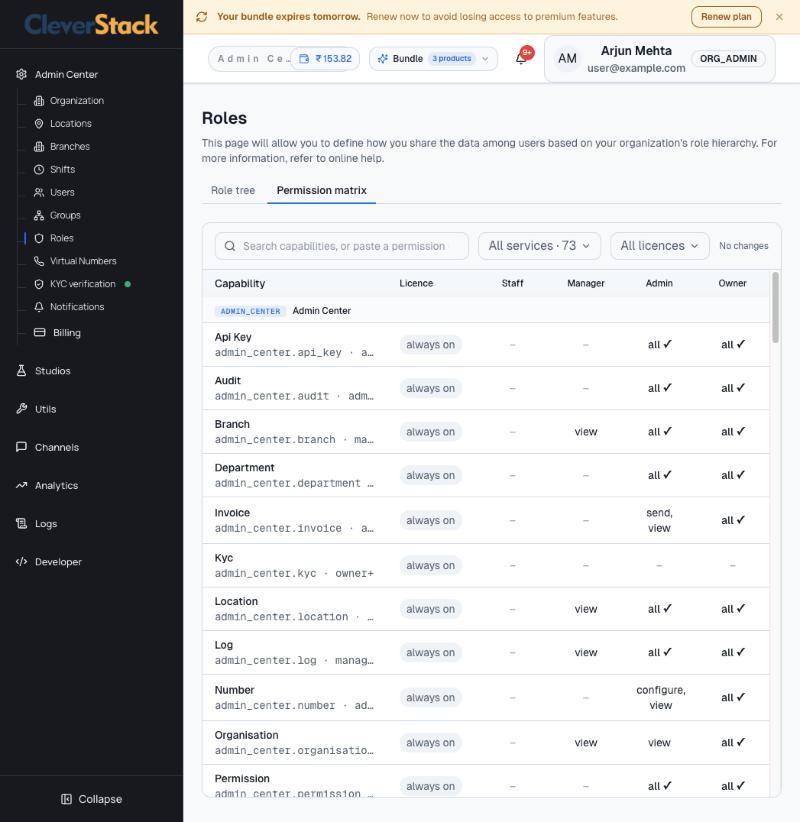
Permission matrix across all roles
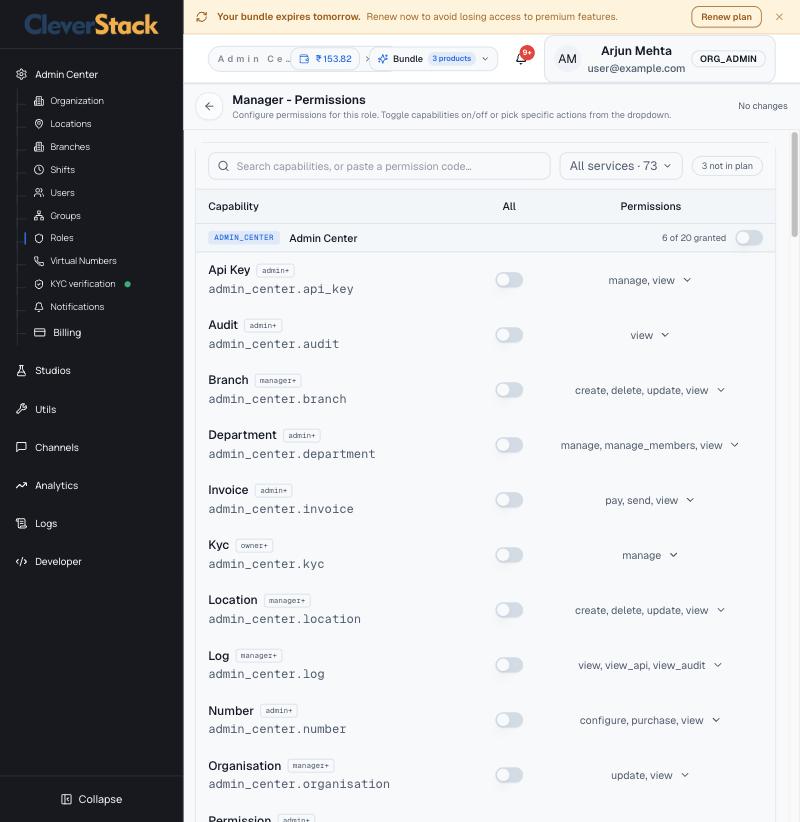
Editing one role's permissions
On this screen
Role tree
Hover a role to duplicate it, rename it, edit its permissions (gear icon), reset it to defaults, or delete it. New Role adds a role.
Permission matrix
Every capability in one table with what each role can do (for example view, send, configure, or all). Filter by service or licence, or paste a permission code to find it.
Role editor
Grouped by service (Admin Center, Application and so on). Each capability shows the lowest tier it suits (staff+, manager+, admin+, owner+), an All switch, and a dropdown to pick individual actions. A chip shows capabilities that are not in your plan.
How to
  1. Hover the role and click the gear icon.
  2. Switch capabilities on or pick specific actions.
  3. Save. Users with that role get the change on their next page load.
Granting a permission does not unlock a feature your plan doesn't include.

Virtual numbers

Admin Center › Virtual NumbersAdmin

The phone numbers (DIDs) your organisation calls from and receives calls on.

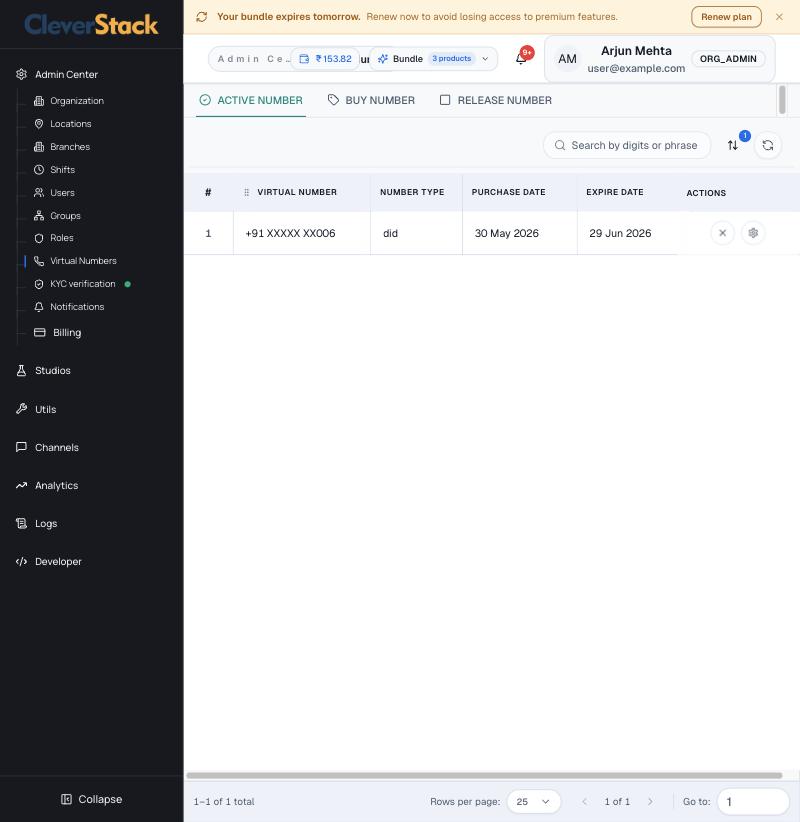
Active numbers
Active numbers
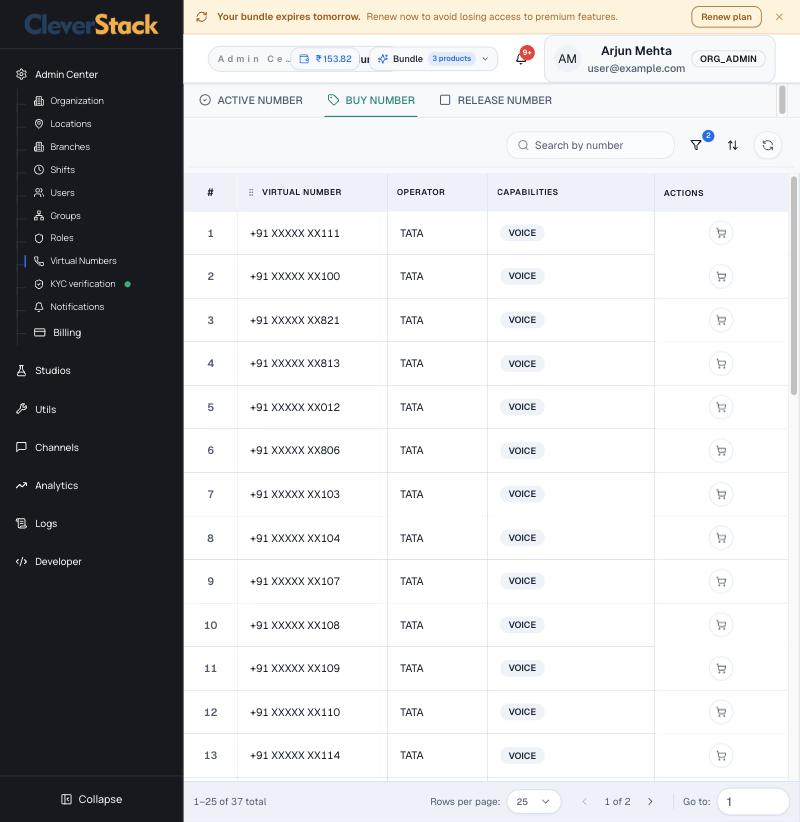
Buy Number: available inventory
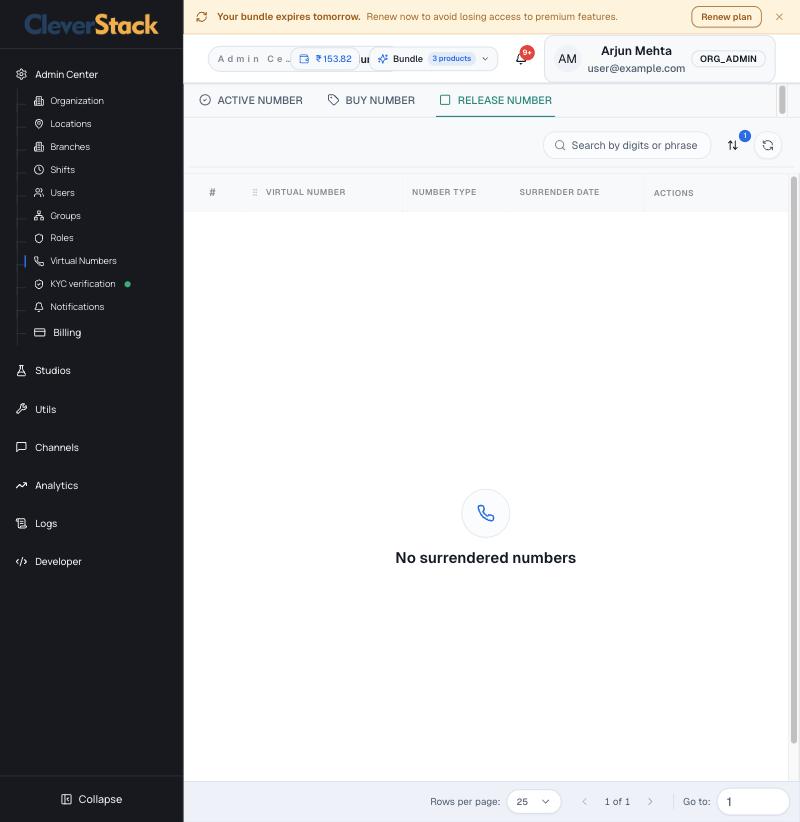
Release Number: surrendered numbers
On this screen
Active Number
Your numbers with type, purchase date and expiry date. The ✕ icon releases a number; the gear opens its settings.
Buy Number
Numbers available to buy, with operator and capabilities (for example Voice). Search by digits or a phrase, then click the cart icon.
Release Number
Numbers you have surrendered and when.
How to
  1. Open Buy Number.
  2. Search for the digits you want.
  3. Click the cart icon and confirm. The number appears under Active Number and gets a default call flow that rings the owner.
Releasing your last number stops calling for the organisation.

KYC verification

Admin Center › KYC verificationOwner

Indian telecom rules require business KYC before numbers and messaging go live. This screen shows your status and the documents on file. The dot next to the menu item shows the status.

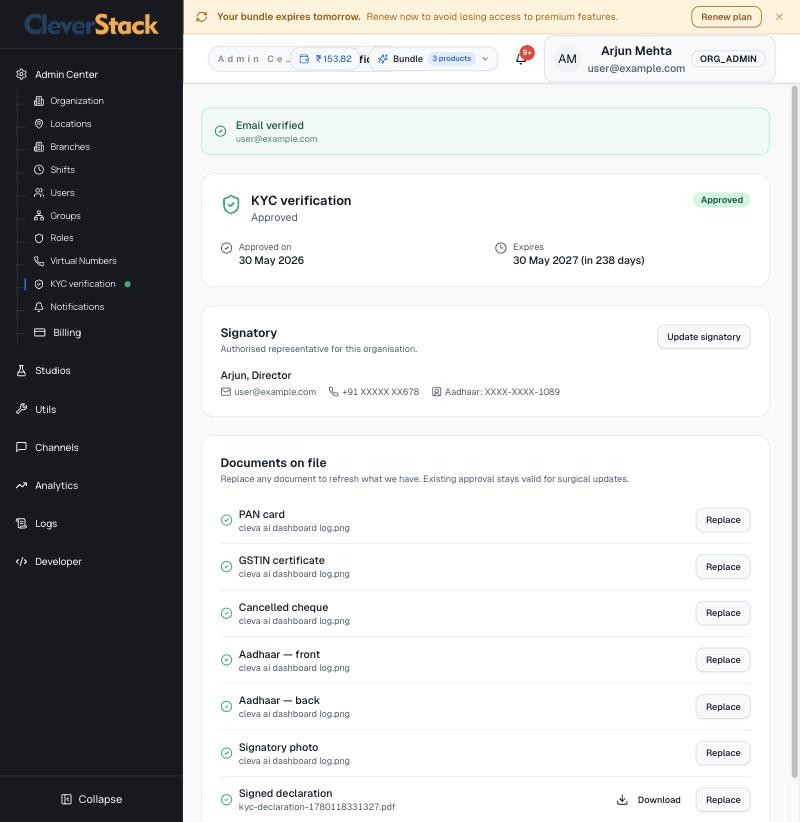
KYC status and documents
On this screen
Status
Approved, pending or rejected, with the approval and expiry dates.
Signatory
The authorised representative. Update signatory changes them.
Documents on file
PAN card, GSTIN certificate, cancelled cheque, Aadhaar front and back, signatory photo and signed declaration. Replace uploads a new copy; an approved status stays valid.

Notification settings

Admin Center › NotificationsAdmin

Choose where billing reminders go.

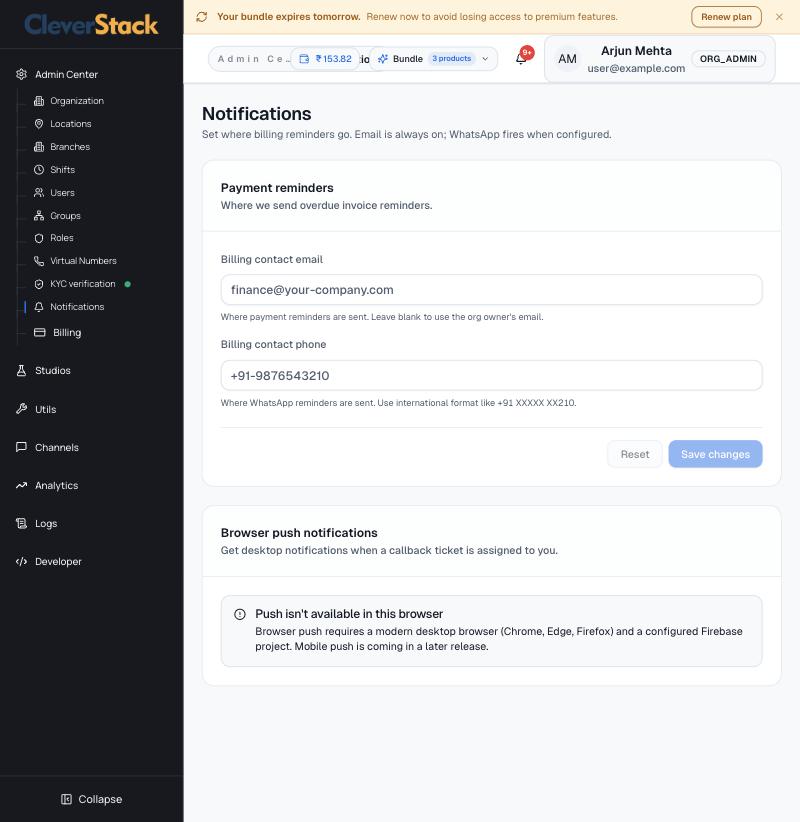
Payment reminder contacts
On this screen
Billing contact email
Receives overdue-invoice reminders. Leave blank to use the owner's email.
Billing contact phone
Receives WhatsApp reminders. Use international format, for example +91 98765 43210.
Browser push notifications
Desktop alerts when a callback ticket is assigned to you (Chrome, Edge or Firefox).

Sessions

Admin Center › SessionsEveryone

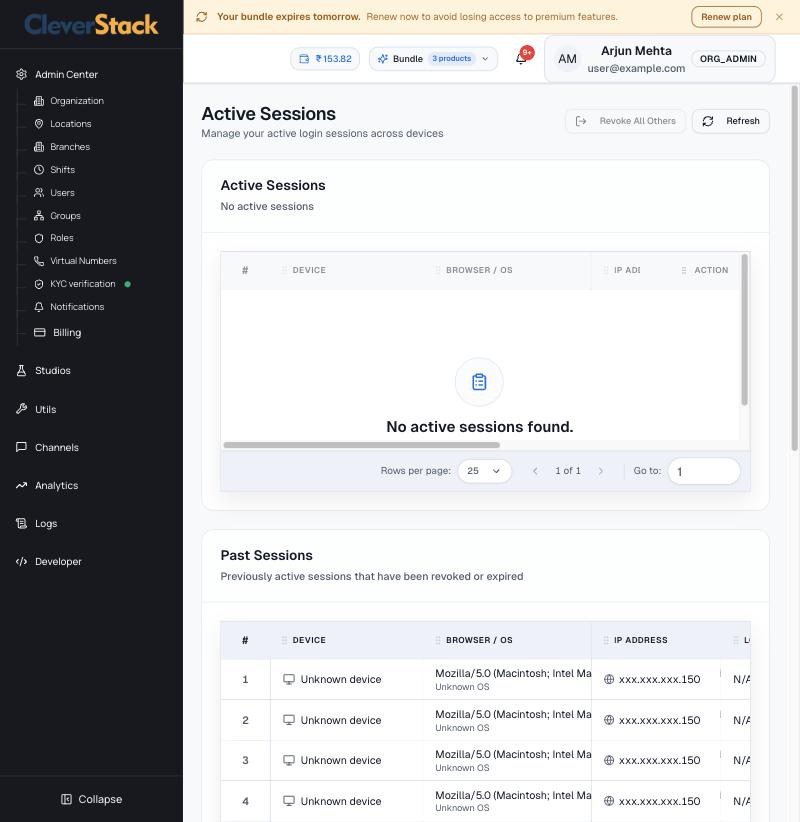
See where your account is signed in. Revoke any session you don't recognise, or click Revoke All Others to sign out every device except this one.

Active and past sessions

Integrations

Admin Center › IntegrationsAdmin

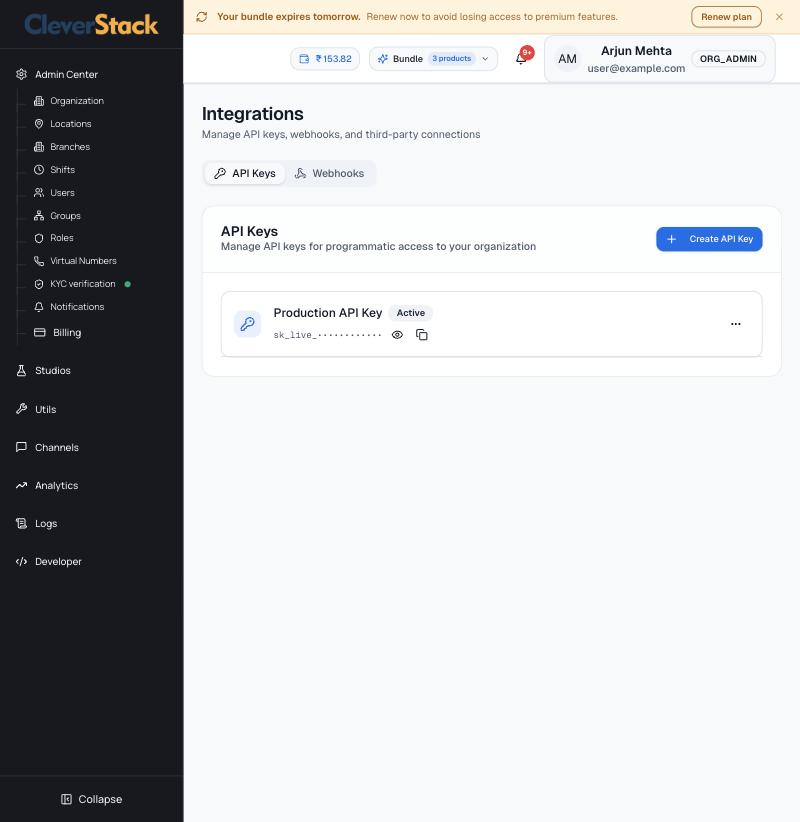
Create API keys for programmatic access and manage webhooks. Keys are masked; use the eye icon to reveal and the copy icon to copy. See also Developer › API Settings.

API keys
API keys
Treat an API key like a password. Delete and recreate it if it is exposed.

Breaks and agent SLAs

Admin Center › BreaksAdmin

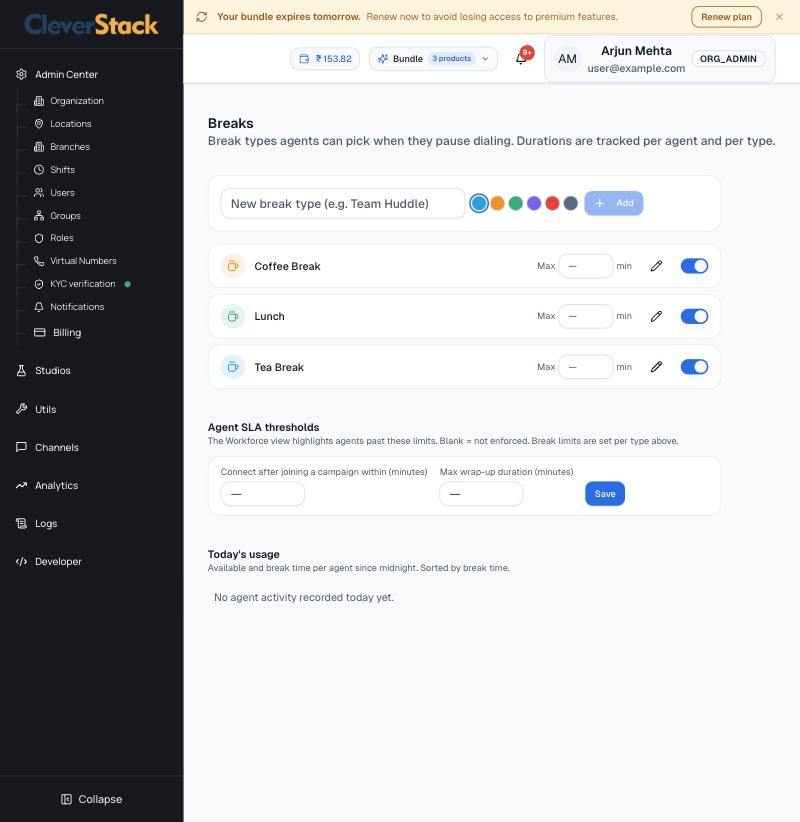
The break reasons agents choose when they pause, and the limits supervisors are alerted to.

Break types and SLA thresholds
On this screen
Break types
Name, colour, maximum minutes and an on/off switch. Coffee Break, Lunch and Tea Break are provided.
Agent SLA thresholds
How soon an agent must connect after joining a campaign, and the longest allowed wrap-up. Agents past these limits are highlighted in Workforce. Blank means not enforced.
Today's usage
Available and break time per agent since midnight.
How to
  1. Type a break name, pick a colour and click Add.

Billing

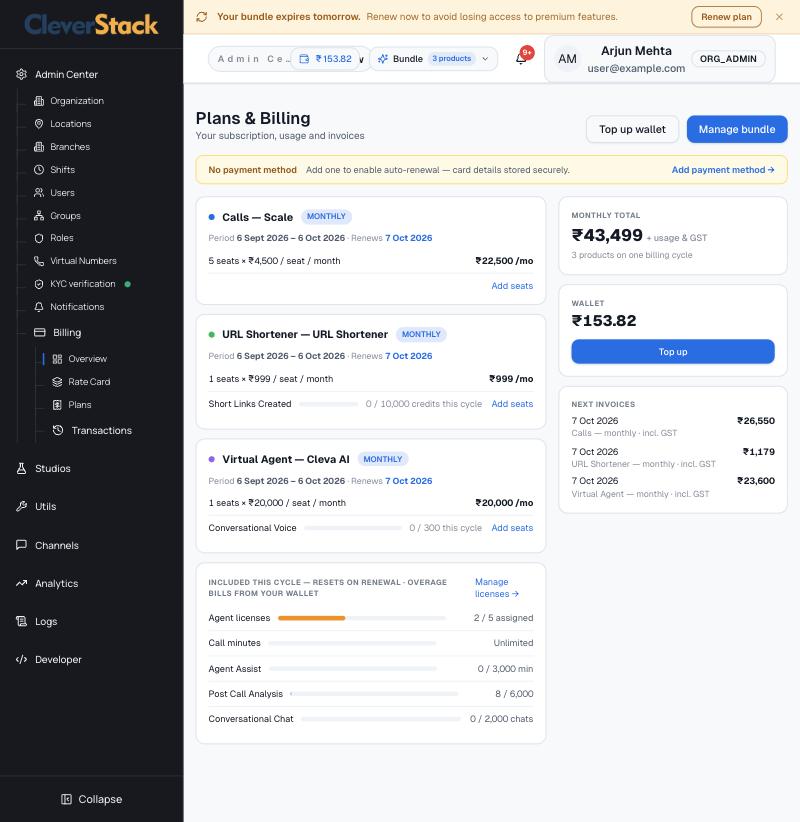
Your subscription, wallet, invoices and usage. Plans are charged per cycle; usage beyond what's included is drawn from your prepaid wallet.

Plans & Billing overview

Admin Center › Billing › OverviewAdmin

Everything about what you pay, on one screen.

Subscription, wallet and next invoices
On this screen
Product cards
One per subscribed product (calling, URL Shortener, Virtual Agent and so on) with the billing period, renewal date, seats × price and monthly amount. Add seats buys more.
Included this cycle
Allowances that reset on renewal: agent licences assigned, call minutes, Agent Assist minutes, Post Call Analysis, conversational chats. Manage licenses opens Users.
Monthly total
Subscription total before usage and GST.
Wallet
Prepaid balance used for overage, broadcasts and AI usage. Top up adds money.
Next invoices
Upcoming invoice dates and amounts including GST.
Payment method banner
Add a card to enable auto-renewal.

Recharge the wallet

Billing › Top up walletAdmin

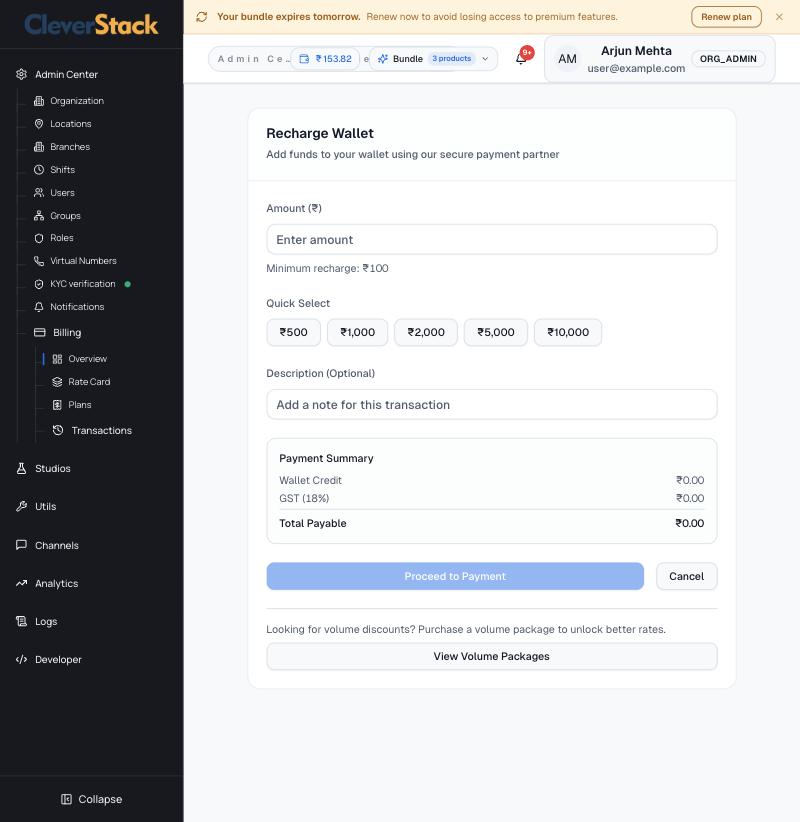
Add money to your prepaid wallet.

Recharge Wallet
Recharge Wallet
On this screen
Payment summary
Wallet credit plus 18% GST gives the total payable.
How to
  1. Enter an amount (minimum ₹100) or pick a quick amount.
  2. Add an optional note.
  3. Click Proceed to Payment and complete payment with our payment partner.
  4. The balance in the top bar updates when payment succeeds.
View Volume Packages shows bulk packs with lower unit rates.

Manage bundle

Billing › Manage bundleOwner

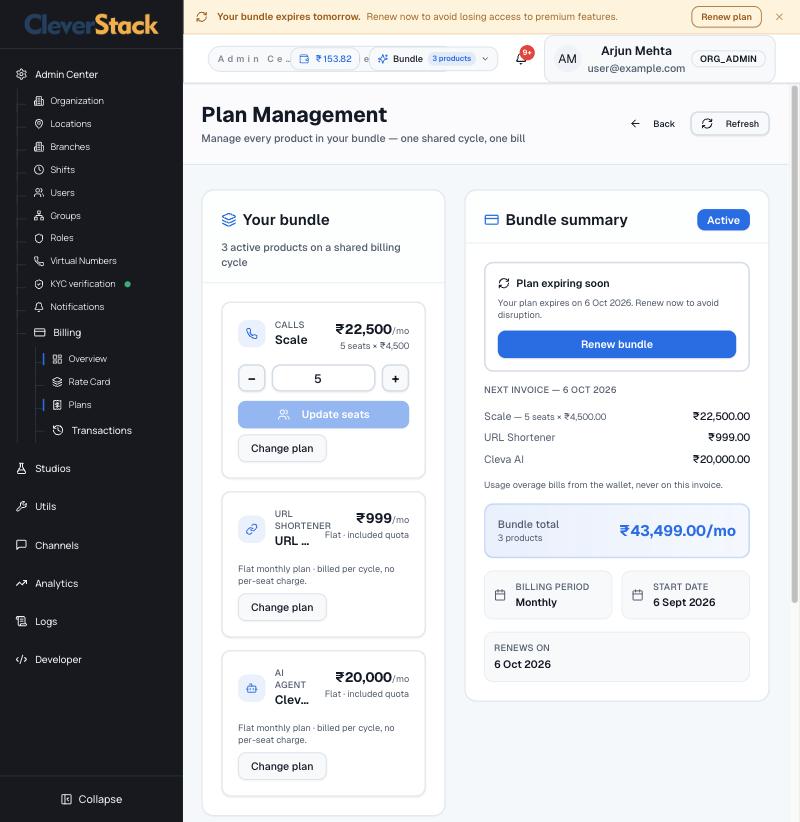
Change seats or plans for each product. All products share one billing cycle and one invoice.
Plan Management
Plan Management
On this screen
Your bundle
Per product: price, seat stepper (− / +) with Update seats, and Change plan.
Bundle summary
Status, renewal warning with Renew bundle, the next invoice's lines, bundle total, billing period, start and renewal dates.
Danger Zone
Cancel Subscription stops auto-renewal for every product. You keep access until the cycle ends; no refund is issued.
Plans & pricing

Admin Center › Billing › PlansAdmin

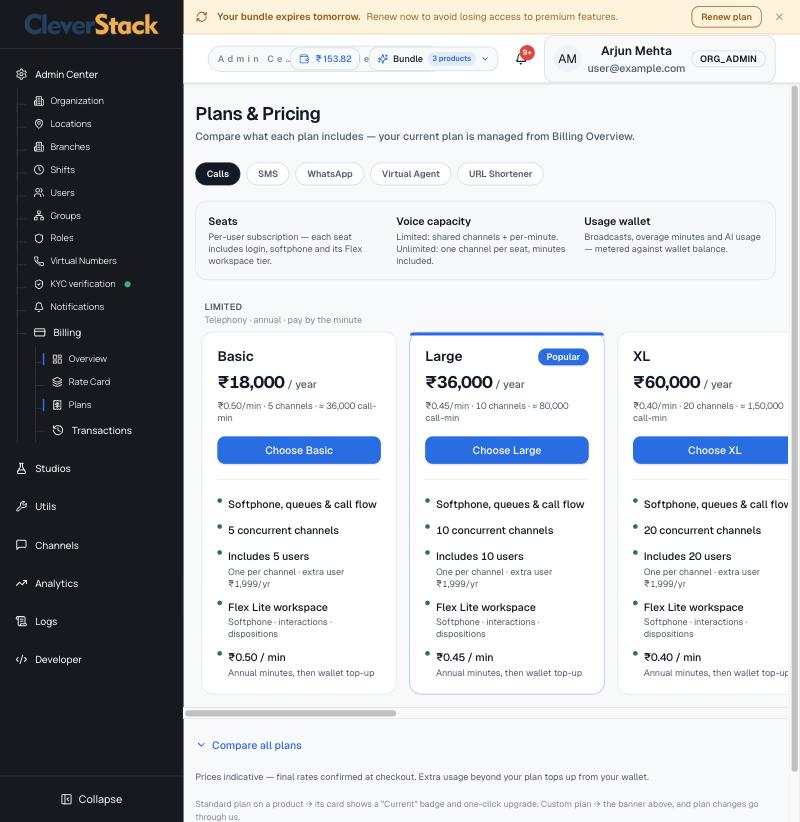
Compare what each plan includes. Tabs switch between Calls, SMS, WhatsApp, Virtual Agent and URL Shortener.

Compare plans by product
On this screen
Calling plans
Annual plans with a fixed number of concurrent channels and per-minute usage, or per-seat monthly plans with unmetered calling. Higher tiers add the contact centre, Agent Assist, call analytics and AI minutes.
Usage wallet
Broadcasts, extra minutes and AI usage are charged to the wallet.
How to
  1. Click Choose on a plan to switch. Final prices are confirmed at checkout.

Rate card

Admin Center › Billing › Rate CardAdmin

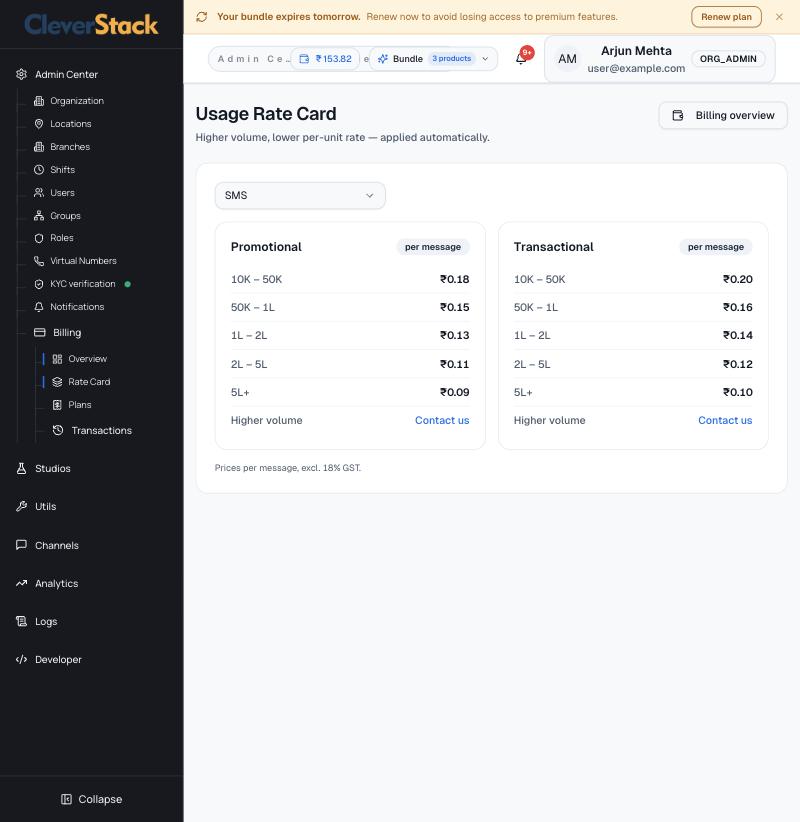
Per-unit prices for usage, in volume slabs. The more you send in a cycle, the lower the rate, applied automatically. Pick a service from the dropdown. Prices exclude 18% GST.

Usage Rate Card for SMS

Invoices

Billing › Transactions › InvoiceAdmin

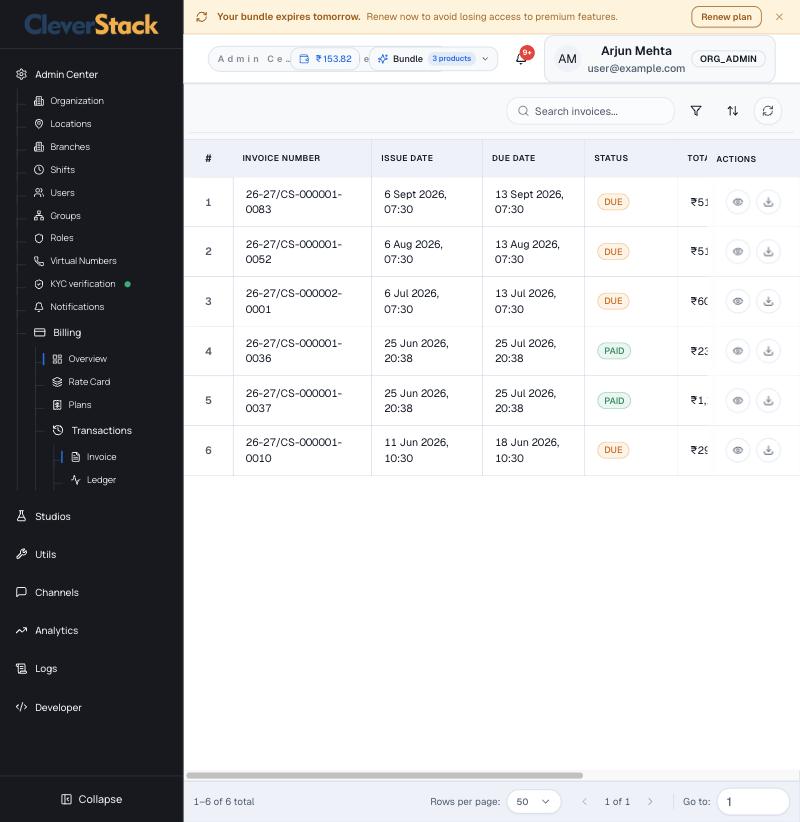
Every invoice with its number, issue and due dates, status (Due or Paid), total, tax and paid date. Use the eye icon to view an invoice and the download icon to save it.

Invoices
Invoices

Ledger

Billing › Transactions › LedgerAdmin

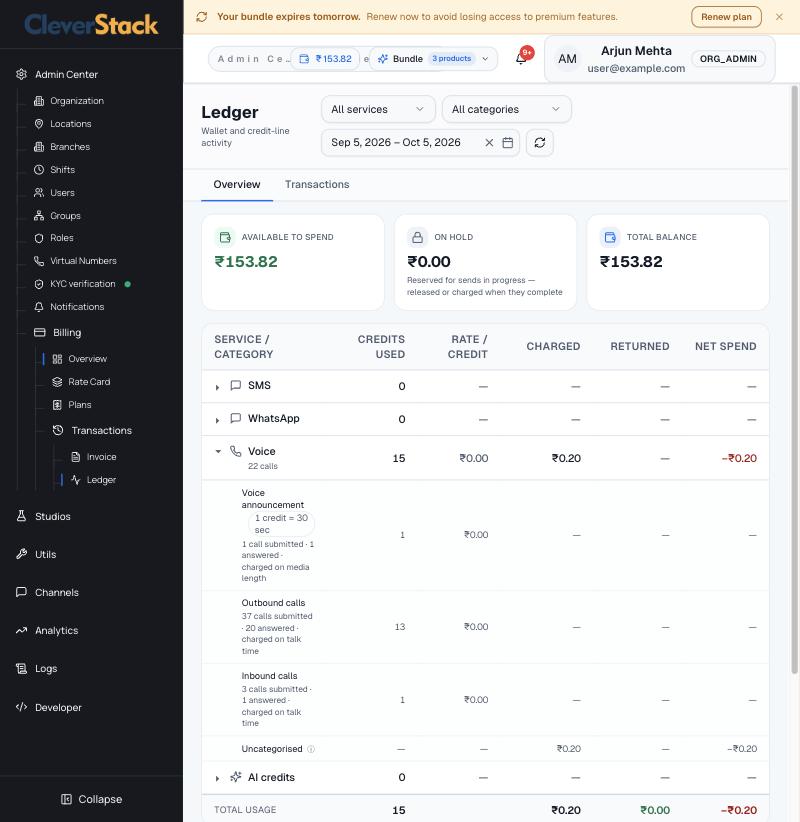
Where your wallet money went. Filter by service, category and date range.

Ledger overview: spend by service
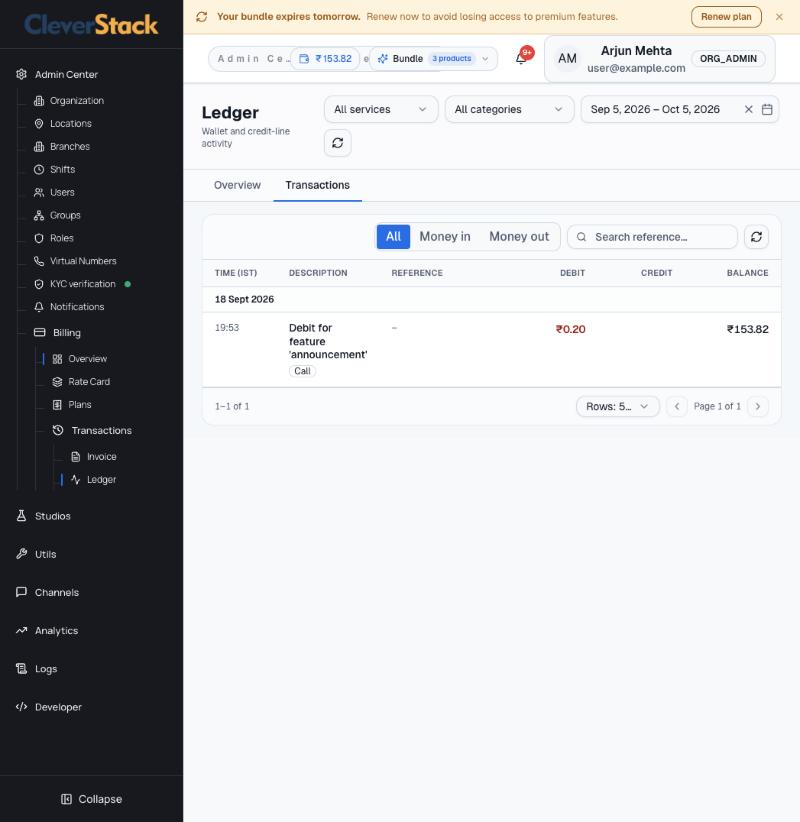
Ledger transactions
Ledger transactions
On this screen
Available / On hold / Total
On hold is money reserved for sends in progress. It is released or charged when they finish.
Spend by service
SMS, WhatsApp, Voice and AI credits, expandable into categories (for example voice announcement, outbound and inbound calls), with credits used, rate, charged, returned and net spend.
Credits
A long SMS uses one credit per 160 characters; voice announcements use one credit per 30 seconds.
Wallet activity
Recharges, refunds, spend and the net change for the period.
Transactions tab
Every debit and credit with time, description, reference and running balance. Filter All, Money in or Money out.

Studios

Build what your customers experience: data apps, call flows (IVR), chatbots, AI voice agents and campaigns.

Studios overview

StudiosAdmin

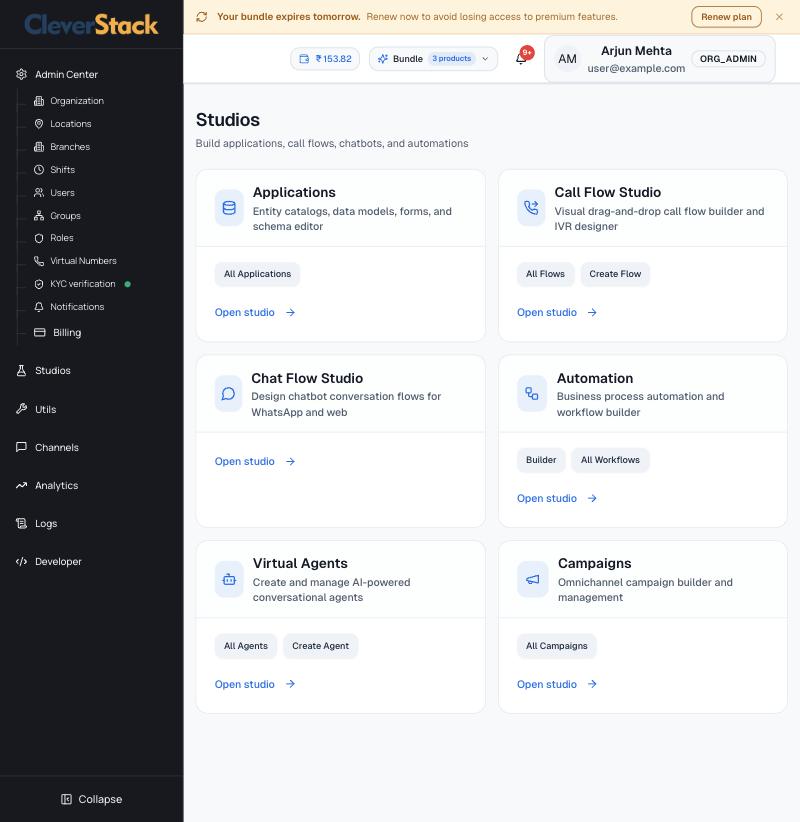
One tile per builder: Applications, Call Flow Studio, Chat Flow Studio, Automation, Virtual Agents and Campaigns, each with quick links.

Studios
Studios

App Builder

Studios › App BuilderAdmin

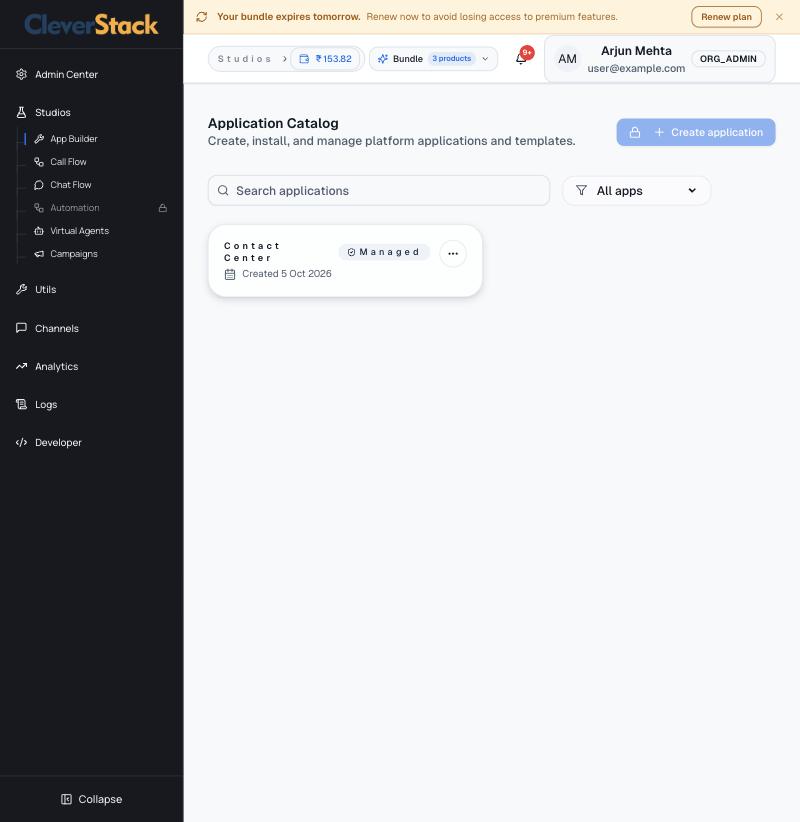
Your installed applications. Contact Center holds interactions, dispositions, tickets, follow-ups, leads, contacts and schedules. Click an application card to open it.

Application catalog
Application catalog

Call flows (IVR)

Studios › Call FlowAdmin

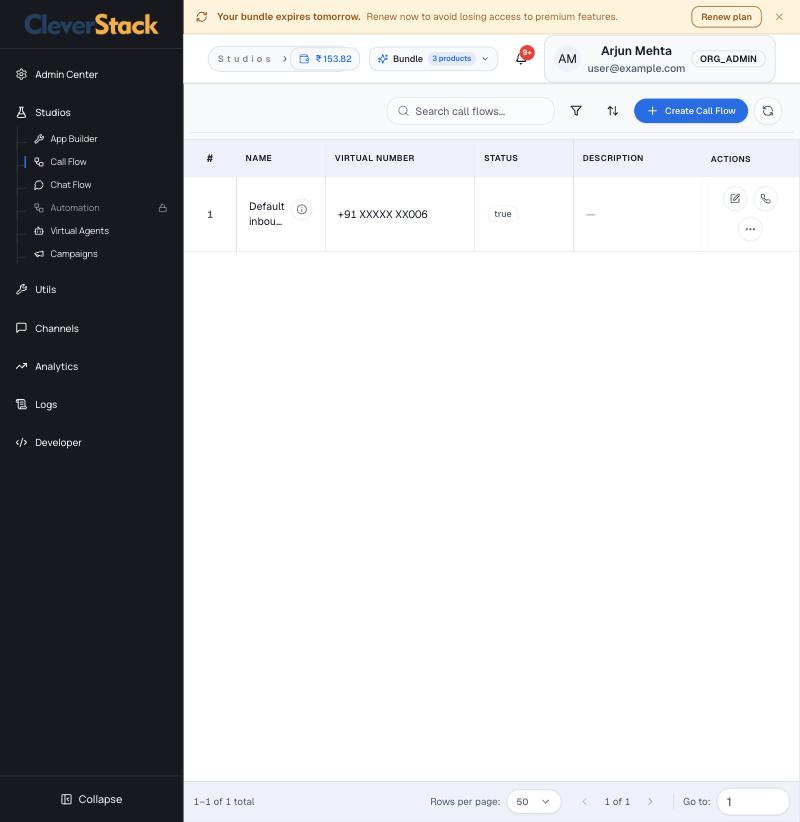
A call flow decides what happens when someone calls one of your numbers. Each number has a flow; a default one rings the owner.

Call flow list
Call flow list
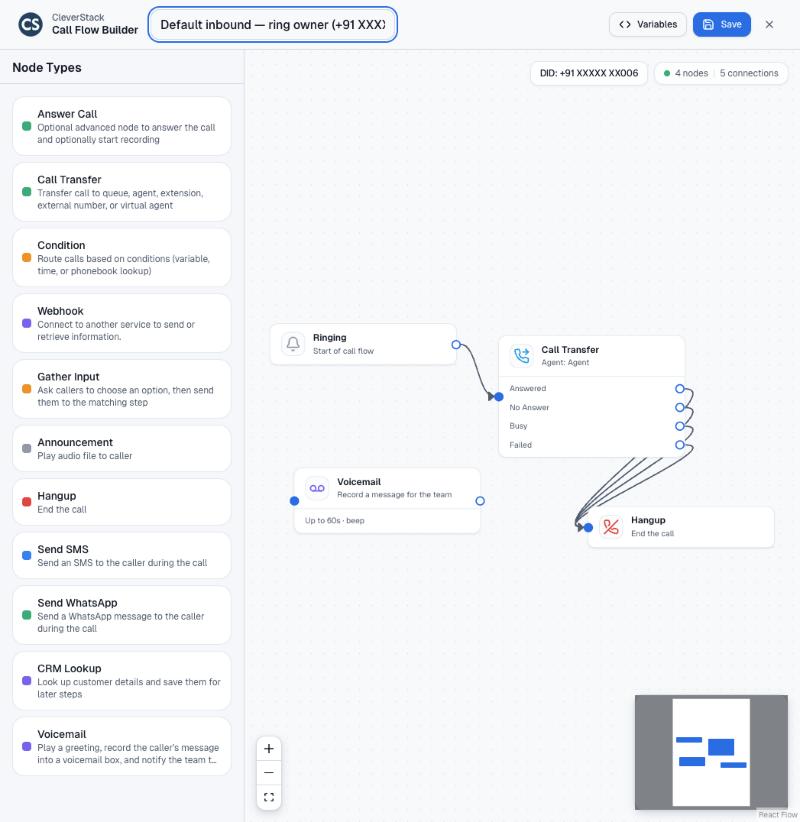
Call Flow Builder
Call Flow Builder
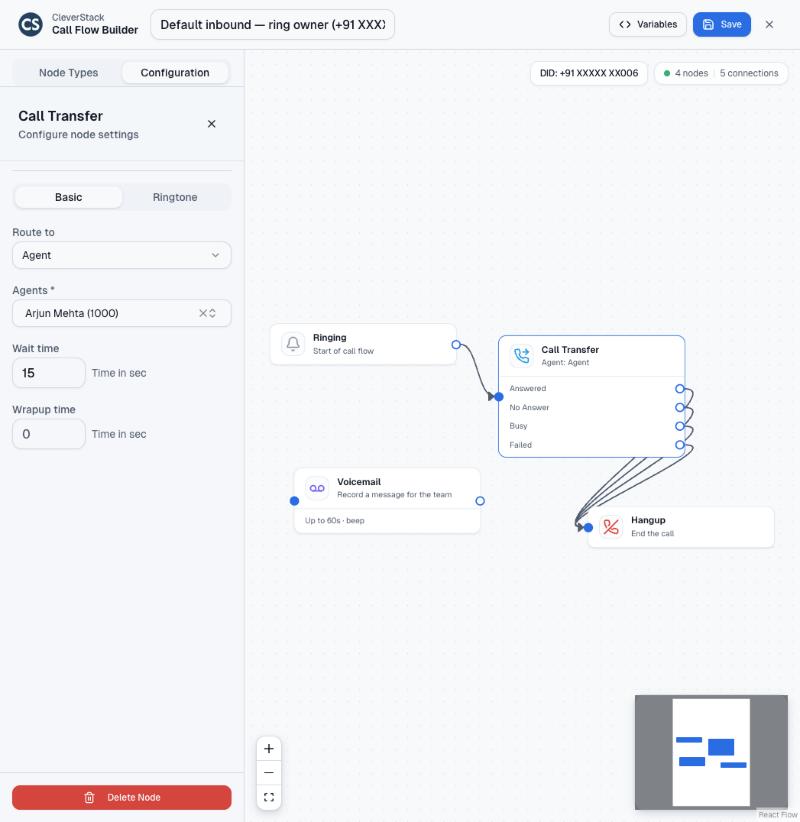
Configuring a Call Transfer step
On this screen
List
Name, virtual number, status and actions: edit in the builder, place a call to try the flow, more options.
Node types
Answer Call, Call Transfer (to a queue, agent, extension, external number or AI agent), Condition (by variable, time or phonebook lookup), Webhook, Gather Input (press-1 menus), Announcement, Hangup, Send SMS, Send WhatsApp, CRM Lookup and Voicemail.
Canvas
Starts at Ringing. Each step has outputs, for example Call Transfer has Answered, No Answer, Busy and Failed. Zoom, fit and the minimap are at the bottom.
Configuration panel
Click a step to edit it. Call Transfer asks where to route, which agents, wait time and wrap-up time, with a Ringtone tab.
How to
  1. Click Create Call Flow (or the edit icon on an existing flow).
  2. Drag a step from Node Types onto the canvas.
  3. Drag from an output dot to the next step's input dot to connect them.
  4. Click a step to configure it.
  5. Click Save. The flow applies to the next call.
Use Variables to insert caller details or values gathered earlier in the call.

Chat flows

Studios › Chat FlowAdmin

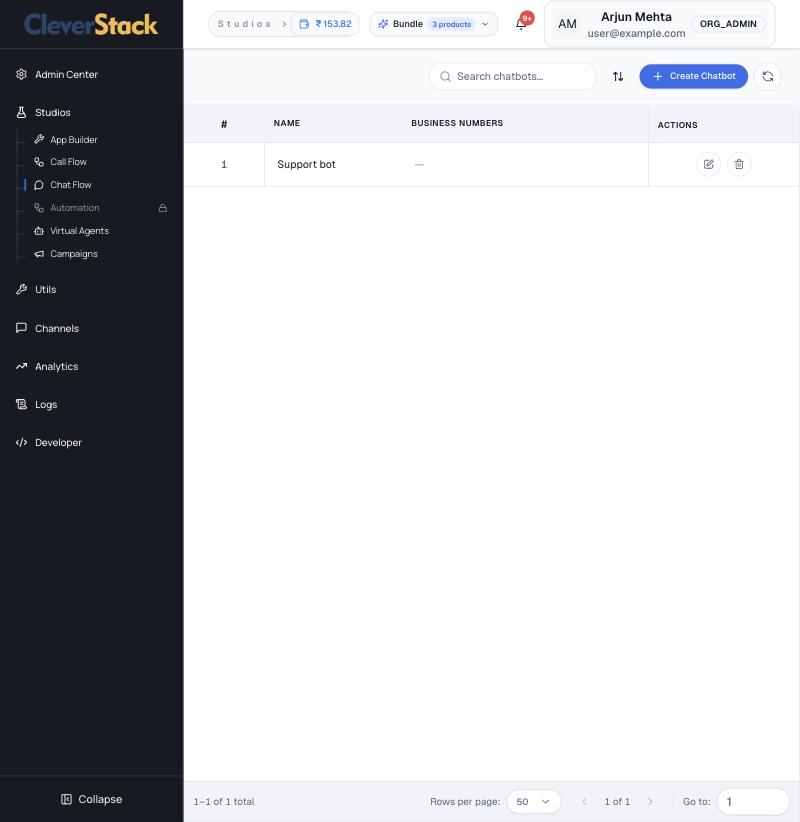
Chatbot conversations for WhatsApp and web. Each chatbot is linked to one or more WhatsApp business numbers. Create Chatbot opens the designer.

Chatbots
Chatbots

Virtual agents (Cleva AI)

Studios › Virtual AgentsAdmin

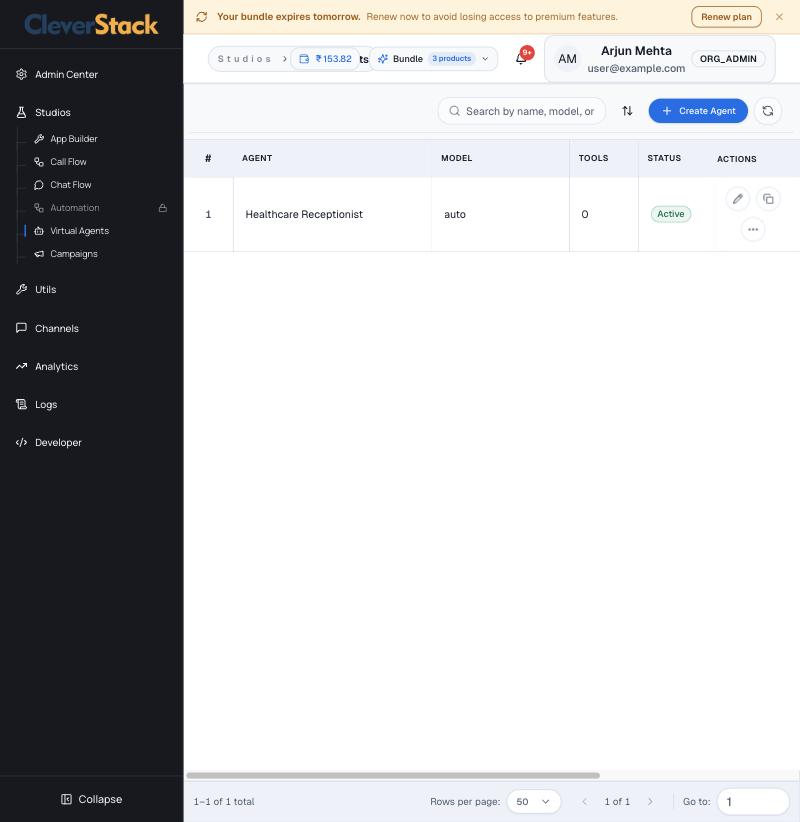
AI agents that answer calls and chats, book appointments, look up records and hand over to people.

Virtual agent list
Virtual agent list
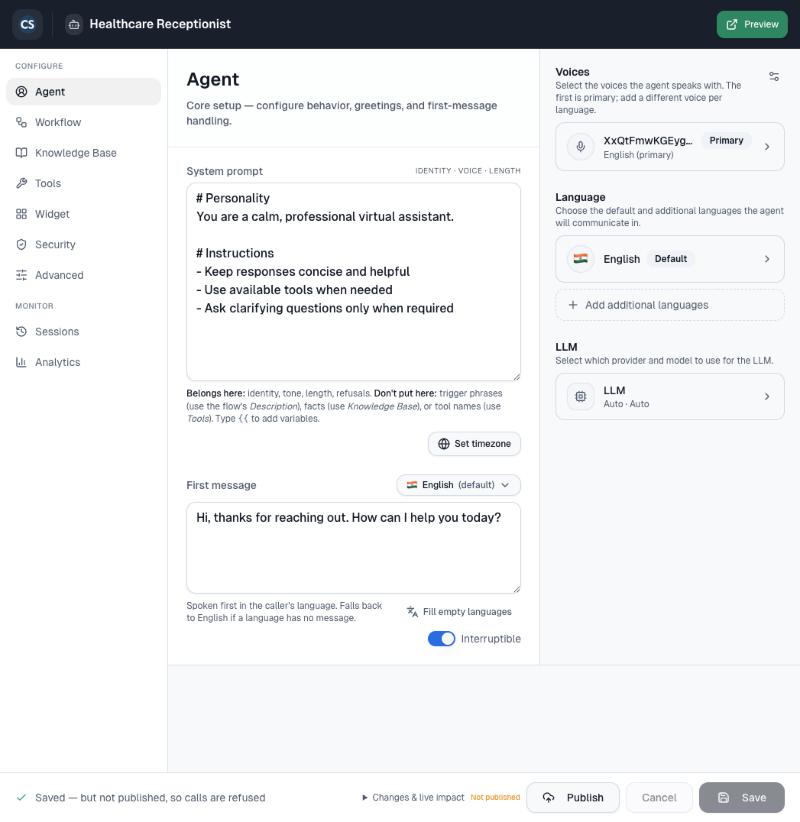
Agent: prompt, greeting, voice, language and model
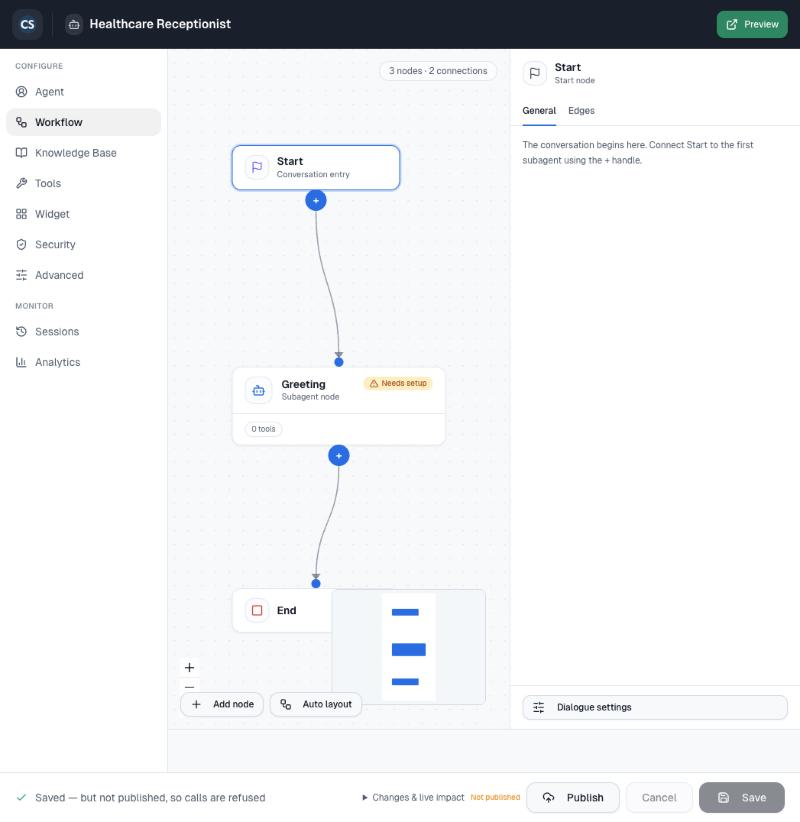
Workflow canvas
Workflow canvas
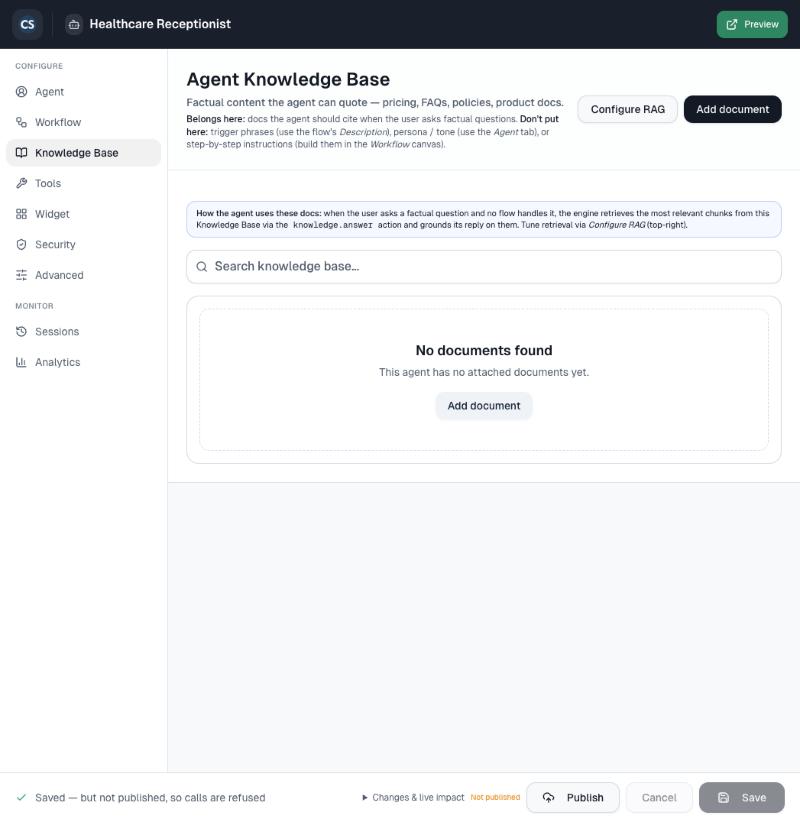
Knowledge Base
Knowledge Base
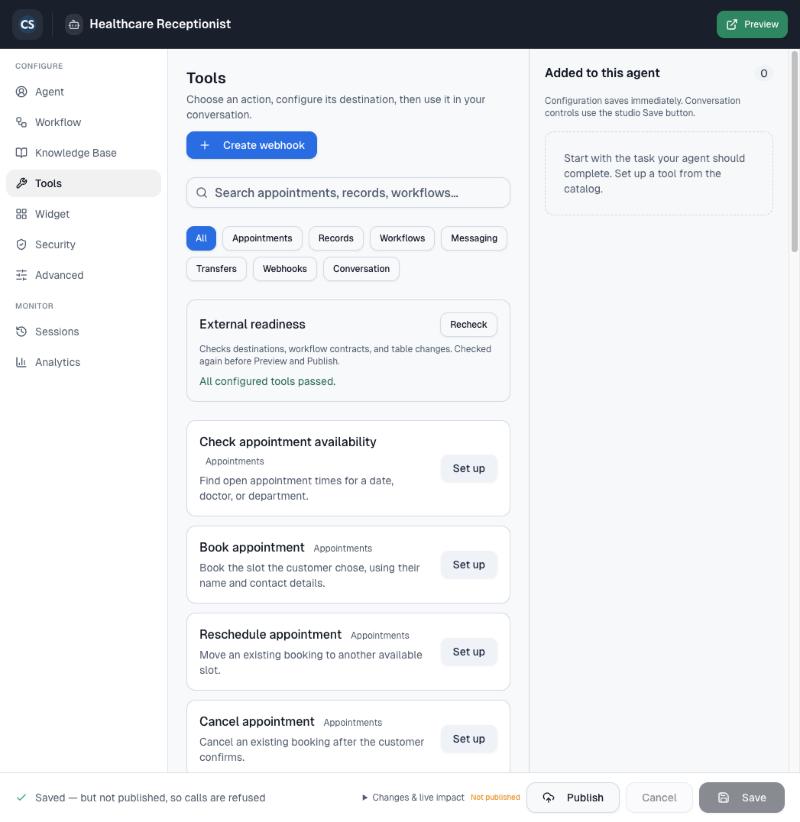
Tools catalog
Tools catalog
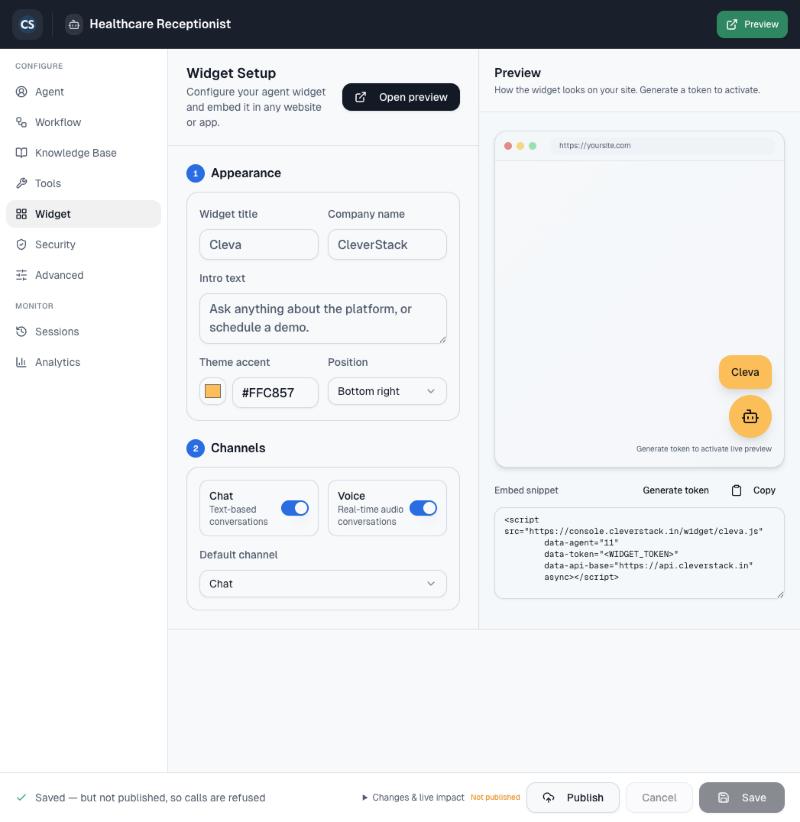
Website widget and embed code
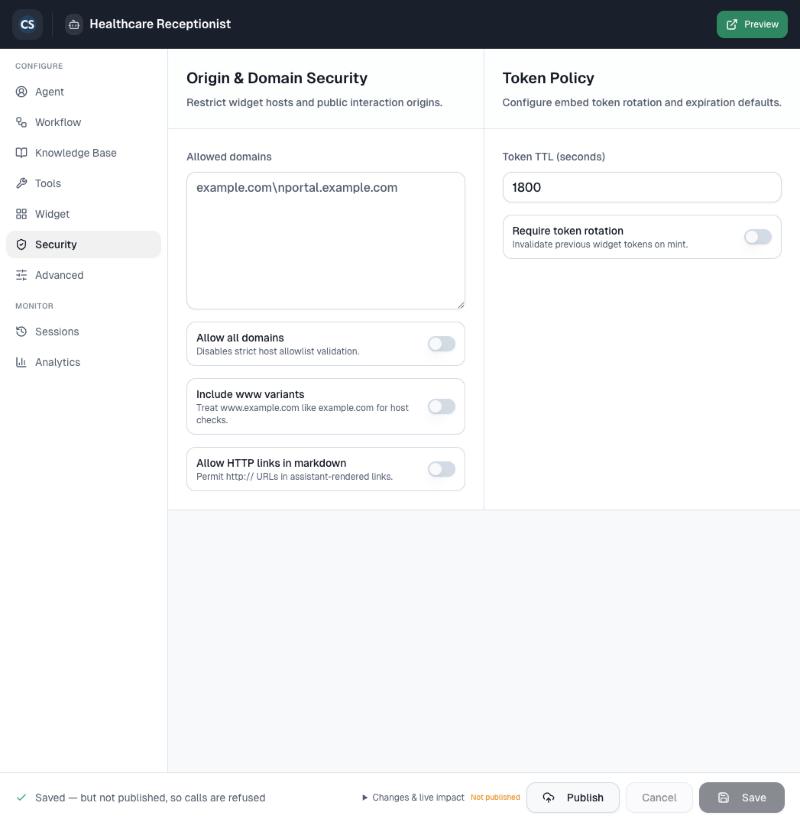
Allowed domains and token policy
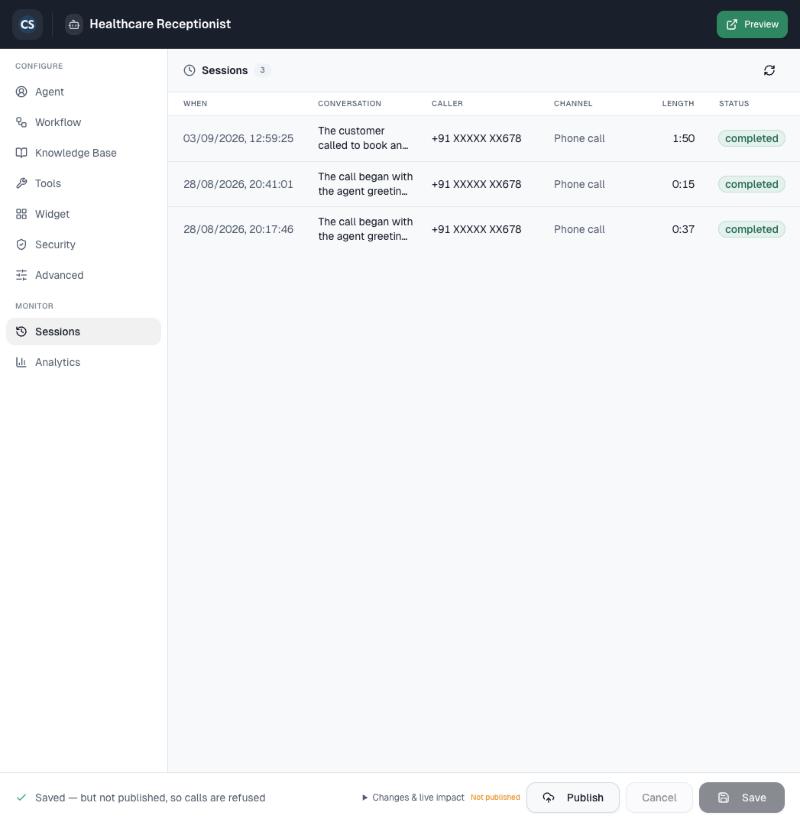
Sessions: past conversations
On this screen
Agent
System prompt (identity, tone, length, what to refuse), first message per language, whether callers can interrupt, voices, languages and the language model.
Workflow
The conversation as steps: Start, sub-agents (for example Greeting) and End. Add node and Auto layout are at the bottom.
Knowledge Base
Documents the agent may quote: pricing, FAQs, policies, product sheets. Add document uploads; Configure RAG tunes retrieval.
Tools
Actions the agent can take: check availability, book, reschedule or cancel appointments, recognise returning patients, search, create or update records, run workflows, send messages, transfer. Create webhook adds your own. External readiness checks every tool before Preview and Publish.
Widget
Title, company name, intro text, colour, position, and Chat and Voice channels. Copy the embed snippet into your website and generate a token to activate it.
Security
Domains allowed to load the widget and how long embed tokens last.
Sessions
Past conversations with time, summary, caller, channel, length and status.
How to
  1. Click Create Agent.
  2. On Agent, write the prompt and first message and choose a voice.
  3. Add documents on Knowledge Base and actions on Tools.
  4. Click Preview to talk to it.
  5. Click Publish. Until then the footer reads “Saved — but not published, so calls are refused”.
  6. Route calls to it with a Call Transfer step in a call flow.
Facts go in the Knowledge Base, not the prompt. Step-by-step behaviour goes in the Workflow.

Campaigns

Studios › CampaignsAdmin, Supervisor

Outbound dialling and messaging. Dialer campaigns connect agents to contacts (progressive or preview). Journey campaigns send SMS, WhatsApp or voice announcements.

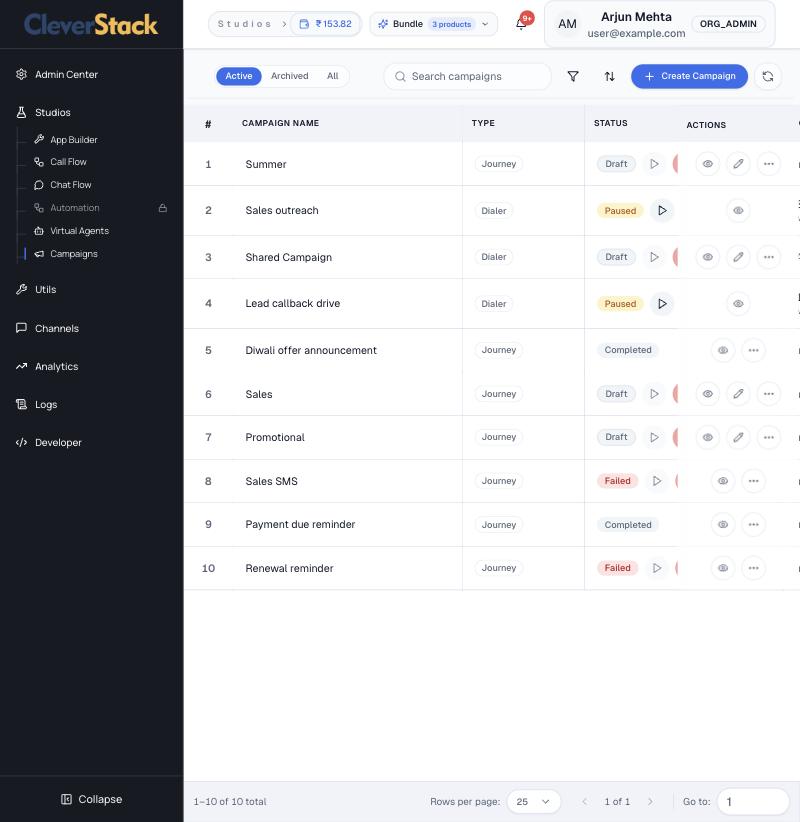
Campaign list
Campaign list
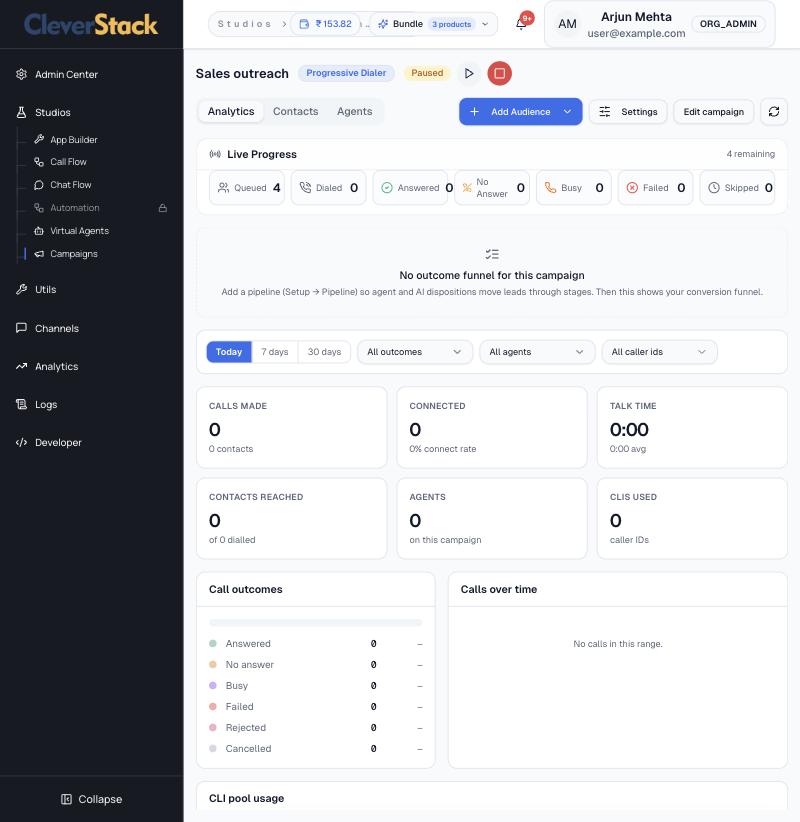
Campaign analytics
Campaign analytics
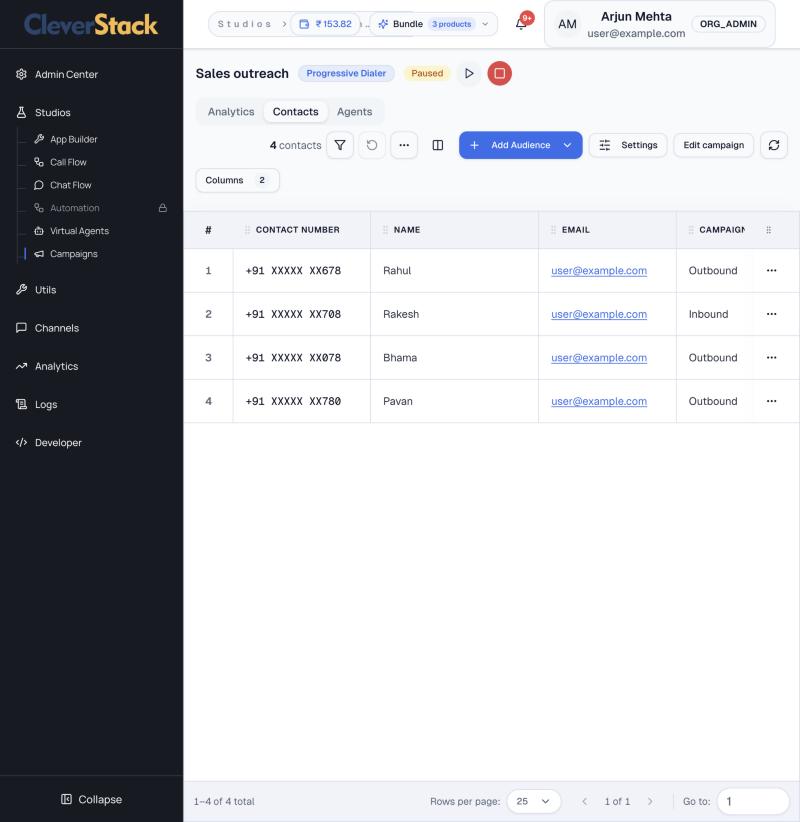
Campaign contacts
Campaign contacts
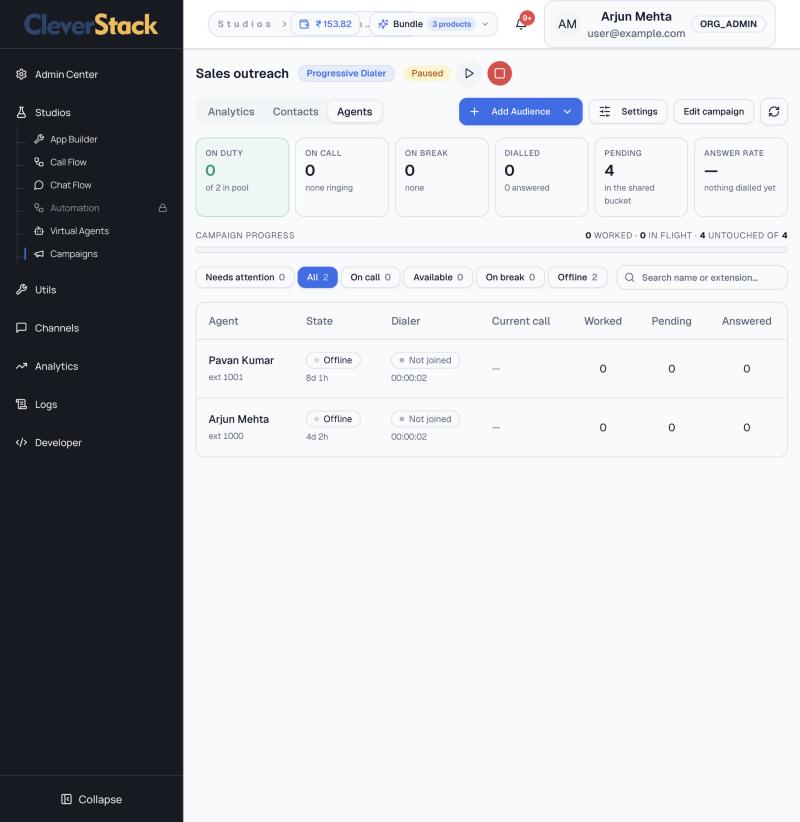
Agents working the campaign
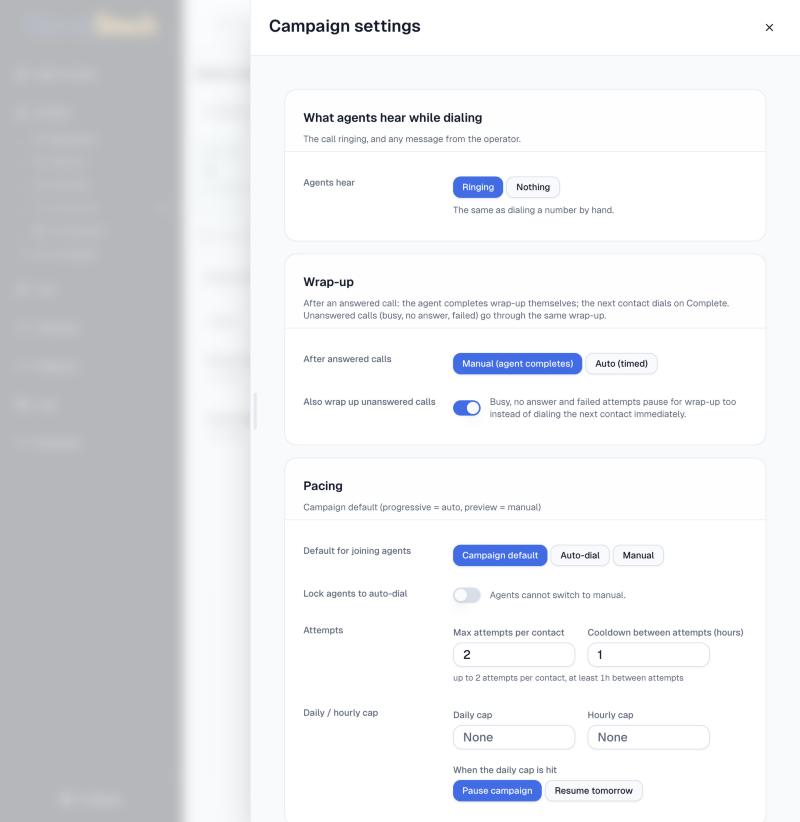
Campaign settings
Campaign settings
On this screen
List
Active, Archived or All. Each row shows type, status (Draft, Paused, Completed, Failed) with play and stop controls, schedule, created and completion dates.
Analytics tab
Live progress (queued, dialled, answered, no answer, busy, failed, skipped), calls made, connect rate, talk time, outcomes, calls over time, caller-ID usage with daily caps and health, and a per-agent table.
Contacts tab
The audience. Add Audience imports more contacts.
Agents tab
Who is on duty, on call, on break or offline, and each agent's worked, pending and answered counts.
Settings
What agents hear while dialling, wrap-up (manual or timed), pacing (auto-dial or manual), attempts per contact and cooldown, daily and hourly caps, calling hours and days, and compliance (transactional, promotional or service; promotional skips DND numbers and respects the TRAI calling window).
How to
  1. Click Create Campaign and choose Dialer or Journey.
  2. Add the audience, agents and caller IDs.
  3. Set calling hours and compliance in Settings.
  4. Click ▶ to start. Use ■ to stop.
Agents join a dialer campaign from their workspace with Join campaign.

URL Shortener

Utils › URL ShortenerAdmin

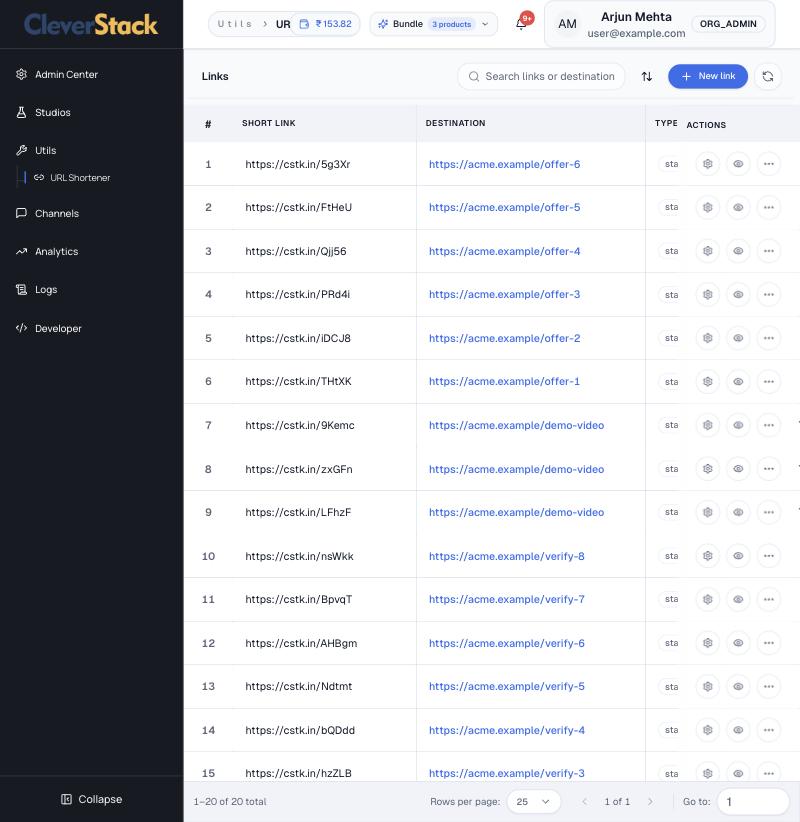
Short, trackable links (cstk.in/…) for SMS and WhatsApp. Each row shows the destination, type, expiry and click count. New link creates one; the eye icon opens its click analytics.

Short links
Short links

Softphone (Flex)

Everything an agent does on a call: going available, dialling, answering, hold, mute, keypad, transfer, wrap-up and campaign dialling. Open it from Home › Open Runtime or Contact Center › Agent Flex.

The agent workspace

Contact Center › Agent FlexAgent

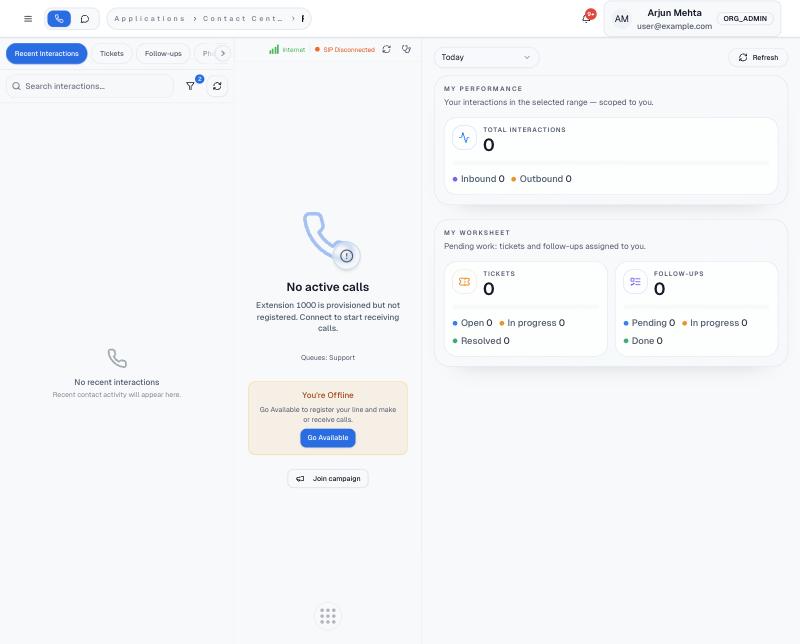
Flex has three columns. On the left are your queue and recent work, the phone sits in the middle, and the customer's CRM record is on the right. On a narrow screen the side columns open from the Queue and CRM buttons.

Flex while offline: queue panel, phone and CRM workspace
On this screen
Agent Queue (left)
Recent Interactions, Tickets, Follow-ups and Phonebook, with search and filters. During calls it also lists Active calls.
Phone (centre)
Connection status (Internet, SIP), your extension and queues, and your availability. Join campaign starts dialler work.
CRM workspace (right)
My Performance and My Worksheet when idle; the caller's contact record during a call.
Status (top right)
Your availability and how long you have been in it, for example Available · 00:01:19.
Use Chrome, Edge or Firefox and allow the microphone. Without microphone access calls end immediately with “not answered”.

Go available and dial

Agent Flex › DialpadAgent

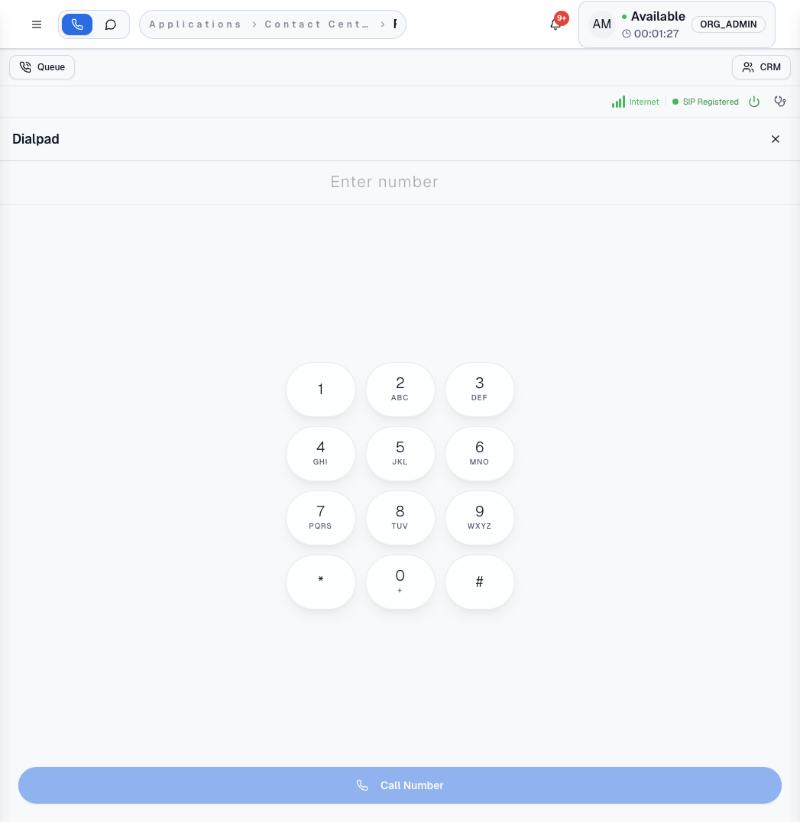
Going available registers your line so you can make and receive calls. The status chip turns green and the bar shows SIP Registered.

Available, line registered, dial pad open
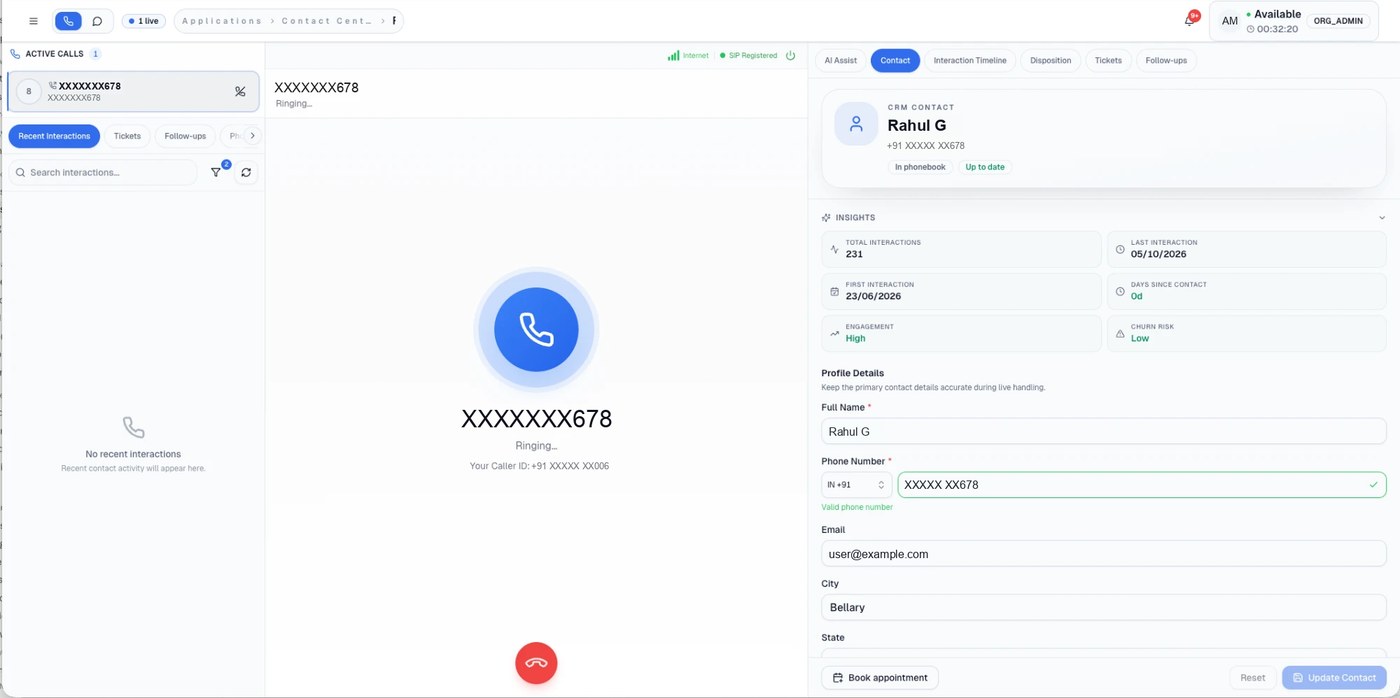
Outbound call ringing, with the contact's CRM record on the right
On this screen
Dial pad
Type a number or tap the keys, then Call Number.
Ringing screen
The number you dialled, Ringing…, and the caller ID the customer will see. The red button cancels the call.
Contact panel
If the number is in your phonebook, the contact opens automatically with insights (total interactions, last and first interaction, days since contact, engagement, churn risk) and editable profile details.
How to
  1. Click Go Available.
  2. Open the dial pad, type the number and click Call Number.
  3. Wait for the customer to answer. The timer starts when the call connects.
Incoming queue calls ring here while you are Available. Answer with the green button.

During a call

Agent Flex › Active callAgent

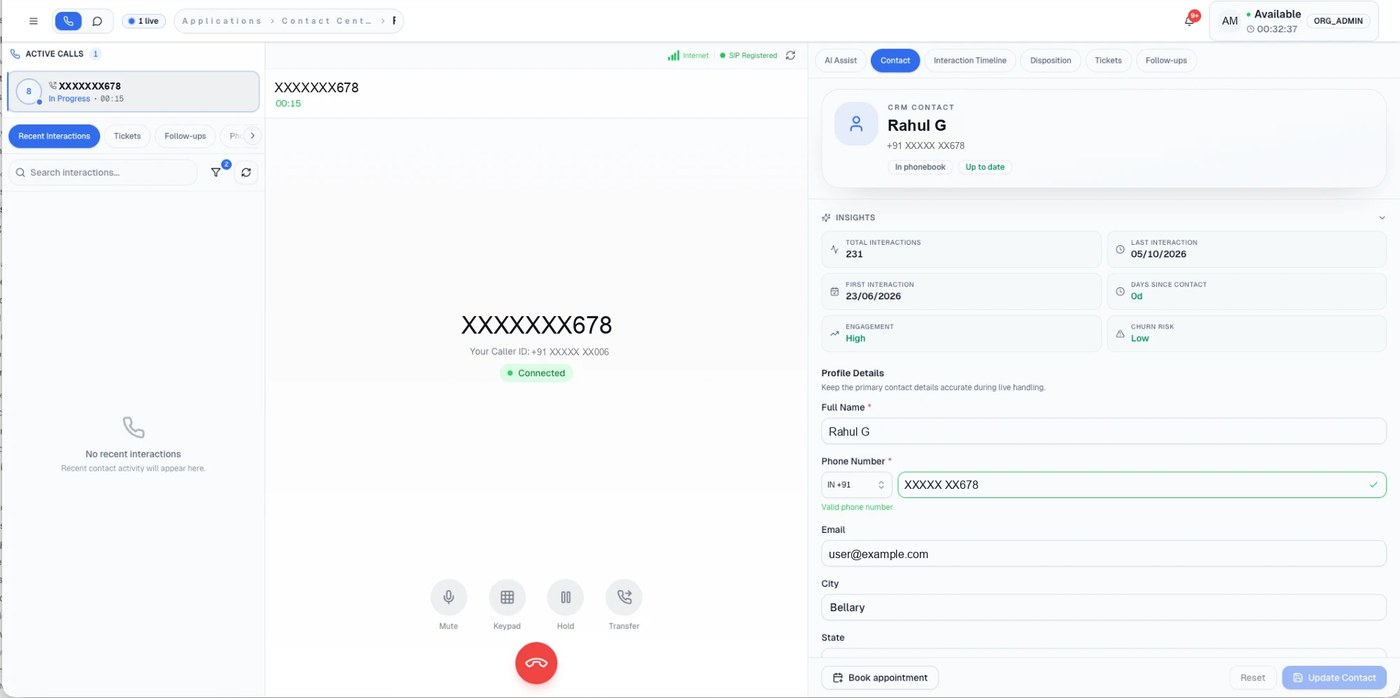
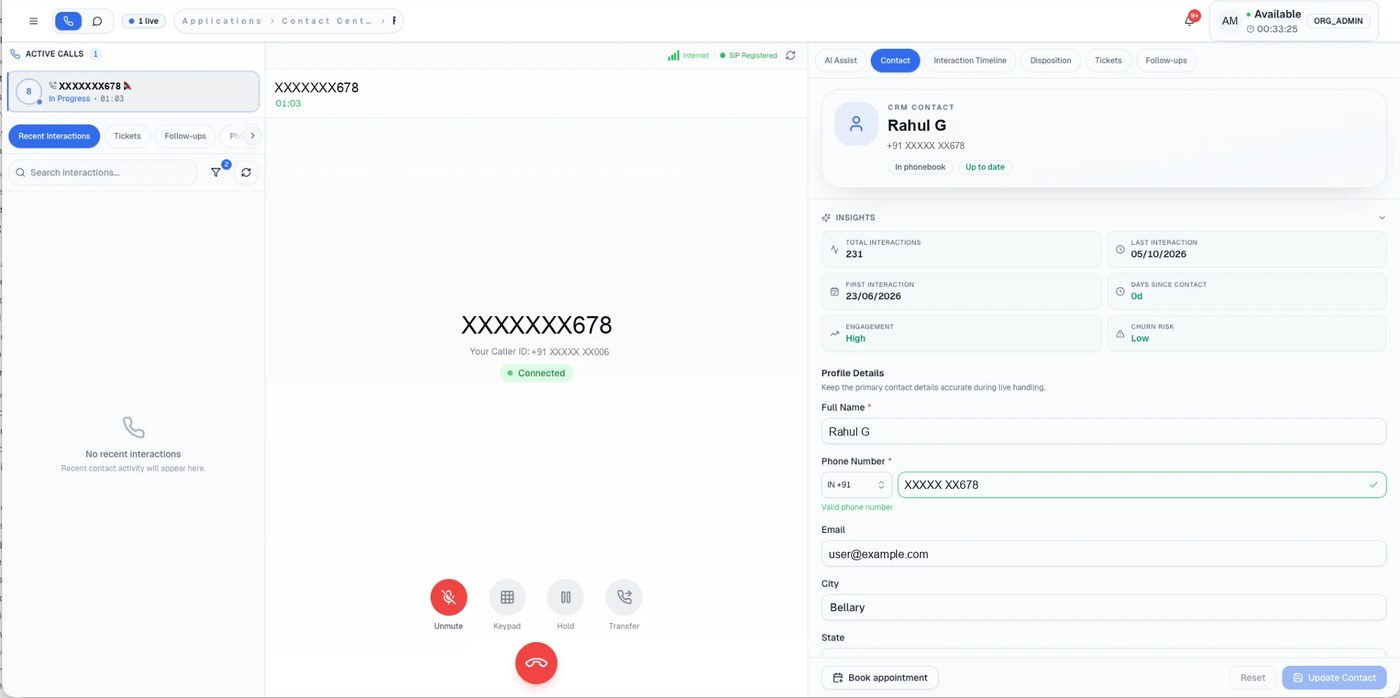
When the call connects, the in-call controls appear under the number and the call shows In Progress with a timer in Active calls.

Connected call with in-call controls
Muted: the microphone button turns red
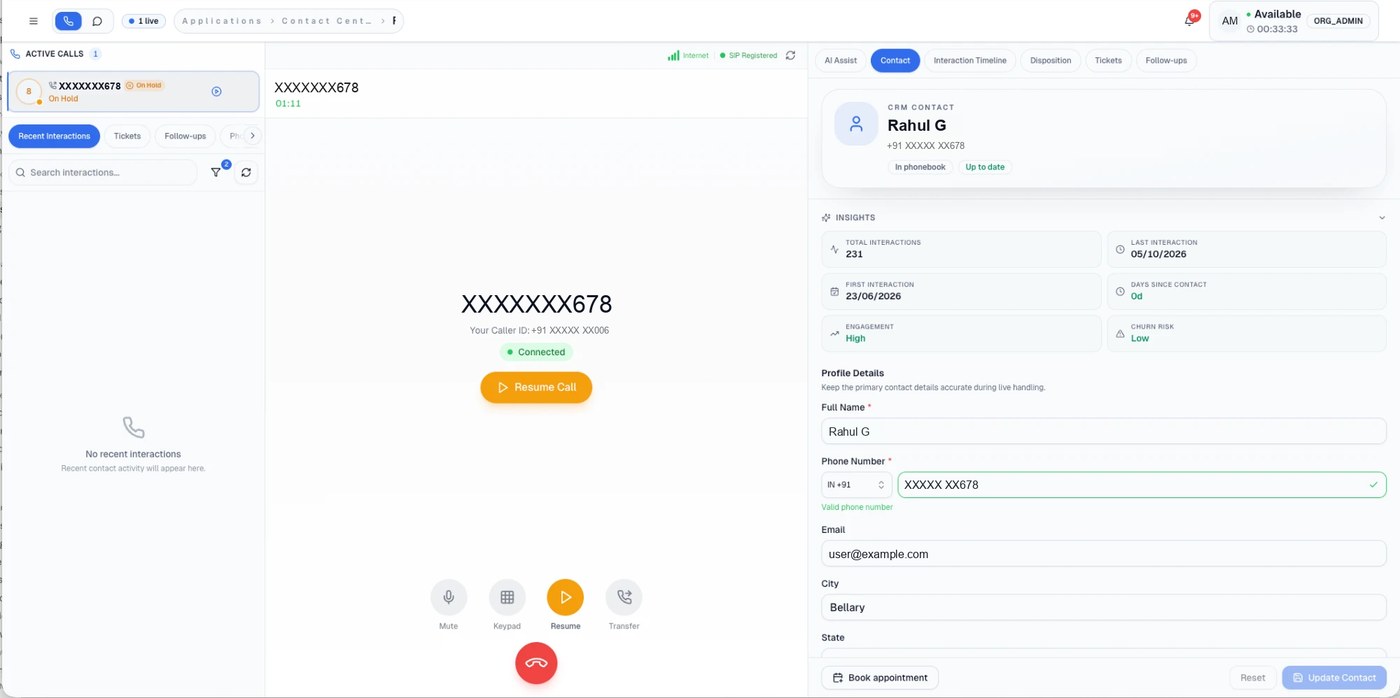
On hold: Resume Call and an On Hold tag in Active calls
On this screen
Mute / Unmute
Stops the customer hearing you. The button turns red and a muted icon appears next to the call in Active calls.
Keypad
Sends tones, for example to get through another company's phone menu.
Hold / Resume
Puts the customer on hold music. The call is tagged On Hold; click Resume Call to continue.
Transfer
Hands the call to another number, an agent or a queue (next topic).
Red button
Ends the call.
CRM tabs
AI Assist (live suggestions), Contact, Interaction Timeline, Disposition, Tickets and Follow-ups. Use Update Contact to save edits and Book appointment to schedule a visit.
The caller ID line shows which of your numbers the customer sees.

Transfer a call

Agent Flex › TransferAgent

Send the caller to someone else without hanging up.

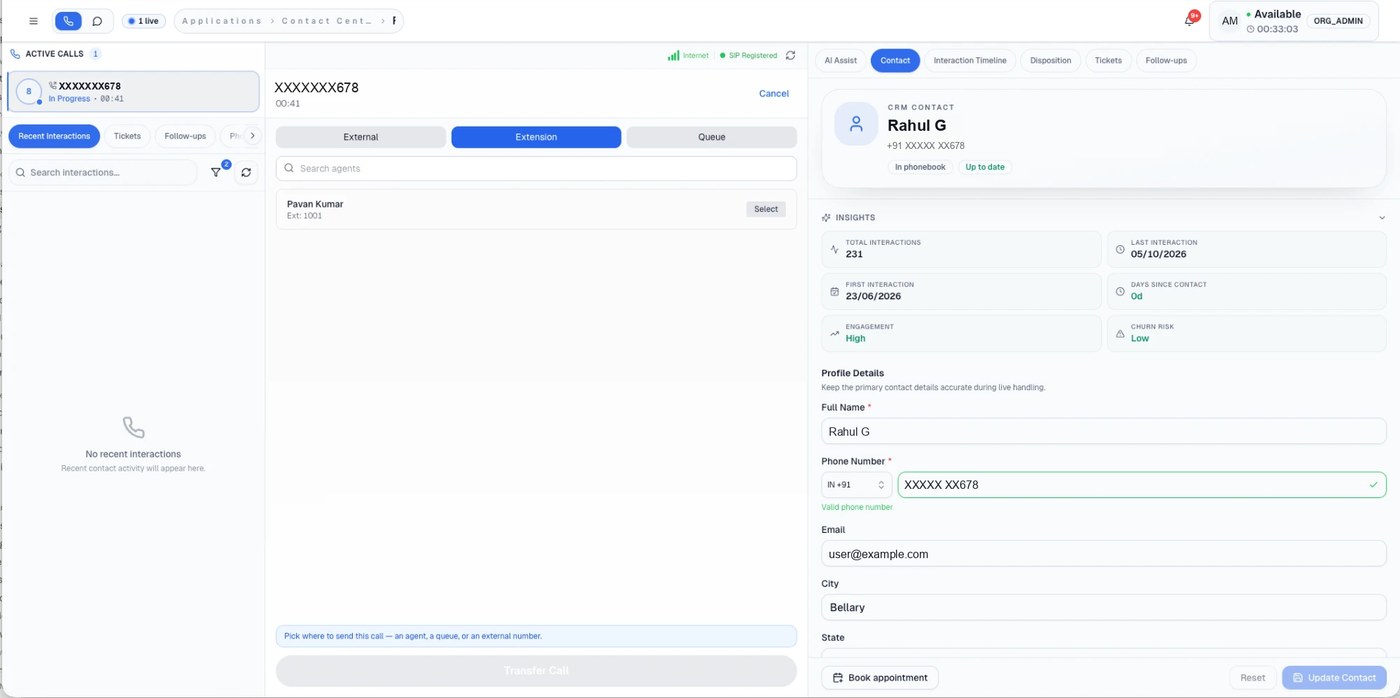
Transfer to an agent by extension
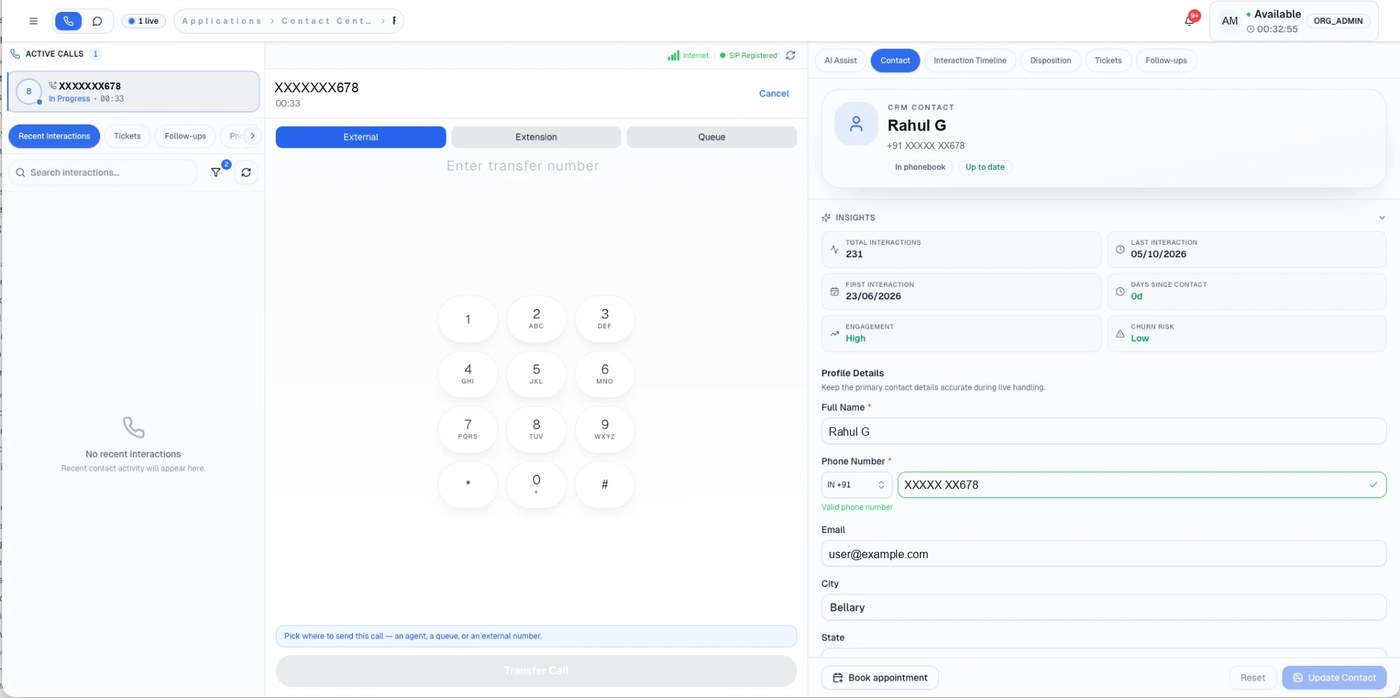
Transfer to an external number
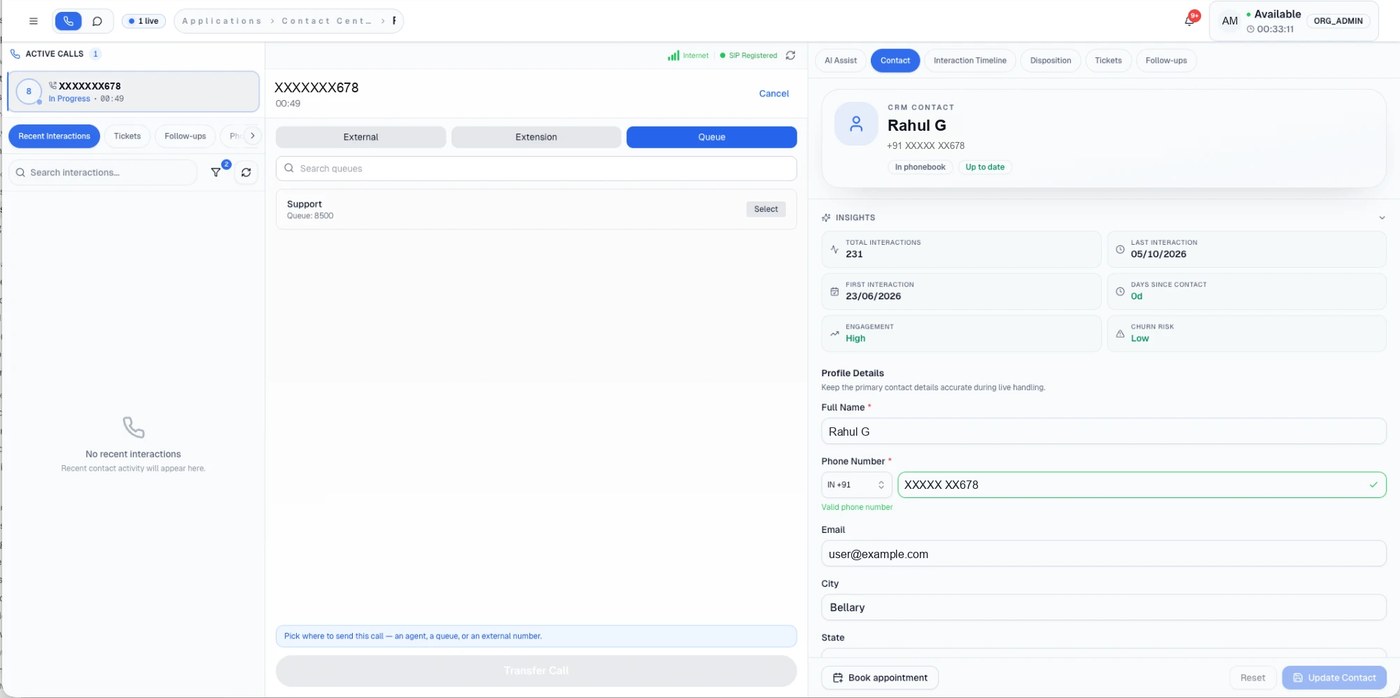
Transfer to a queue
Transfer to a queue
On this screen
External
Type any phone number on the keypad.
Extension
Search your colleagues and click Select next to the agent.
Queue
Pick a queue such as Support; the caller waits there for the next free agent.
Cancel
Goes back to the call without transferring.
How to
  1. Click Transfer.
  2. Choose External, Extension or Queue.
  3. Pick the destination.
  4. Click Transfer Call.

Contact Center

The records behind every customer conversation: interactions, dispositions, tickets, follow-ups, leads and contacts. Open them from the ☰ menu inside the Contact Center application.

Contact Center menu

Contact Center › ☰Agent, Supervisor

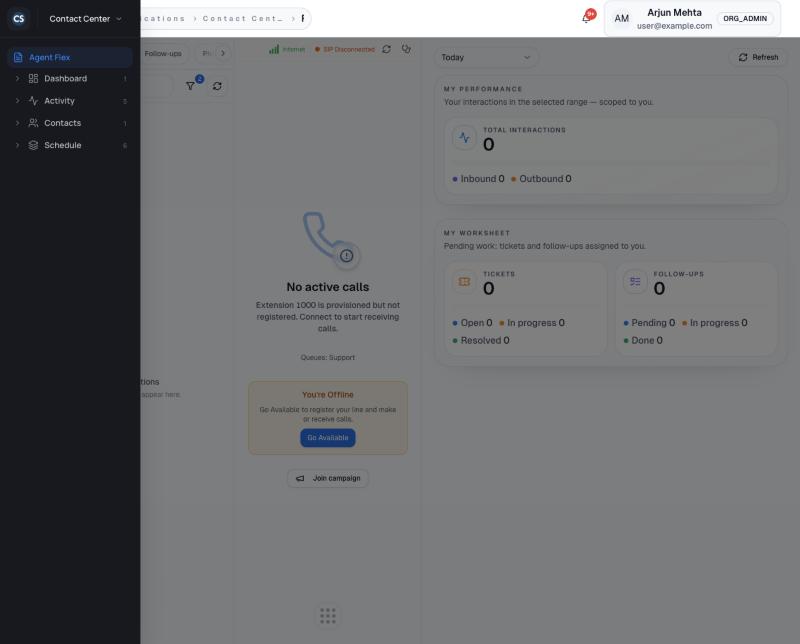
The ☰ button opens the application menu: Agent Flex; Dashboard (Agent Performance); Activity (Interaction, Disposition, Follow-up, Ticket, Lead); Contacts (Phonebook); Schedule (Staff, Service, Schedule, Appointment, Time Off, Staff Availability). The switcher at the top changes application.

Application menu
Application menu

Working with record lists

Any Contact Center listAgent, Supervisor

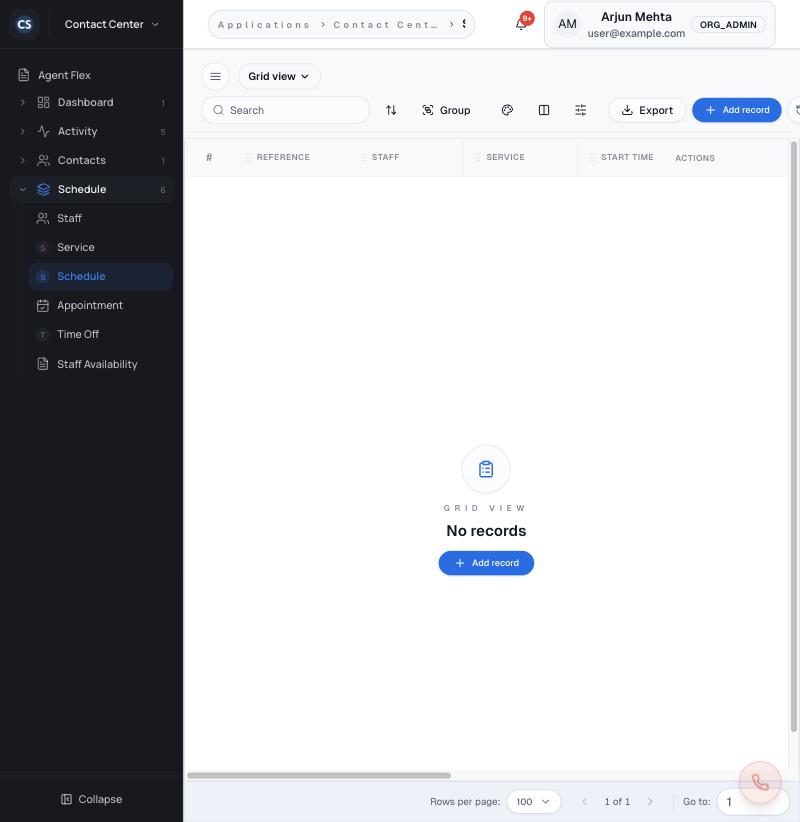
Every Contact Center list shares the same toolbar.

A record list (Schedule)
On this screen
Views
Switch between saved views such as Grid, Board, Calendar, Timeline or Gallery, or Create new to save your own filters and columns.
Search, sort, Group
Find records, order them, or group rows by a field.
Colour, columns, filters
Colour rows by rule, show or hide columns, and filter.
Export / Add record
Download the list or add a record by hand.
Row actions
View (eye), Edit (pencil) and more (…).

Interactions

Contact Center › Activity › InteractionAgent, Supervisor

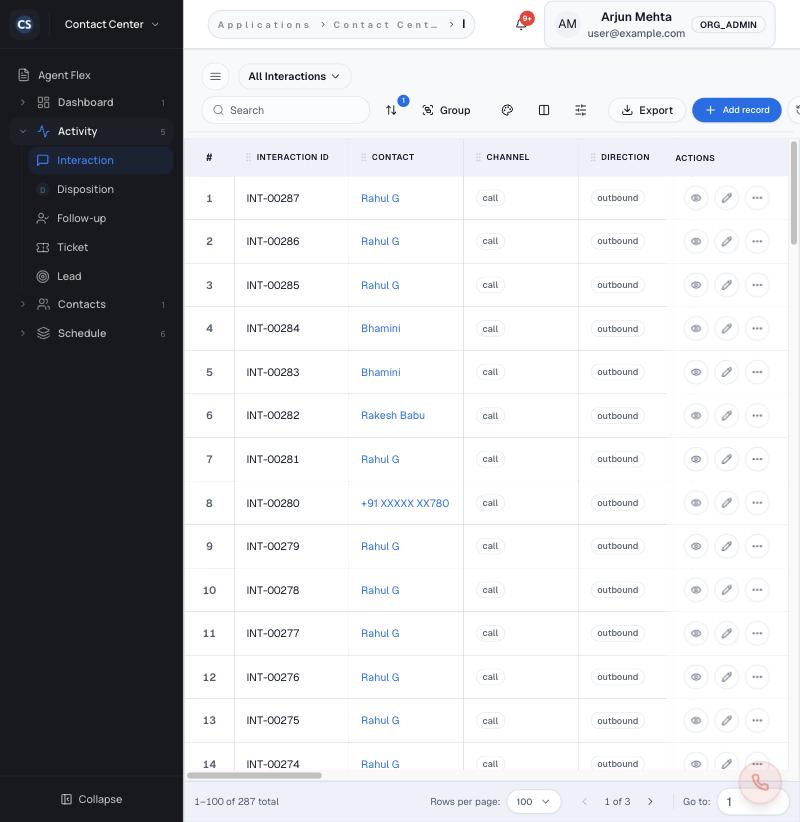
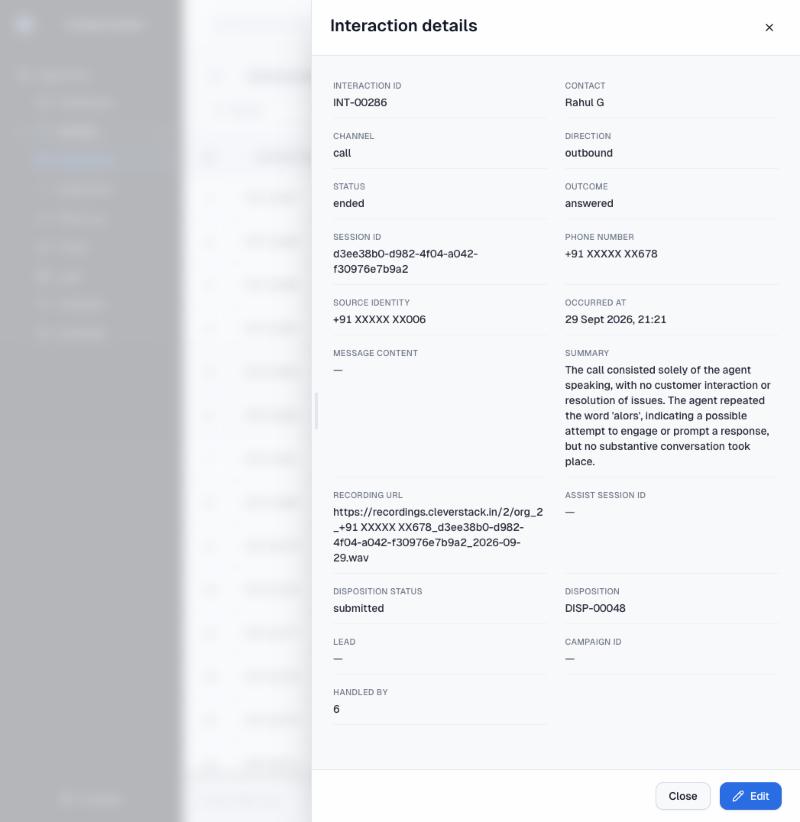
Every call or message with a customer, created automatically. Open one with the eye icon to see everything about it.

Interactions
Interactions
Interaction details
Interaction details
On this screen
Key fields
Interaction ID, contact, channel, direction, status, outcome (answered, no answer), phone number, the number used, time, AI summary, recording, disposition, lead, campaign and the agent who handled it.
Views
All Interactions, By Status and Timeline.

Dispositions

Contact Center › Activity › DispositionAgent, Supervisor

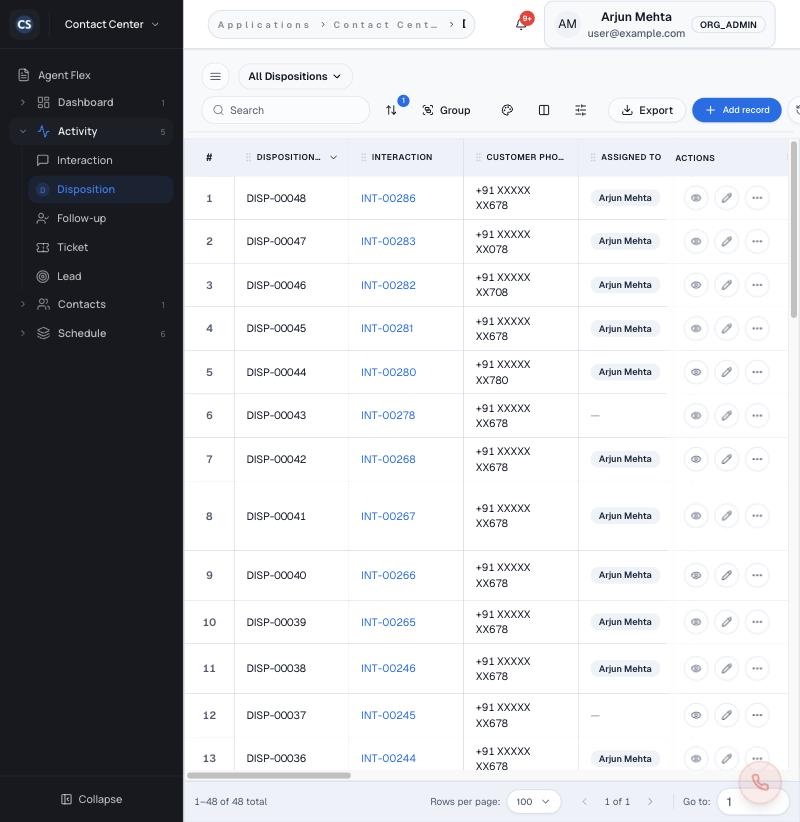
The outcome recorded after each conversation: disposition code (Resolved, Escalated), sub-disposition (First Call Resolution, Rescheduled, Awaiting Customer), notes, tags, whether a callback is needed and when, and wrap-up time. Agents fill these in after a call; Cleva can fill them for calls no person handled.

Dispositions
Dispositions

Tickets

Contact Center › Activity › TicketAgent, Supervisor

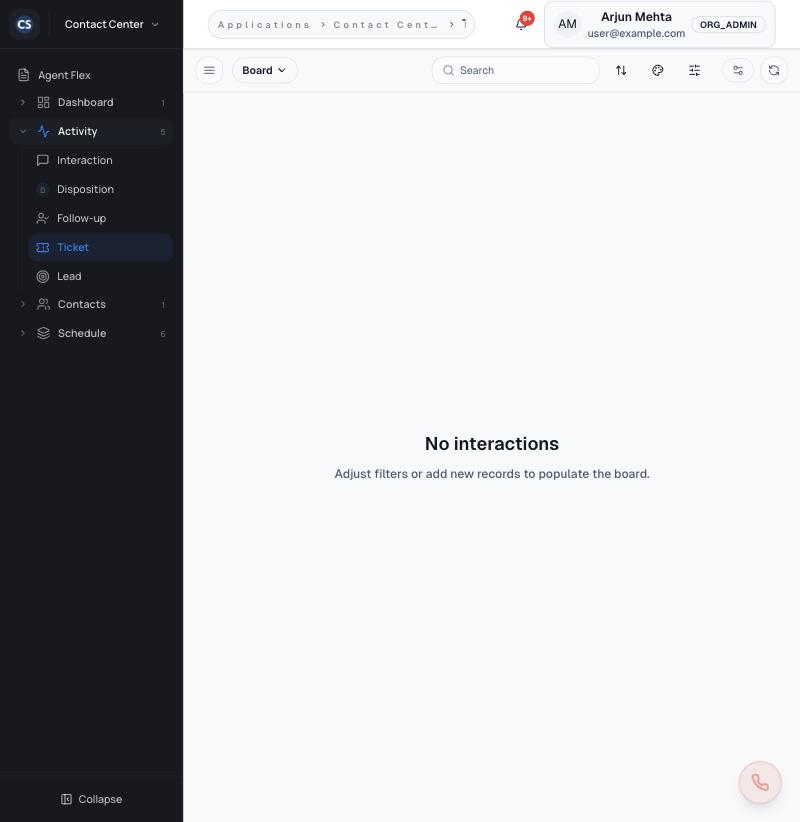
Issues that need follow-through. The Board view shows tickets as cards grouped by status. Other views: All Tickets, Workload (per agent) and Gallery. You are notified when a ticket is assigned to you.

Tickets board
Tickets board

Follow-ups

Contact Center › Activity › Follow-upAgent, Supervisor

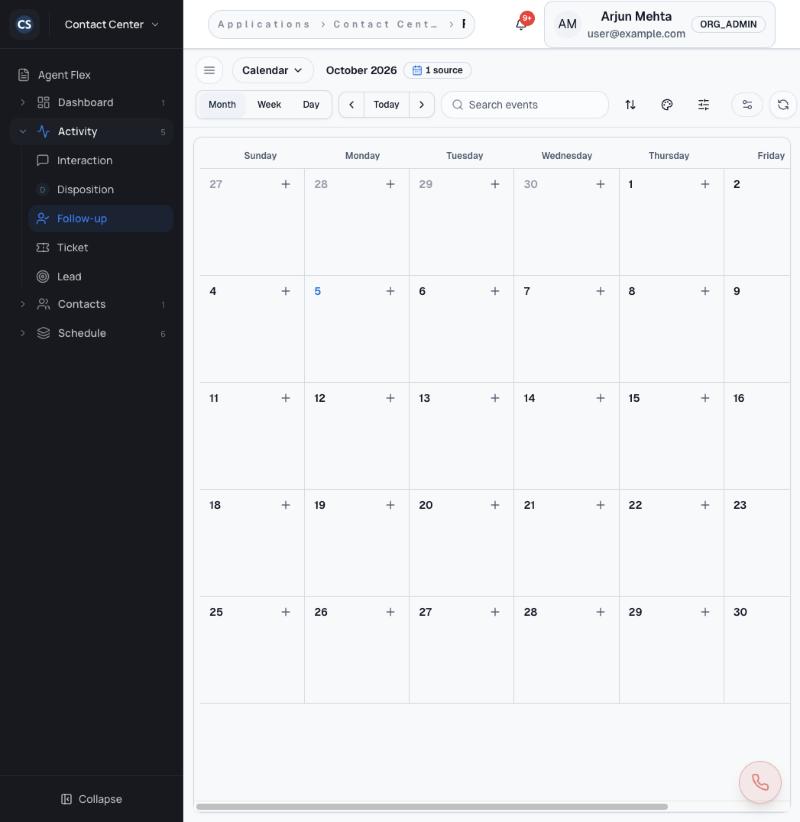
Callbacks and reminders, shown on a calendar (Month, Week, Day). Click + on a day to add one. Missed calls can create follow-ups automatically and assign them to an agent.

Follow-ups calendar
Follow-ups calendar

Leads

Contact Center › Activity › LeadAgent, Supervisor

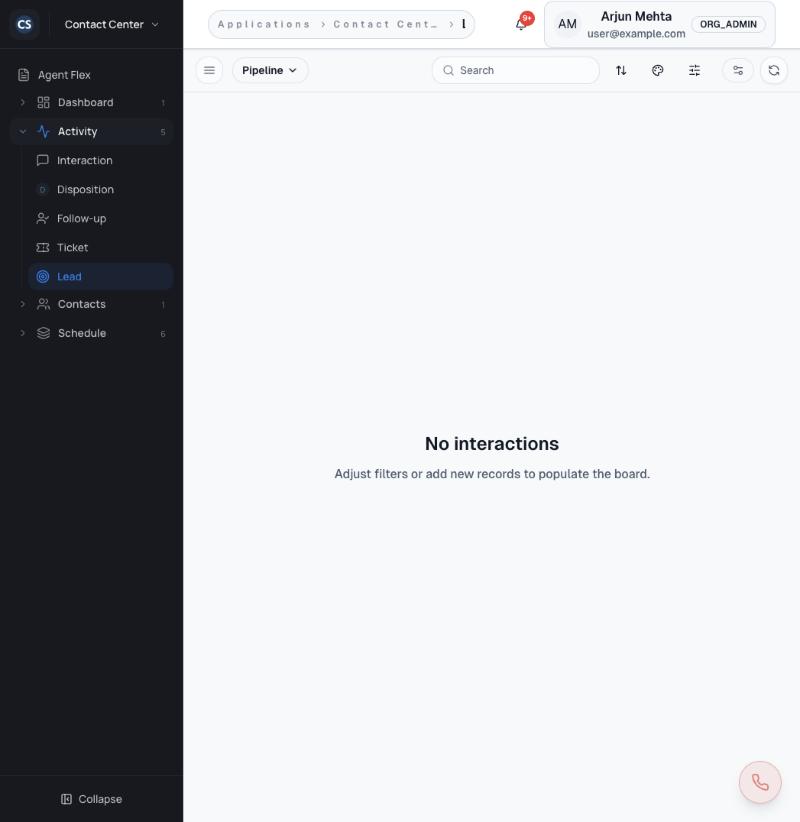
Sales prospects in a pipeline board. Saved views include Qualified Leads, Interested, Demo Booked, Nurture and Do Not Contact. Campaign dispositions can move leads between stages.
Lead pipeline
Lead pipeline

Phonebook

Contact Center › Contacts › PhonebookAgent, Supervisor

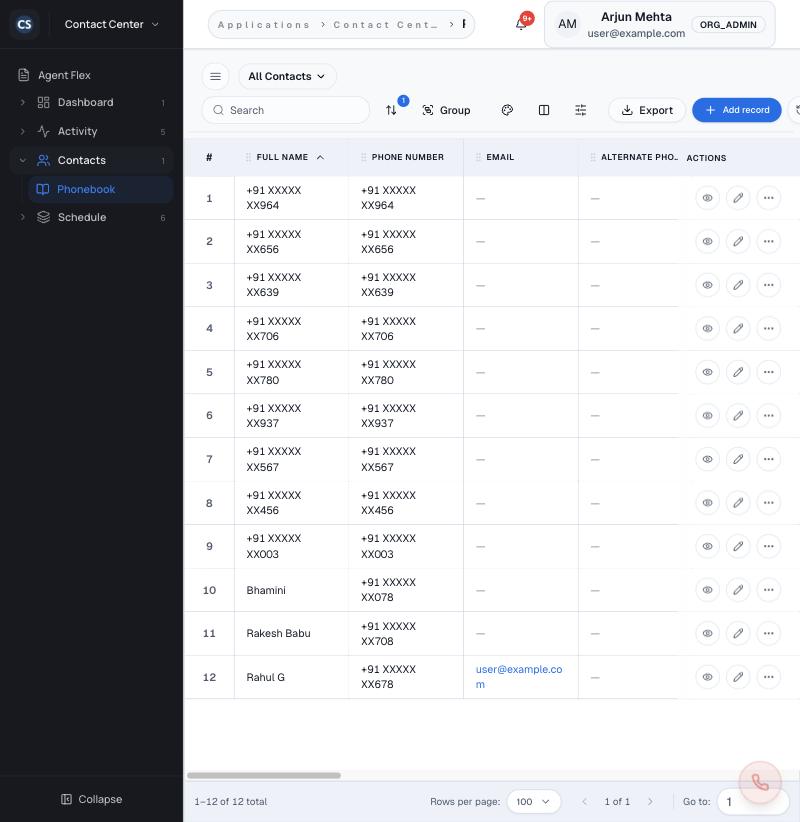
Your customer contacts: name, phone, email, alternate and WhatsApp numbers, address, language, source, owner, consent status and a Do Not Contact flag. Callers who aren't in the phonebook are added automatically with their number as the name; edit the record to add their details.

Phonebook
Phonebook
Set Do Not Contact to keep a number out of campaigns.

Telephony

Set up and run voice: queues, audio, voicemail and call intelligence, then review calls in Telephony Analytics and Call Logs. Numbers are bought in Admin Center › Virtual Numbers and call routing is built in Studios › Call Flow.

Call queues

Channels › Telephony › QueuesAdmin

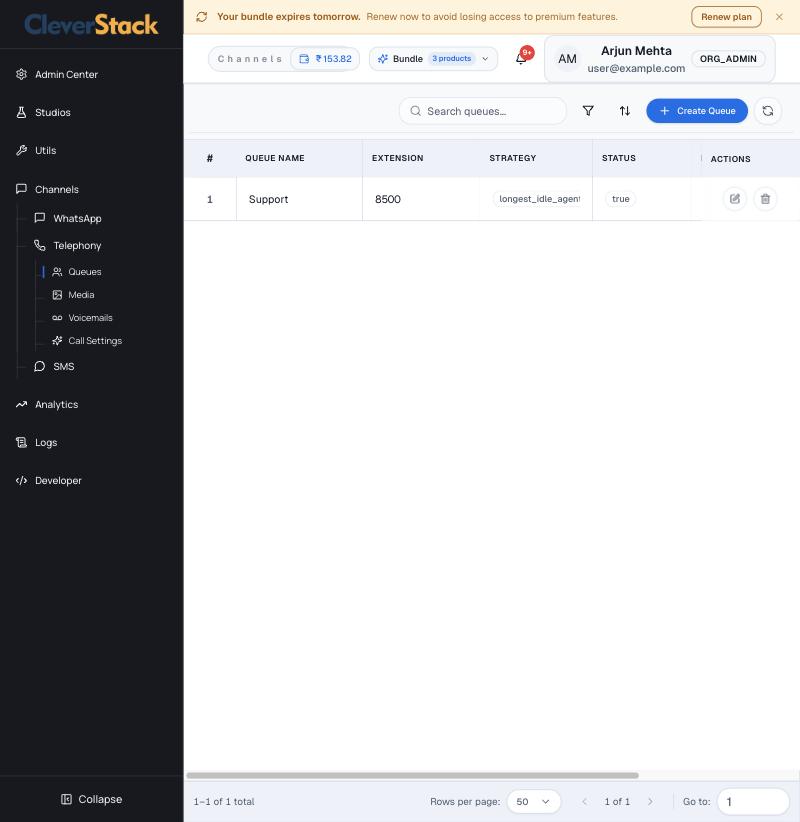
A queue holds callers until an agent is free. Call flows send callers to a queue with a Call Transfer step.

Queues
Queues
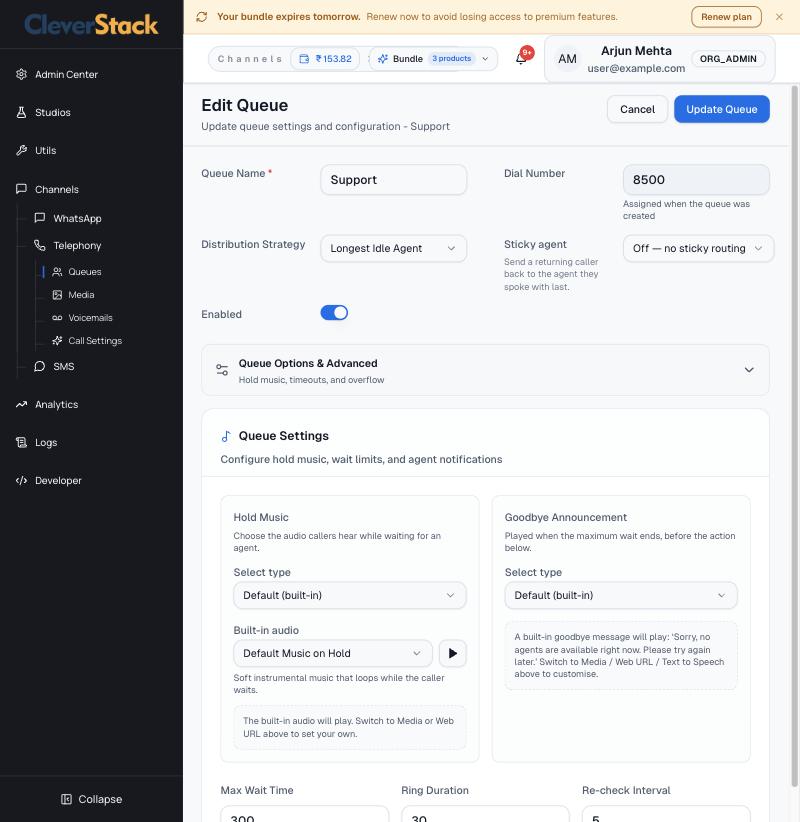
Queue settings
Queue settings
Queue agents
Queue agents
On this screen
Basics
Name, dial number (assigned automatically), distribution strategy (for example Longest Idle Agent), sticky agent (send a returning caller back to the agent they spoke to last) and Enabled.
Hold music and goodbye
Built-in audio, your own media, a web URL or text to speech.
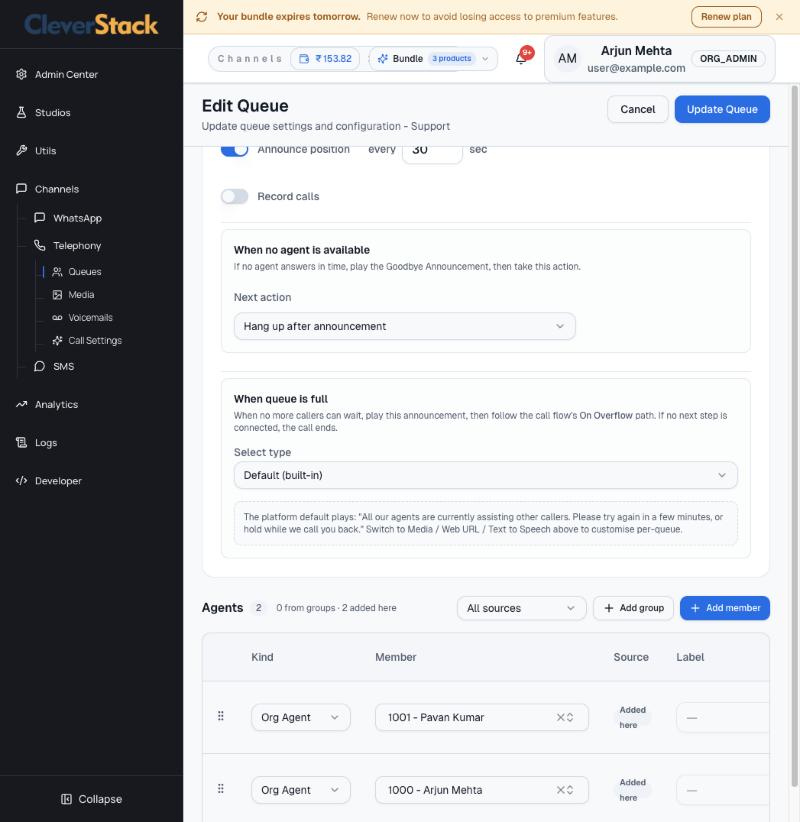
Limits
Maximum wait (seconds), ring time per agent, re-check interval, how many callers may wait (1 to 500), wrap-up time, position announcements and call recording.
When no agent answers / when the queue is full
Play an announcement and then hang up, or continue down the call flow's overflow path.
Agents
Add individual agents or whole groups, set priority tiers, press-to-accept and availability rules. Drag rows to reorder.
How to
  1. Click Create Queue, name it and choose a strategy.
  2. Add agents or a group.
  3. Click Update Queue to save.
  4. Point a call flow's Call Transfer step at the queue.

Telephony media

Channels › Telephony › MediaAdmin

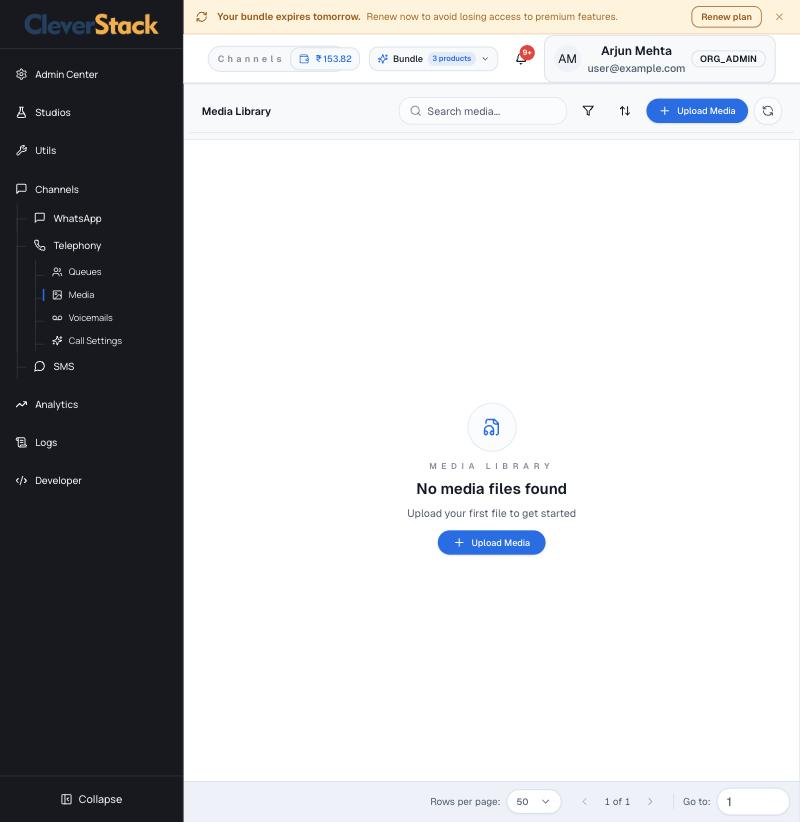
Audio files for greetings, menus, announcements and hold music. Upload Media adds a file you can then pick in call flows and queues.

Media Library
Media Library

Voicemails

Channels › Telephony › VoicemailsAdmin, Agent

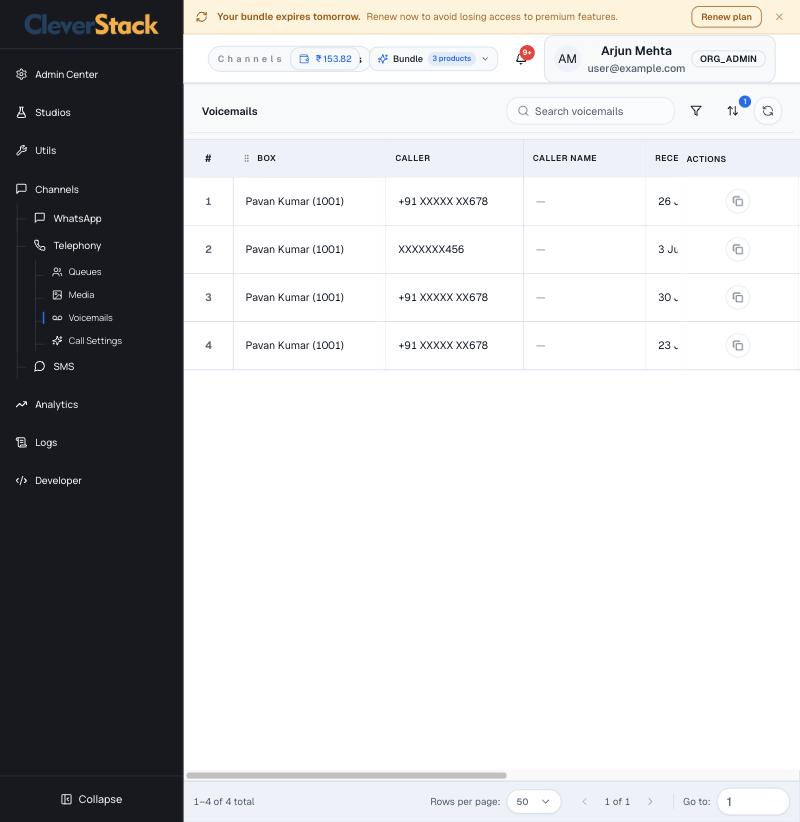
Messages left in voicemail boxes: box owner, caller, time, length, status (New) and an inline player.

Voicemails
Voicemails

Call settings

Channels › Telephony › Call SettingsAdmin

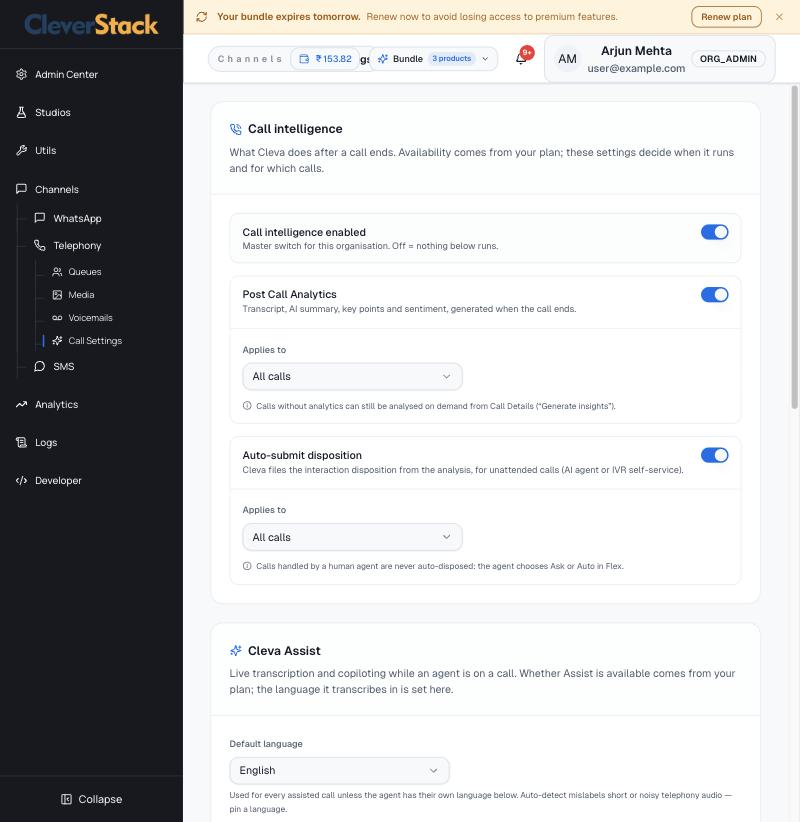
What Cleva does during and after calls. Your plan decides what is available; these switches decide when it runs.

Call intelligence and Cleva Assist
On this screen
Call intelligence
The master switch. Off means nothing below runs.
Post Call Analytics
Transcript, AI summary, key points and sentiment when a call ends, for all calls or selected numbers, flows and agents. Calls without it can still be analysed later from Call Details.
Auto-submit disposition
Cleva records the outcome for calls nobody handled (AI agent or IVR). Calls handled by a person are never auto-disposed.
Cleva Assist
Live transcription and suggestions during calls. Set the default language and per-agent overrides.
Call sounds
What agents hear on their own device. This does not change what customers hear.

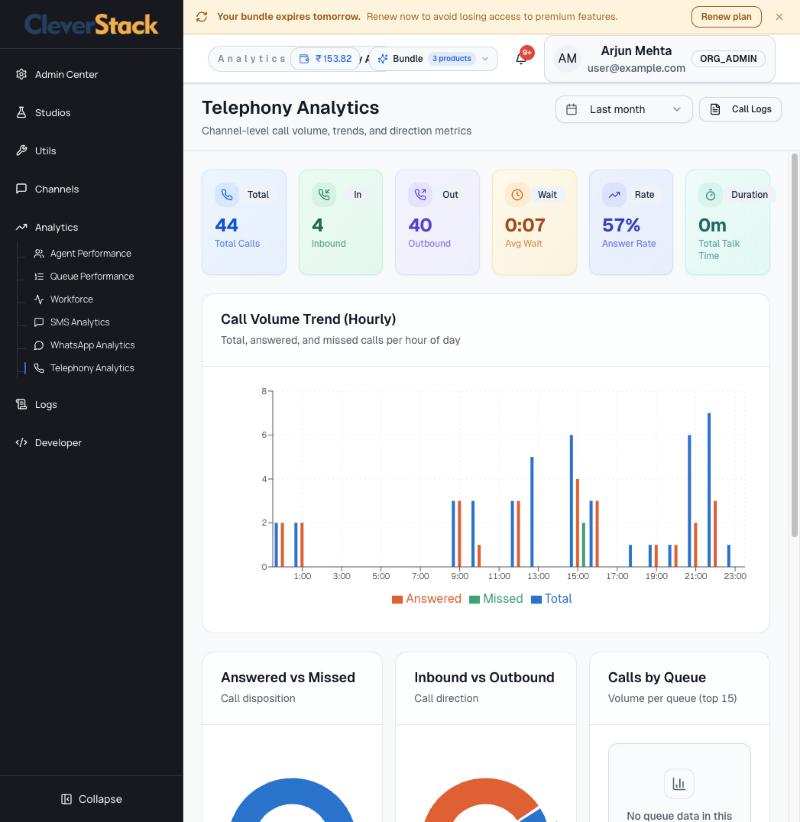
Telephony analytics

Analytics › Telephony AnalyticsSupervisor, Admin

Call volume and trends for any period (today to last year, or a custom range).

Volume and trend
Volume and trend
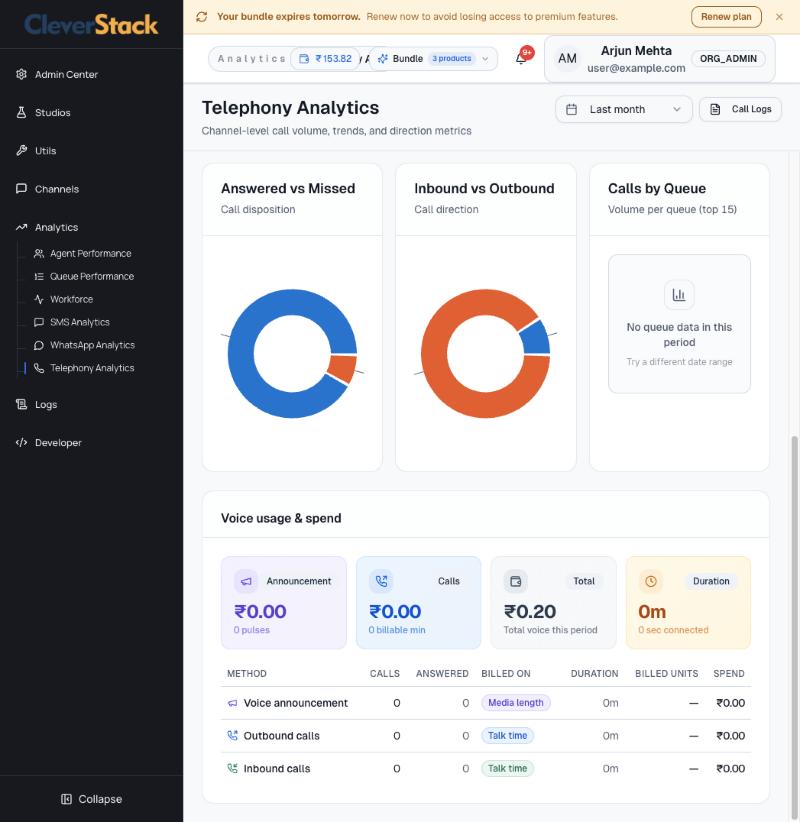
Direction, queues and voice spend
On this screen
Summary
Total, inbound and outbound calls, average wait, answer rate and total talk time.
Charts
Hourly volume (answered, missed, total), answered vs missed, inbound vs outbound, and calls by queue.
Voice usage & spend
Announcement pulses, billable call minutes and spend by method. Announcements are billed on media length; calls on talk time.
Call Logs at the top opens the matching call records.

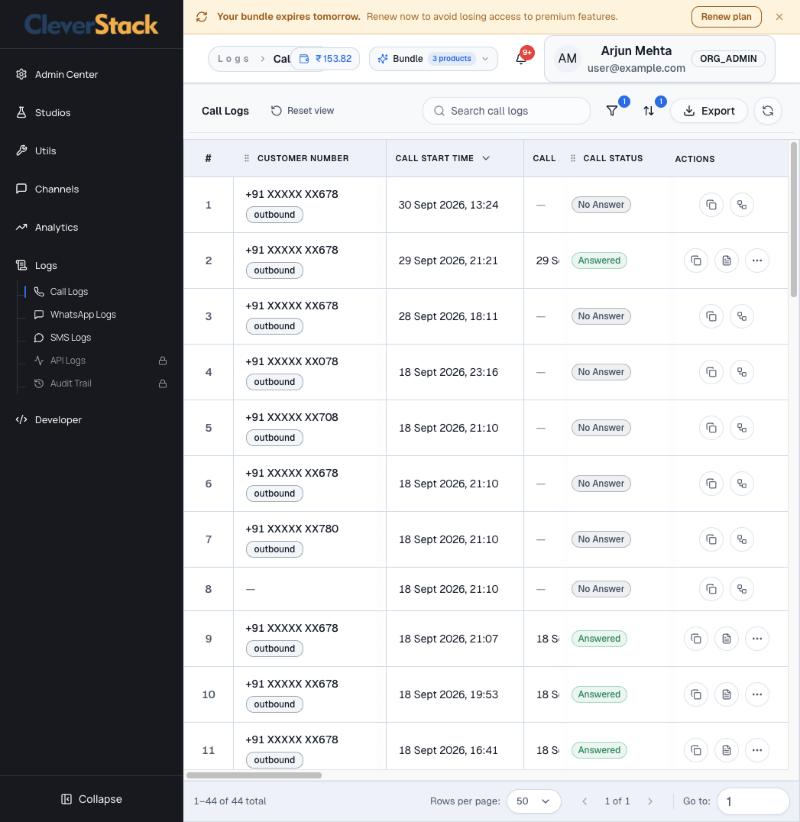
Call logs

Logs › Call LogsSupervisor, Admin

Every call with full timing and outcome.

Call Logs
Call Logs
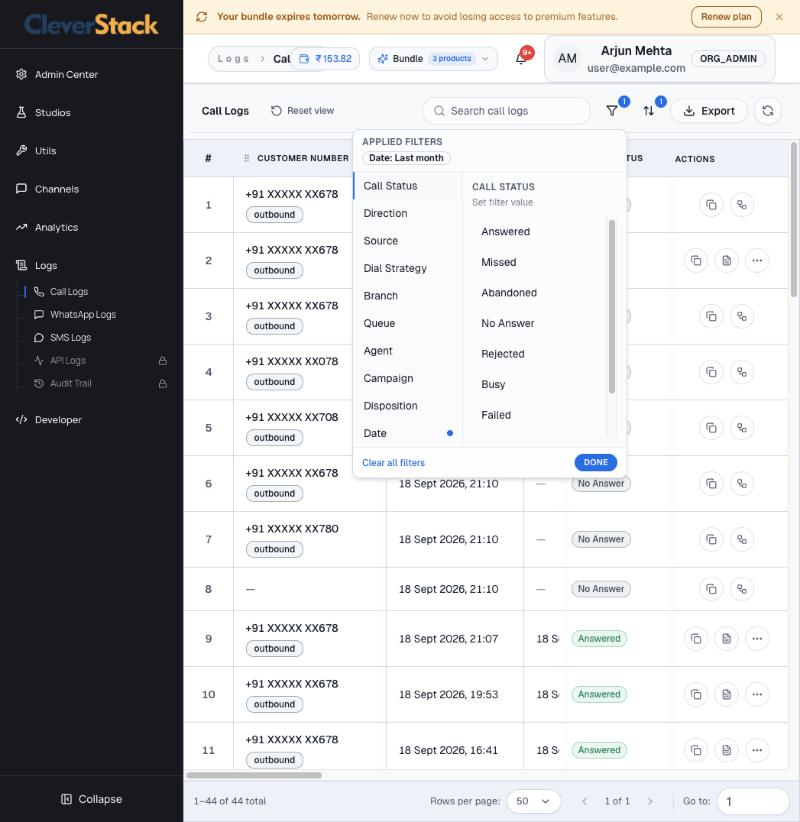
Filters
Filters
Call Details
Call Details
On this screen
Columns
Customer number and direction, start, answer and end times, the number used, source (Manual, Click to Call, Campaign, Inbound), dial strategy, agents, answered, total, ring and billable durations, disposition, who disposed it and when, recording and status.
Filters
Call status (Answered, Missed, Abandoned, No Answer, Rejected, Busy, Failed), direction, source, dial strategy, branch, queue, agent, campaign, disposition and date. Click Done to apply; Reset view goes back to the default.
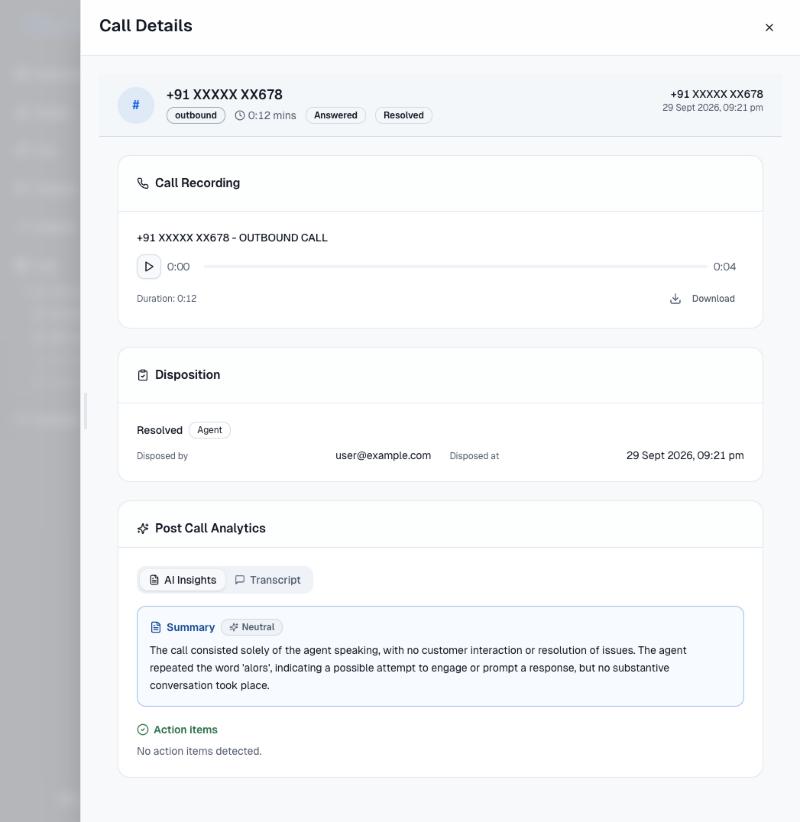
Call Details
Open with the document icon: recording with download, disposition, and Post Call Analytics with AI insights (summary, sentiment, action items) and the transcript.
Export creates a file you collect from Developer › Data Export.

WhatsApp

Connect a WhatsApp Business account, manage numbers, media and templates, then track delivery and conversations.

Accounts

Channels › WhatsApp › AccountsAdmin

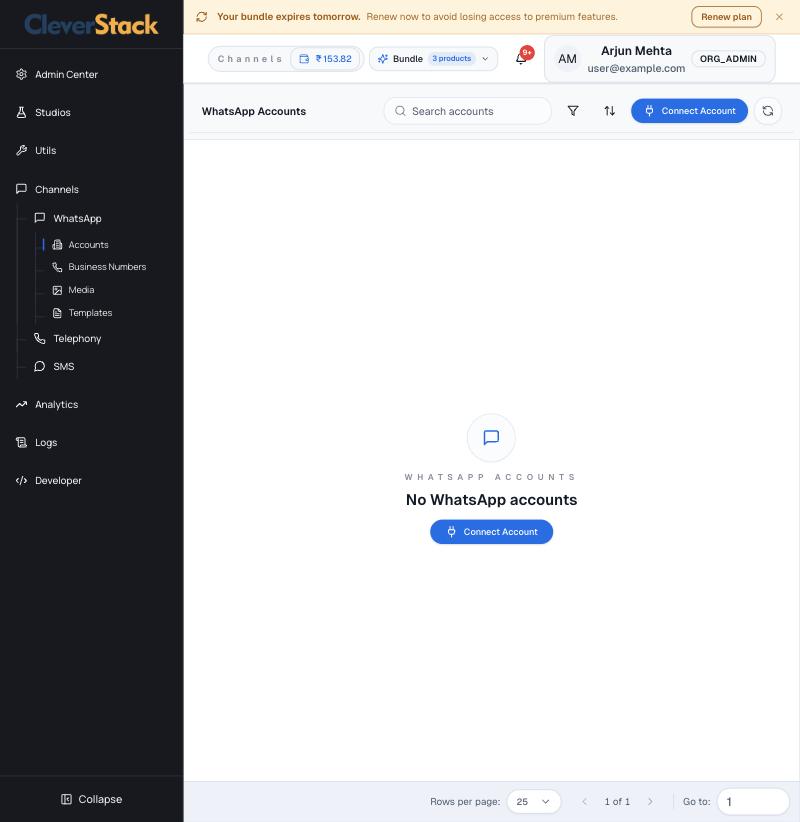
Connect your WhatsApp Business account. Connect Account starts Meta's sign-up, which links your business and phone number to CleverStack.

WhatsApp Accounts
WhatsApp Accounts

Business numbers

Channels › WhatsApp › Business NumbersAdmin

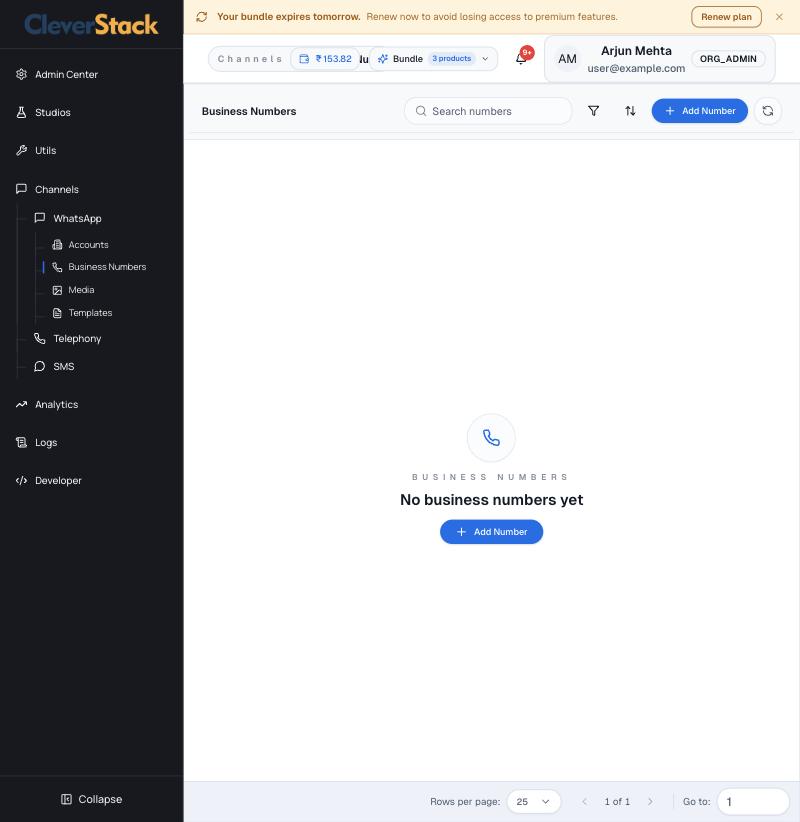
The WhatsApp numbers registered under your account. Add Number registers another number. Chatbots in Studios › Chat Flow are attached to these numbers.

Business Numbers
Business Numbers

Media

Channels › WhatsApp › MediaAdmin

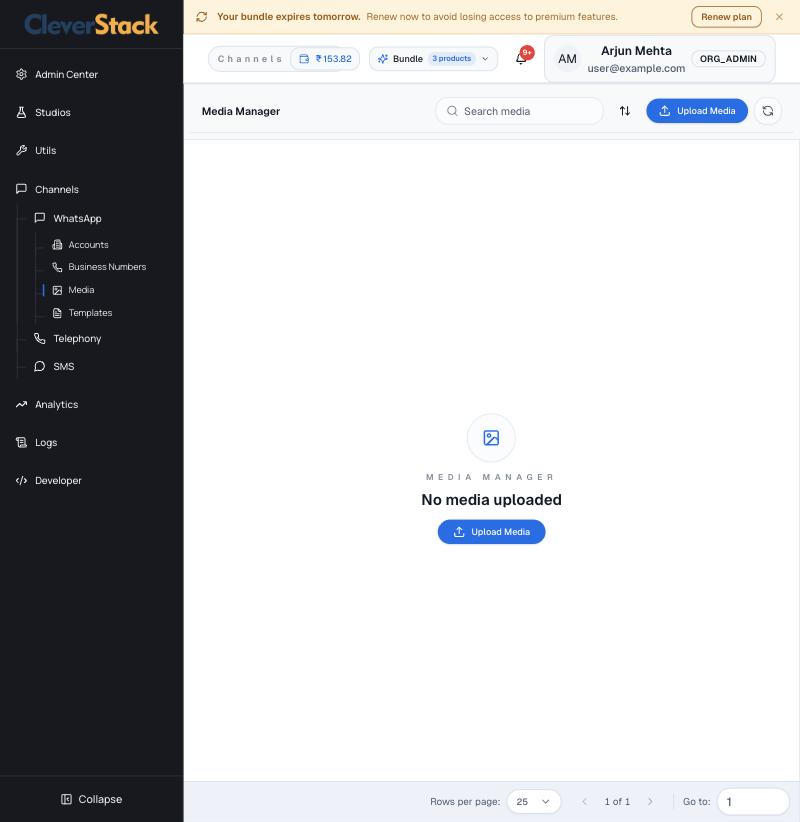
Images, videos and documents used in WhatsApp templates and messages. Upload Media adds a file you can then attach to a template header.

Media Manager
Media Manager

WhatsApp templates

Channels › WhatsApp › TemplatesAdmin

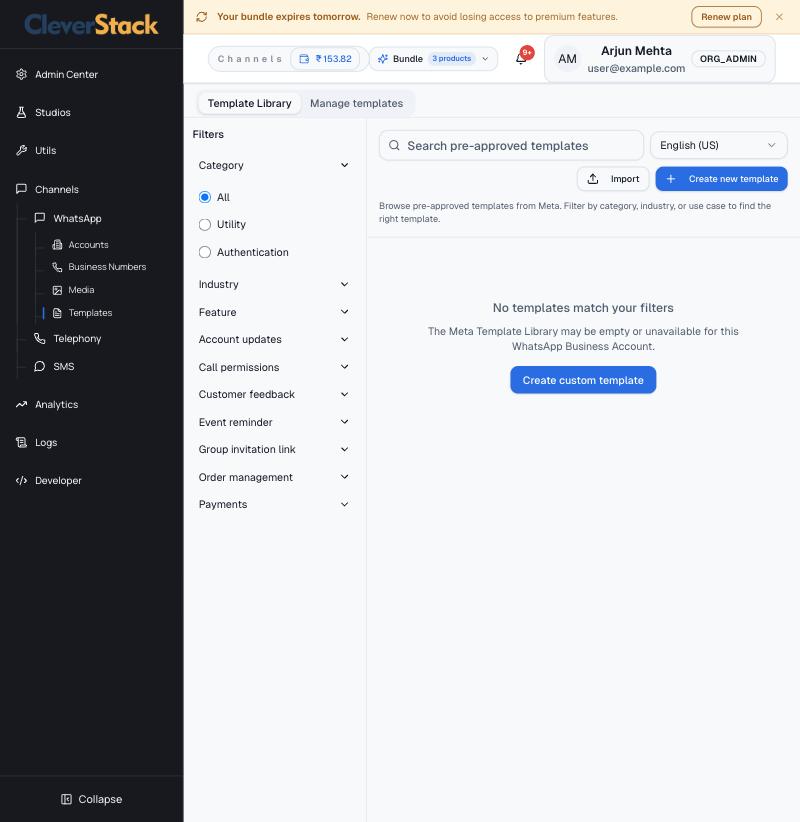
WhatsApp needs a Meta-approved template to message a customer outside the 24-hour reply window.

Template Library
Template Library
On this screen
Template Library
Pre-approved Meta templates filtered by category (Utility, Authentication), industry and use case, with a language picker.
Manage templates
Your own templates and their approval status.
How to
  1. Click Create new template (or Import).
  2. Choose the category and language and write the message with variables.
  3. Submit for Meta approval. Use it once it shows Approved.

WhatsApp analytics

Analytics › WhatsApp AnalyticsAdmin

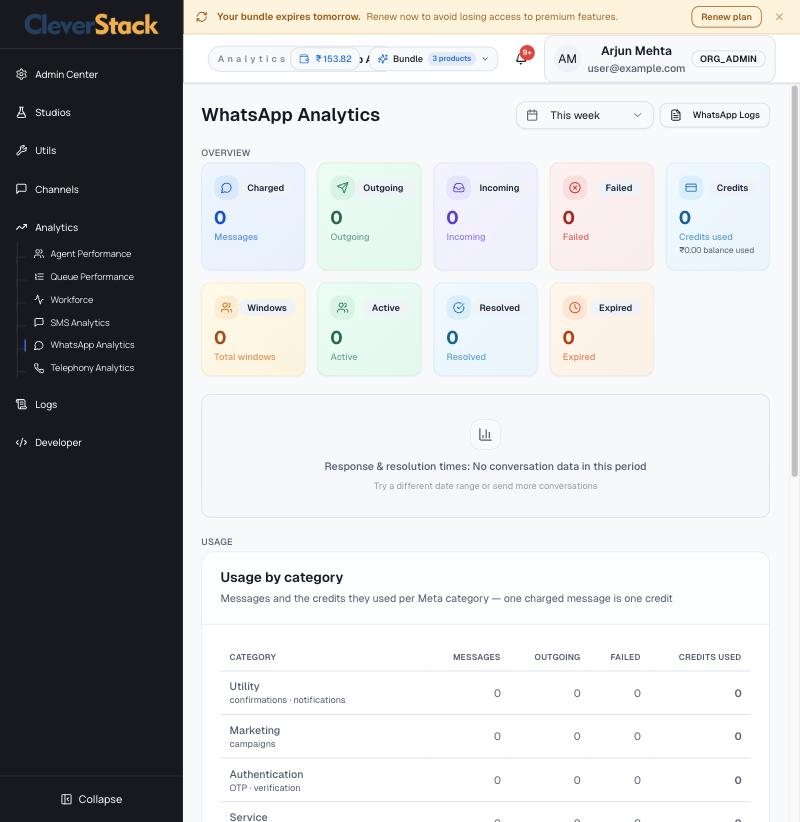
Messages charged, outgoing, incoming and failed; conversation windows (active, resolved, expired); response and resolution times; and usage by Meta category. Service replies inside the 24-hour window are free.

WhatsApp Analytics
WhatsApp Analytics

WhatsApp logs

Logs › WhatsApp LogsAdmin

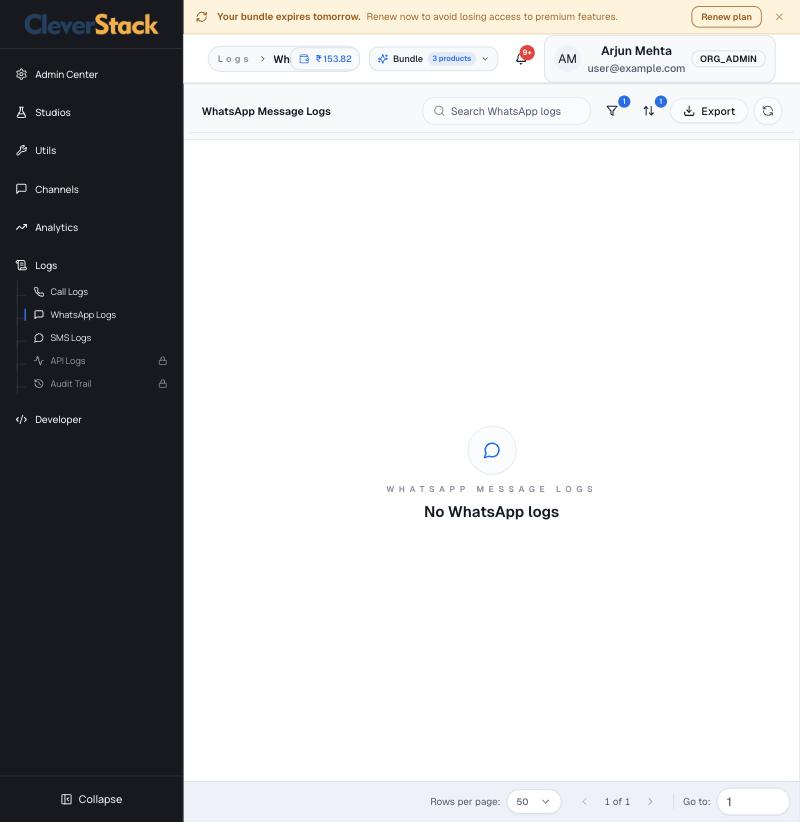
Every WhatsApp message sent or received with its delivery status. It opens filtered to today; change the Date filter to see more. Search, filter and Export work the same as in Call Logs.

WhatsApp Message Logs

SMS

Register for DLT, add your sender IDs and templates, then track delivery and spend. Set these up in the order shown.

DLT entity

Channels › SMS › DLT EntitiesAdmin

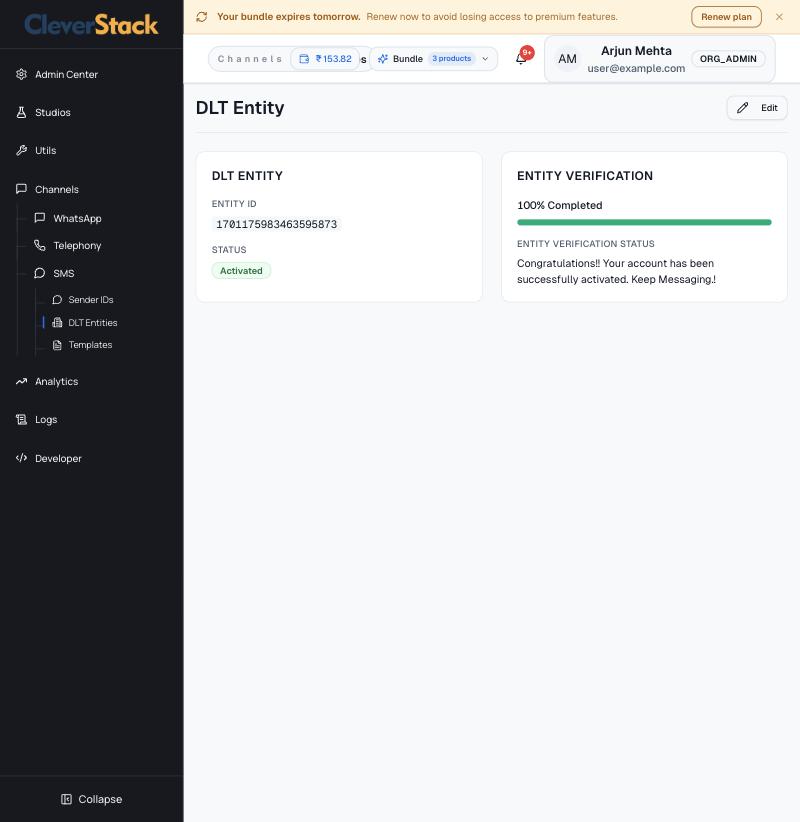
TRAI rules require every business SMS in India to be registered on the DLT platform. Start here: enter the 19-digit entity ID you received from your DLT portal. The verification card shows when the entity is active.

DLT Entity
DLT Entity
How to
  1. Register on a DLT portal and get your entity ID.
  2. Open DLT Entities, click Edit and enter the ID.

Sender IDs

Channels › SMS › Sender IDsAdmin

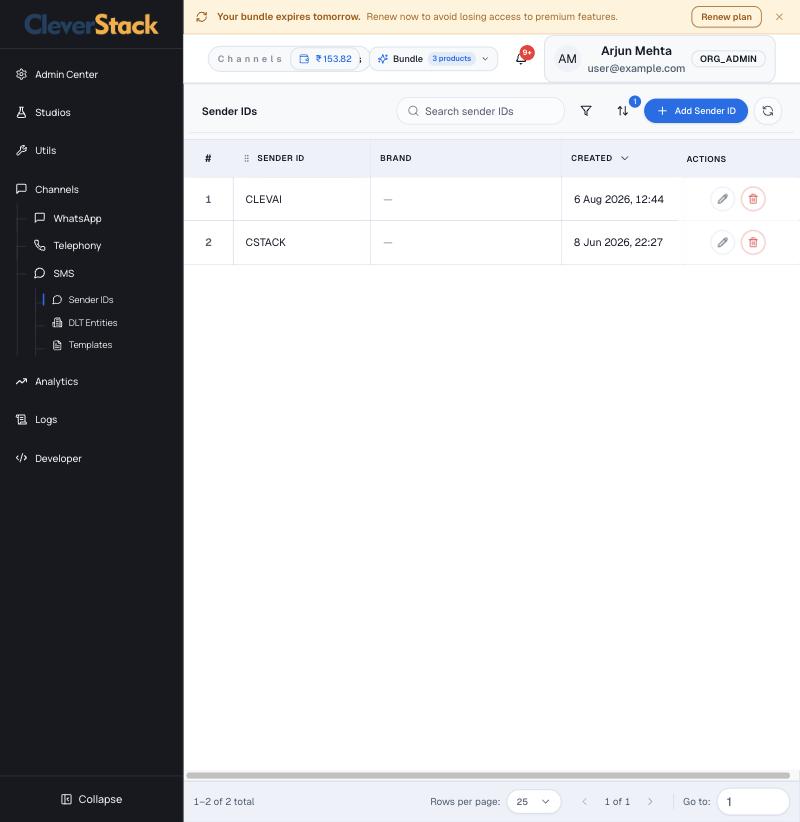
Your six-character headers (for example CSTACK) that appear as the sender on the customer's phone. Add each header approved on your DLT portal with Add Sender ID.

Sender IDs
Sender IDs

DLT templates

Channels › SMS › TemplatesAdmin

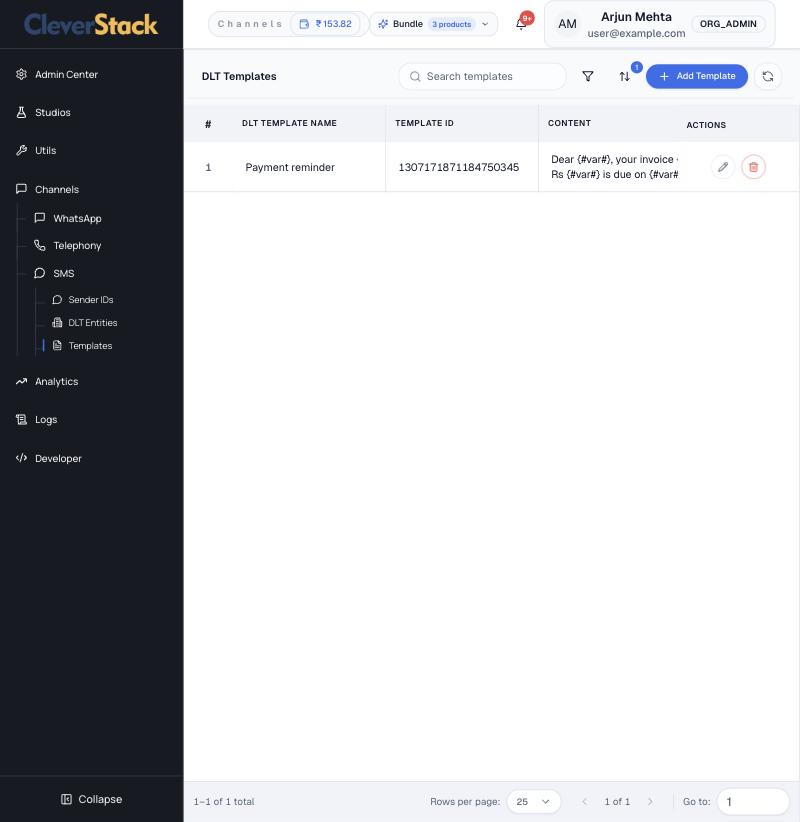
Every message you send must match a template approved on DLT.

DLT Templates
DLT Templates
On this screen
Columns
Template name, 19-digit template ID, content with variables, route (service implicit, service explicit, promotional or transactional) and created date.
How to
  1. Click Add Template.
  2. Enter the name, the template ID from DLT and the exact approved text.
  3. Pick the route and save. The template is now available in campaigns, call flows and the API.
The text you send must match the registered template exactly, apart from the variables, or operators will block it.

SMS analytics

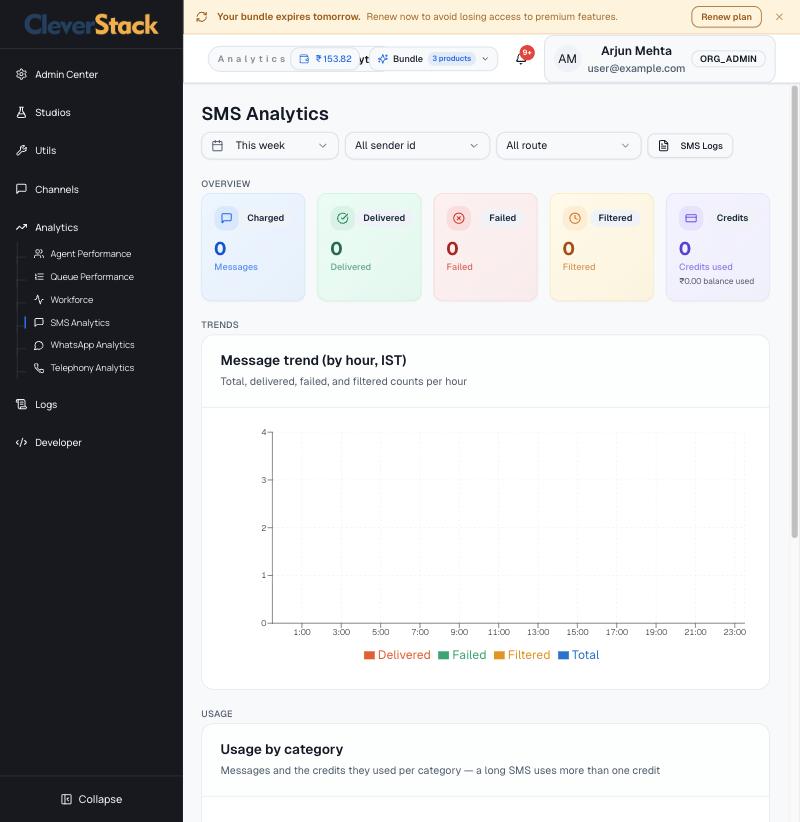
Analytics › SMS AnalyticsAdmin

Messages charged, delivered, failed and filtered, credits used, an hourly trend, usage by category (service and transactional vs promotional) and breakdowns by route, template and campaign vs API. Filter by sender ID and route.

SMS Analytics
SMS Analytics

SMS logs

Logs › SMS LogsAdmin

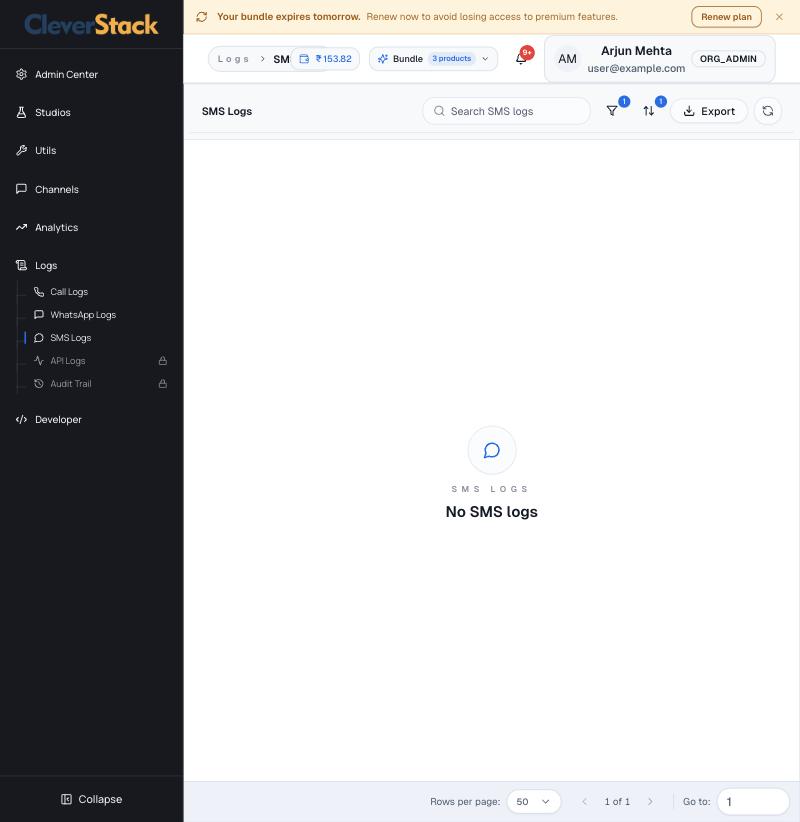
Every SMS sent with sender ID, template, route and delivery status. It opens filtered to today; change the Date filter to see more. API Logs and Audit Trail appear in the Logs menu on plans that include them.

SMS Logs
SMS Logs

Team analytics

Live supervision and agent and queue reports. Channel reports sit in the Telephony, WhatsApp and SMS chapters.

Workforce (live)

Analytics › WorkforceSupervisor

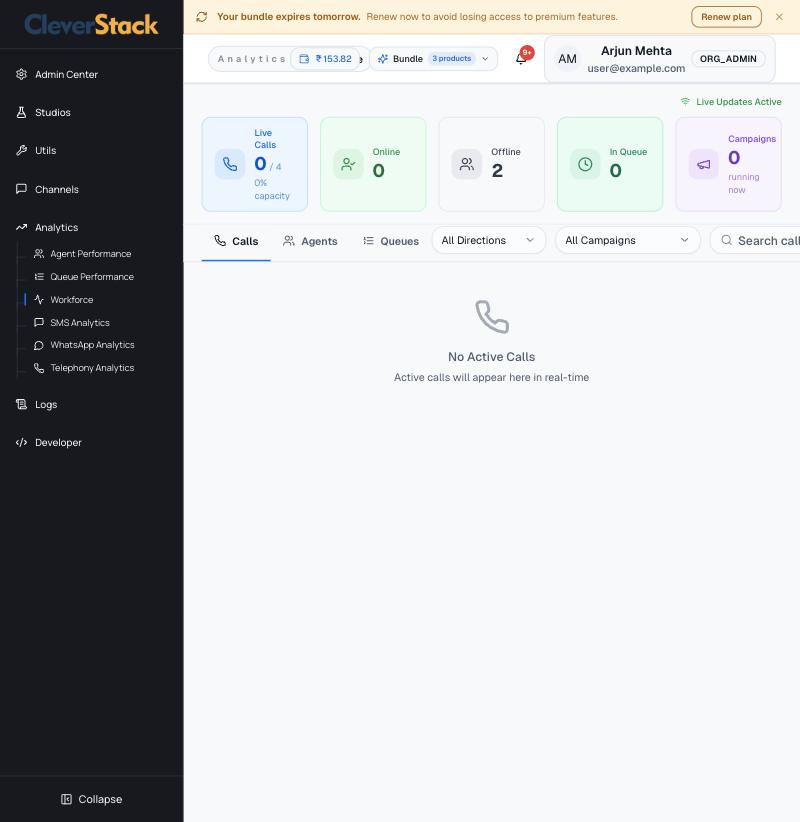
Real-time supervision. Cards show live calls against your channel capacity, agents online and offline, callers waiting and campaigns running. Tabs list live calls, agents and queues; filter by direction or campaign.

Workforce live view
Workforce live view
Agents who break the SLA limits set in Admin Center › Breaks are highlighted here.

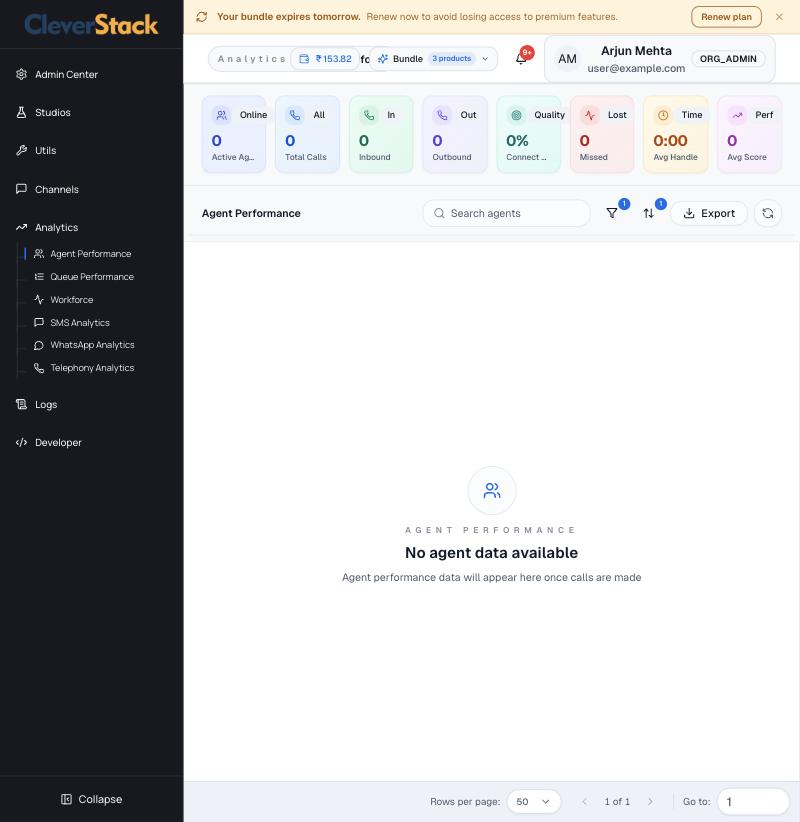
Agent performance

Analytics › Agent PerformanceSupervisor

Per-agent results: active agents, total, inbound and outbound calls, connect rate, missed calls, average handle time and average score. Search, filter and export.

Agent Performance
Agent Performance

Queue performance

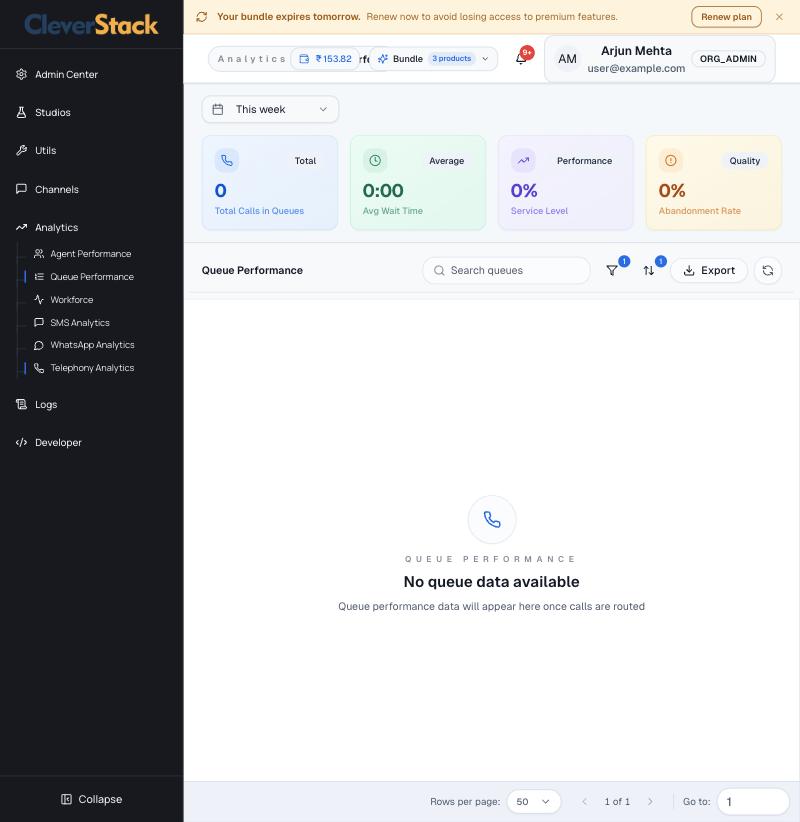
Analytics › Queue PerformanceSupervisor

Calls in queues, average wait, service level and abandonment rate, with a row per queue.

Queue Performance
Queue Performance

Developer

Connect CleverStack to your own systems.

API keys

Developer › API SettingsAdmin, Developer

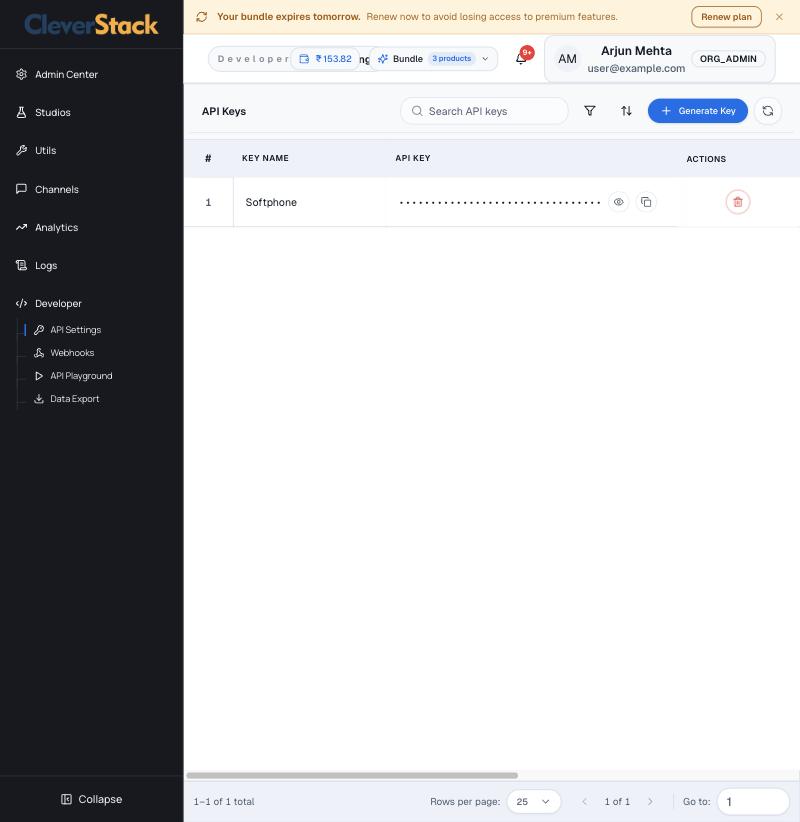
Keys for calling the CleverStack API. Each key belongs to a branch. Generate Key creates one; reveal and copy it with the icons; delete it to revoke access.

API Keys
API Keys

Webhooks

Developer › WebhooksDeveloper

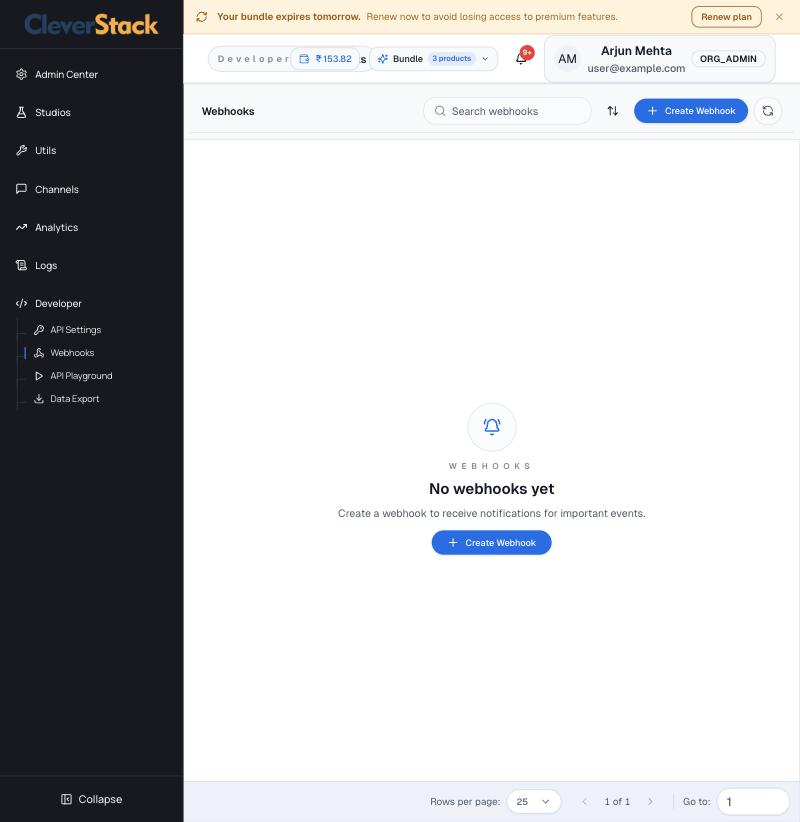
Have CleverStack send events (for example call ended or message delivered) to your server. Click Create Webhook and enter the URL that should receive them.

Webhooks
Webhooks

API Playground

Developer › API PlaygroundDeveloper

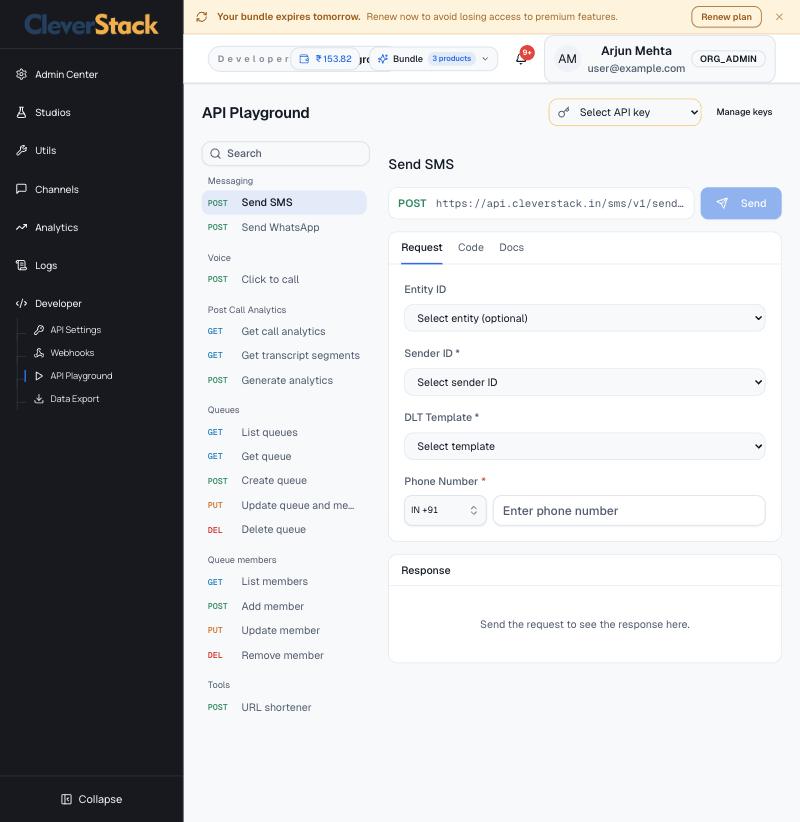
Try API calls from the browser before you write code.

API Playground
API Playground
On this screen
Endpoints
Messaging (Send SMS, Send WhatsApp), Voice (Click to call), Post Call Analytics, Queues, Queue members and the URL shortener.
Request / Code / Docs
Fill the form, copy a ready-made code sample, or read the reference.
How to
  1. Choose an API key at the top.
  2. Pick an endpoint on the left.
  3. Fill the request form.
  4. Click Send and read the response below.
Requests in the Playground are real: a Send SMS here sends an SMS and is charged.

Data export

Developer › Data ExportAdmin

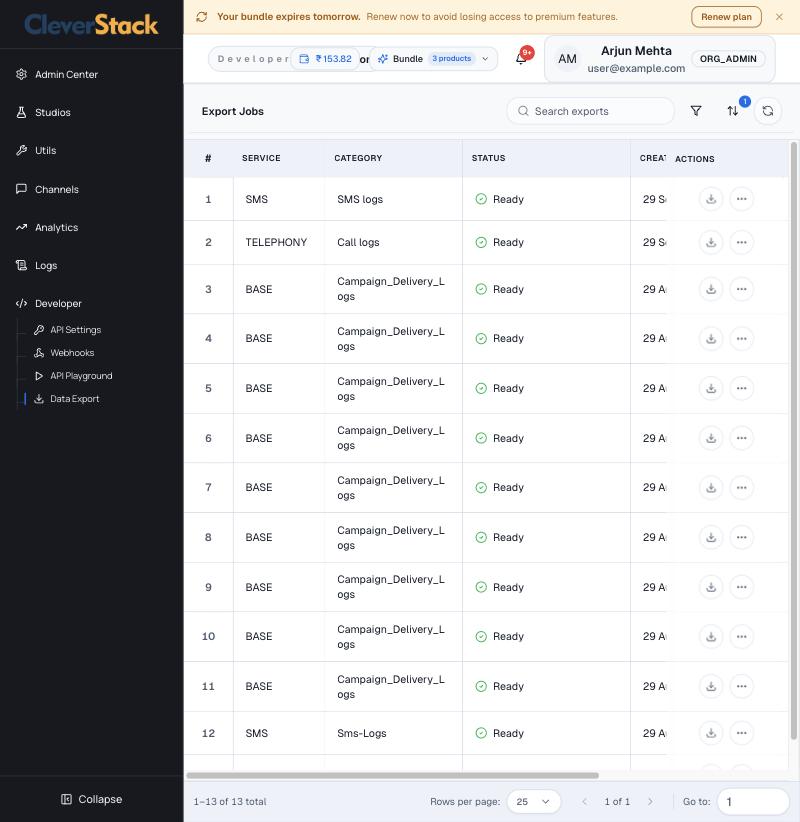
Files you exported from logs and lists. Each job shows the service, category, status, created date and how long it stays available. Click the download icon when the status is Ready.

Export Jobs
Export Jobs

Glossary

Agent licence
The seat that lets a user handle calls in the agent workspace.
Call flow
The steps a call follows on one of your numbers: greetings, menus, transfers, voicemail.
Caller ID (CLI)
The number a customer sees when you call them.
DID / virtual number
A phone number your organisation owns on CleverStack.
Disposition
The recorded outcome of a conversation, such as Resolved or Escalated.
DLT
TRAI's registration system for business SMS. Entities, headers and templates must be registered.
Flex
The agent workspace for calls and chats.
Post Call Analytics
Cleva's transcript, summary and sentiment for a finished call.
Queue
Where callers wait until an agent is free.
Wallet
Your prepaid balance used for usage beyond the plan.
Wrap-up
Time after a call for the agent to record the outcome and notes.